
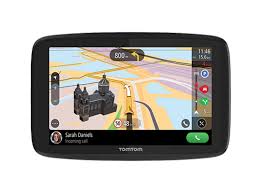
How to Update Your Tomtom Device: A Step-by-step Guide
As technology advances, the need to update your devices becomes more frequent. If you’re a TomTom user, you might be wondering how to keep your device up-to-date with the latest maps and features. In this article, we’ll walk you through the process of updating your TomTom device.
Why Update Your Tomtom Device?
Updating your TomTom device is essential to ensure that it continues to work smoothly and efficiently. With a newer version, you can expect improved navigation, better map accuracy, and enhanced user experience. Additionally, updating your TomTom device will also ensure that any bugs or issues are resolved, making it a more reliable companion for your driving needs.
System Requirements
Before we dive into the update process, make sure you have the following system requirements:
- A computer with an internet connection
- The official TomTom software (TomTom Home)
- Your TomTom device connected to the computer
Step 1: Download And Install Tomtom Home
To update your TomTom device, you’ll need to download and install the official TomTom software, known as TomTom Home. Follow these steps:
- Go to the TomTom website (www.Tomtom.Com) and click on the “Download” button.
- Choose the correct version of TomTom Home for your operating system (Windows or Mac).
- Click on the download link and wait for the software to download.
- Once downloaded, run the installation file and follow the prompts to install TomTom Home.
Step 2: Backup Your Tomtom Device
Before updating your device, it’s essential to backup your data. This will ensure that any important information is preserved during the update process. Follow these steps:
- Launch TomTom Home on your computer.
- Click on the “Backup” button and select the type of backup you want to create (e.G., Full backup or incremental backup).
- Wait for the backup process to complete.
Step 3: Update Your Tomtom Device
Now that you’ve downloaded and installed TomTom Home, and backed up your device, it’s time to update your TomTom device. Follow these steps:
- Launch TomTom Home on your computer.
- Click on the “Update” button and select the option to search for updates.
- Wait for TomTom Home to check for any available updates.
- If an update is available, click on the “Download” button to begin the update process.
Step 4: Confirm The Update
Once the update process has completed, confirm that your device has been updated successfully. Follow these steps:
- Launch your TomTom device and navigate to the settings menu.
- Check for any new updates or changes.
- If everything looks good, you’re ready to go!
Additional Tips And Reminders
Here are some additional tips and reminders to keep in mind when updating your TomTom device:
- Make sure your computer is connected to a stable internet connection during the update process.
- Avoid disconnecting your TomTom device from the computer until the update has completed.
- If you encounter any issues during the update process, refer to the TomTom support website for troubleshooting tips.
Frequently Asked Questions (FAQs)
Here are some frequently asked questions and answers related to updating your TomTom device:
Q: What is The Difference Between Tomtom Home And Mydrive Connect?
A: TomTom Home is the official software used to update TomTom devices, while MyDrive Connect is an alternative software that can be used for specific device models.
Q: Why do I Need to Backup my Data Before Updating my Tomtom Device?
A: Backing up your data ensures that any important information is preserved during the update process. This will prevent any loss of data or settings.
Q: Can I Still Use my Tomtom Device While It’s Being Updated?
A: No, it’s essential to disconnect your TomTom device from the computer until the update has completed to avoid any potential issues.
Q: Will Updating my Tomtom Device Affect my Existing Maps And Routes?
A: Updating your TomTom device will not affect your existing maps or routes. However, you may need to re-save your favorite destinations or routes after the update.
Q: Can I Update my Tomtom Device Manually?
A: Yes, if you encounter any issues during the automatic update process, you can attempt to update your device manually using the TomTom Home software.
Conclusion
Updating your TomTom device is a straightforward process that ensures your device remains up-to-date with the latest features and improvements. By following these steps and tips, you’ll be able to keep your TomTom device running smoothly and efficiently. Remember to always backup your data before updating your device, and don’t hesitate to refer to the TomTom support website if you encounter any issues during the update process. Happy driving!


