
How to Format a Usb Pen Drive: A Step-by-step Guide
Are you tired of using an outdated USB pen drive? Do you want to upgrade to a newer version, but don’t know how to format it properly? Look no further! In this article, we’ll show you how to format your USB pen drive on Windows and Mac.
Why Format Your Usb Pen Drive?
Formatting your USB pen drive is an essential step in preparing it for use. It erases all the data on the device, making it a blank slate for new files and programs. This is especially useful if you’ve been using your pen drive to transfer files between computers or devices.
Why Choose Fat32, Exfat, Ntfs, Apfs, or Hfs+?
When formatting your USB pen drive, you’ll need to choose the right file system (also known as a “rows” system). The most common options are:
- Fat32: This is an older file system that’s compatible with all operating systems (Windows, macOS, Linux), devices, and smart TVs.
- Exfat: An evolution of FAT32, ExFAT allows for larger files and less fragmentation, making it ideal for use on various devices and operating systems.
- Ntfs: This is the default file system for Windows, offering better performance and security than FAT32 and ExFAT.
- Apfs/Hfs+: These are macOS-specific file systems that offer improved safety and compression.
Formatting Your Usb Pen Drive on Windows
To format your USB pen drive on a Windows computer:
- Insert the pen drive into the computer’s USB port.
- Open File Explorer (the icon with the yellow folder) in the lower left corner of the screen.
- Click on “This PC” (also known as “My Computer”) from the side menu.
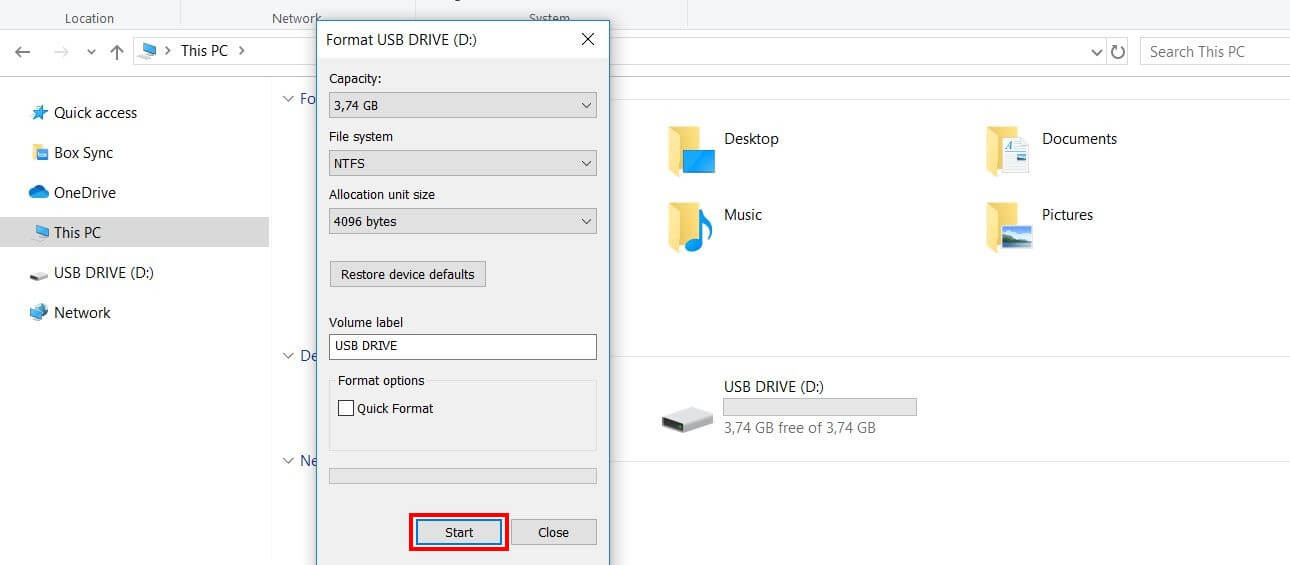
- Right-click on the pen drive icon and select “Format.”
- In the Format window, choose the desired file system (FAT32, ExFAT, NTFS) and click “OK.”
Formatting Your Usb Pen Drive on Mac
To format your USB pen drive on a Mac:
- Insert the pen drive into the computer’s USB port.
- Open Disk Utility (the icon with the gear).
- Select the pen drive from the list of disks in the left-hand menu.
- Click “Erase” and choose the desired file system (APFS, HFS+).
- Confirm your selection by clicking “Erase.”
Formatting Your Usb Pen Drive Protected From Writing
If you’re having trouble formatting your USB pen drive because it’s protected from writing:
- On Windows, open the Registry Editor (the icon with the key) and navigate to the location
HKEY_LOCAL_MACHINE\SYSTEM\CurrentControlSet\Control\StorageDevicePolicies. - Double-click on the “WriteProtect” value and change its setting to 0.
- Restart your computer and try formatting the pen drive again.
Which File System Should You Choose?
When choosing a file system, consider the following factors:
- Compatibility: If you need to share files between different operating systems (Windows, macOS, Linux), choose FAT32 or ExFAT.
- Security: If you’re using your USB pen drive for sensitive data, choose NTFS or APFS/HFS+.
Conclusion
Formatting your USB pen drive is a simple process that ensures it’s ready for use with the latest file system. By following this guide, you’ll be able to choose the right file system and format your pen drive on Windows or Mac.
Frequently Asked Questions (FAQs)
- Q: What Happens When I Format my Usb Pen Drive?
A: Formatting erases all data on the device. - Q: Which File System Should I Use For Sharing Files Between Different Operating Systems?
A: Choose FAT32 or ExFAT. - Q: How do I Know Which File System to Choose?
A: Consider compatibility, security, and the type of files you’ll be storing. - Q: Can I Format my Usb Pen Drive if It’s Protected From Writing?
A: Yes, follow the steps outlined in this article. - Q: What Happens if I Lose Data When Formatting my Usb Pen Drive?
A: Be sure to back up your data before formatting. - Q: How Often Should I Format my Usb Pen Drive?
A: Format your pen drive whenever you want to erase all data and start fresh. - Q: Can I Use my Usb Pen Drive on Different Devices With Different Operating Systems?
A: Yes, if you choose the right file system (FAT32 or ExFAT). - Q: What’s The Difference Between Apfs/hfs+ And Ntfs?
A: APFS/HFS+ are macOS-specific file systems offering improved safety and compression.
We hope this guide has helped you understand how to format your USB pen drive on Windows and Mac! If you have any further questions, please don’t hesitate to ask.


