
How to Create a Server on Discord: A Step-by-step Guide
Are you looking to create a server on Discord, but don’t know where to start? Look no further! In this article, we will guide you through the process of creating a server on Discord using your smartphone or tablet, as well as using your computer.
Why Create a Server on Discord?
Creating a server on Discord is a great way to communicate with your friends and community members. You can create channels for different topics, invite friends and family, and even customize the settings to fit your needs. Whether you’re a gamer, a community builder, or just someone who wants to connect with others, creating a server on Discord is an easy and fun process.
Pre-registration Requirements
Before you can create a server on Discord, you need to register for the service. You can do this using your smartphone or tablet by downloading the official app from the App Store or Google Play. Alternatively, you can use the website version of Discord on your computer.
To register on Discord using your smartphone or tablet:
- Download and install the Discord app from the App Store or Google Play.
- Open the app and tap on “Create a new account.”
- Enter your desired username, email address, and password.
- Tap on “Create” to complete the registration process.
To register on Discord using your computer:
- Go to the official Discord website.
- Click on “Sign up” in the top right corner of the page.
- Fill out the registration form with your desired username, email address, and password.
- Click on “Create account” to complete the registration process.
Creating a Server on Discord
Once you have registered for Discord, creating a server is a straightforward process.
Creating a Server on Smartphone or Tablet
- Open the Discord app on your smartphone or tablet.
- Tap on the “+” icon in the top right corner of the screen.
- Select “Create a server” from the menu.
- Enter the name and description of your server.
- Add a photo to customize your server’s appearance (optional).
- Tap on “Create” to create your new server.
Creating a Server on Computer
- Open the Discord website or install the desktop app.
- Click on the “+” icon in the top right corner of the screen.
- Select “Create a server” from the menu.
- Enter the name and description of your server.
- Add a photo to customize your server’s appearance (optional).
- Click on “Create” to create your new server.
Customizing Your Server
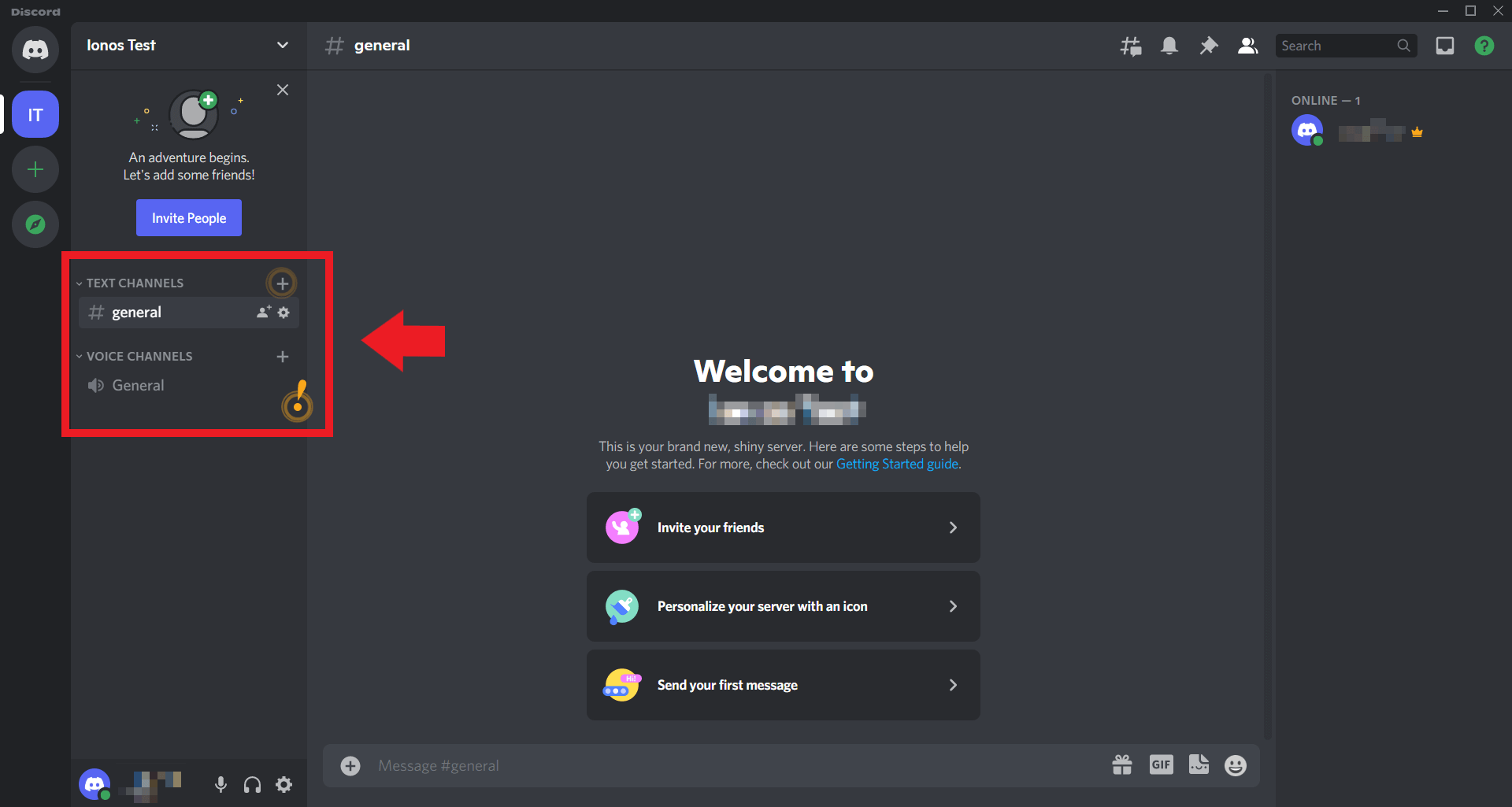
Once you have created your server, you can customize it by adding channels, inviting friends, and setting permissions. To access the settings menu:
- Click on the icon of your server in the top left corner of the screen.
- Select “Server settings” from the dropdown menu.
- Choose an option from the menu (e.G., Channels, Members, Roles).
- Customize the settings to fit your needs.
Troubleshooting And Support
If you encounter any issues or have doubts about creating a server on Discord, don’t worry! You can access the support center by clicking on “Help” in the top right corner of the screen. From there, you can find answers to frequently asked questions or submit a request for assistance.
Faqs
Here are some additional FAQs to help you get started:
- What is Discord?
Discord is a communication platform that allows users to create communities and chat with friends. - Why Should I Use Discord?
Discord offers a range of features, including voice and video chat, screen sharing, and rich media support. It’s also free! - How do I Invite Friends to my Server?
You can invite friends by sending them an invitation link or adding their username to the “Invite” field in your server settings. - What Are Channels?
Channels are separate spaces within a server where users can communicate with each other. You can create multiple channels for different topics! - How do I Customize my Server’s Appearance?
You can add a photo, change the color scheme, and set permissions to fit your needs.
Conclusion
Creating a server on Discord is an easy and fun process that allows you to connect with friends, family, and community members. With this guide, you should now have a clear understanding of how to create and customize your server using both your smartphone or tablet and computer. Don’t hesitate to reach out for support if you need it – happy chatting!
Frequently Asked Questions
- What is The Purpose of Creating a Discord Server?
Creating a Discord server allows users to communicate with friends, family, and community members in a dedicated space. - How do I Create a New Account on Discord?
You can create a new account by downloading the official app or using the website version on your computer. - What Are Channels Within a Discord Server?
Channels are separate spaces where users can communicate with each other, allowing for more organized and efficient discussions. - How do I Invite Friends to my Discord Server?
You can invite friends by sending them an invitation link or adding their username to the “Invite” field in your server settings. - What Features Does Discord Offer?
Discord offers voice and video chat, screen sharing, rich media support, and more!


