
How to Delete Your Zoom Account: A Step-by-step Guide
Are you looking to delete your Zoom account, but not sure where to start? Don’t worry, we’ve got you covered! In this article, we’ll guide you through the process of deleting your Zoom account on various devices, including Android, iPhone, and computer.
Why Delete Your Zoom Account?
Before we dive into the steps, let’s quickly discuss why you might want to delete your Zoom account. Perhaps you’re no longer using the service, or maybe you’ve switched to a different video conferencing platform. Whatever the reason, deleting your account is a straightforward process that can be completed in just a few minutes.
Deleting Your Zoom Account on Android
If you have an Android device and want to delete your Zoom account, follow these steps:
- Open The Zoom App: First, open the Zoom app on your Android device.
- Access Your Account Settings: Tap on the profile icon (≡) at the top right corner of the screen and select “Account.”
- Select The Option to Delete Your Account: Scroll down to the bottom of the page and tap on the link that says “Delete my account.”
- Confirm Your Intention: In the new window, click on the button that says “Close my account” and confirm your decision.
Deleting Your Zoom Account on Iphone
If you have an iPhone and want to delete your Zoom account, follow these steps:
- Open The Zoom App: First, open the Zoom app on your iPhone.
- Access Your Account Settings: Tap on the profile icon (≡) at the top right corner of the screen and select “Account.”
- Select The Option to Delete Your Account: Scroll down to the bottom of the page and tap on the link that says “Delete my account.”
- Confirm Your Intention: In the new window, click on the button that says “Close my account” and confirm your decision.
Deleting Your Zoom Account on Computer
If you want to delete your Zoom account from your computer, follow these steps:
- Open The Zoom Website: First, open the Zoom website in a web browser.
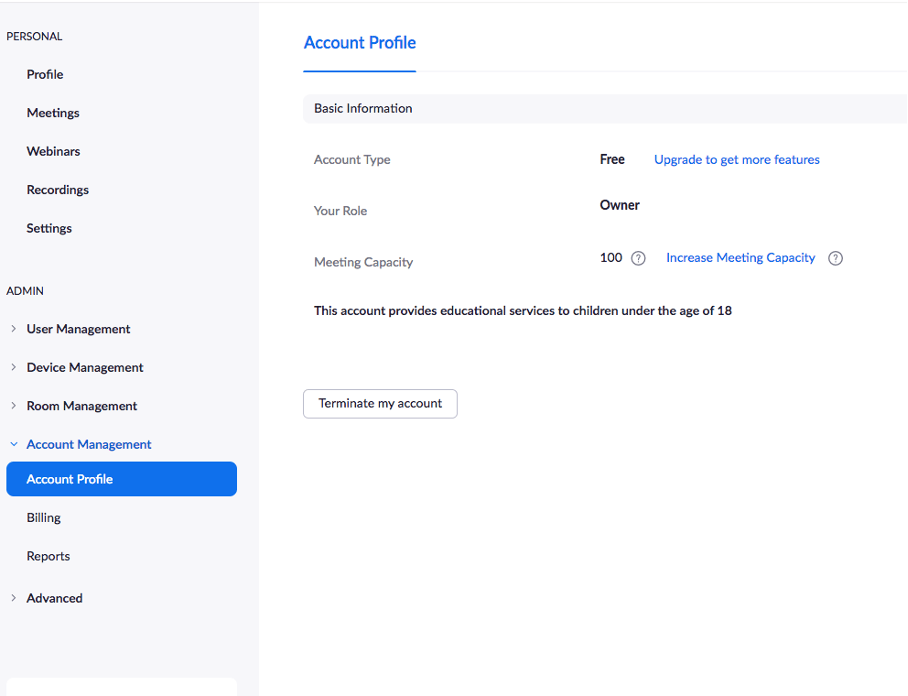
- Access Your Account Settings: Click on the profile icon at the top right corner of the screen and select “Account.”
- Select The Option to Delete Your Account: Scroll down to the bottom of the page and click on the link that says “Delete my account.”
- Confirm Your Intention: In the new window, click on the button that says “Close my account” and confirm your decision.
Why Can’t I Find The Settings?
If you’re having trouble finding the settings to delete your Zoom account, don’t worry! The process might seem a bit complicated at first, but it’s actually quite straightforward. Here are some tips to help you:
- Make Sure You’re Logged in: Ensure that you’re logged into your Zoom account on the device you’re using.
- Check The Menu: Check if there’s an option to delete your account in the menu or settings section of the app or website.
- Contact Support: If you’re still having trouble, contact Zoom support for assistance.
What Happens After I Delete My Account?
After deleting your Zoom account, you won’t be able to recover it. However, you can create a new account and use Zoom with a different profile if needed. Keep in mind that any meetings or recordings associated with the deleted account will also be removed.
Conclusion
Deleting your Zoom account is a simple process that can be completed on various devices, including Android, iPhone, and computer. By following these steps, you can ensure that your account is properly closed, and you won’t receive any further notifications from Zoom.
Faqs
- Q: Will Deleting my Zoom Account Affect my Other Accounts?
A: No, deleting your Zoom account will not affect your other accounts or devices. - Q: Can I Restore my Deleted Account?
A: Unfortunately, no. Once you delete your account, it cannot be restored. - Q: What if I’m Having Trouble Finding The Settings to Delete my Account?
A: Don’t worry! Contact Zoom support for assistance, and they’ll be happy to help.
We hope this article has been helpful in guiding you through the process of deleting your Zoom account. If you have any further questions or concerns, feel free to ask!


