
Creating a Recovery Point: A Guide to Windows Recovery
As we increasingly rely on our computers for work and daily activities, it’s essential to have a plan in place to recover from unforeseen situations. In this article, we’ll explore the concept of a recovery point, also known as a system snapshot or checkpoint, which allows you to restore your computer to a previous state.
What is a Recovery Point?
A recovery point is a snapshot of your computer’s state at a specific moment in time. It includes all the files, settings, and programs installed on your computer, allowing you to revert back to that state if something goes wrong.
Creating a Recovery Point on Windows 11
Creating a recovery point on Windows 11 is a straightforward process. You can do this by following these steps:
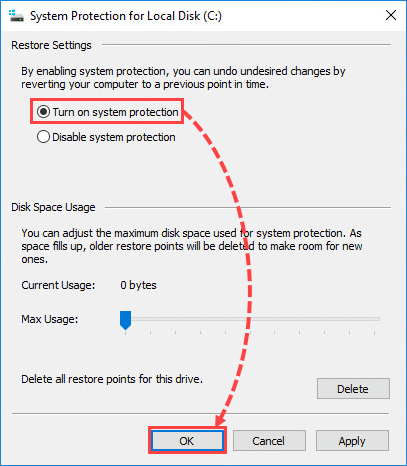
- Enable System Protection: Open the Start menu, click on Settings, and then select System. From there, go to the System & protection section and toggle the switch next to “Create a restore point” to On.
- Open The System Properties Window: Click on the System Protection tab and then click on the Configure button.
- Set The Disk Space: Set the disk space allocated for system protection to a suitable size, depending on your needs.
- Create a Restore Point: Click on the Create button to create a restore point.
Creating a Recovery Point on Windows 10
The process of creating a recovery point on Windows 10 is similar to that on Windows 11. The main difference lies in accessing the System Properties window, which can be done through the Control Panel or Settings app.
- Open The Start Menu: Click on the Start menu and search for “System.”
- Select System Properties: From the results, select the System Properties option.
- Go to The System Protection Tab: In the System Properties window, click on the System Protection tab.
- Configure System Protection: Toggle the switch next to “Create a restore point” to On and set the disk space allocated for system protection.
Creating a Recovery Point on Mac
If you’re using a Mac, creating a recovery point is simpler than ever with Time Machine. Here’s how:
- Connect an External Hard Drive: Connect an external hard drive or SSD with at least double the capacity of your Mac.
- Configure Time Machine: Open System Preferences and click on Time Machine.
- Select The External Disk: Choose the external disk you connected as the backup destination.
- Set Up Automatic Backups: Select the option to create backups automatically.
Alternative Solutions
If you’re looking for alternative solutions, there are a few options available:
- Recovery of The Operating System (Windows): The last version of Windows allows you to restore the operating system to its initial state.
- Cloning of The Disc: This method involves creating a duplicate copy of your hard drive and then restoring it if something goes wrong.
- Backup of Files: You can also consider backing up specific files or folders using programs like Chronology Rows or EaseUS Todo Backup Free.
Conclusion
Creating a recovery point is an essential step in protecting your computer from unforeseen situations. By following these steps, you’ll be able to restore your system to a previous state and avoid potential losses.
Frequently Asked Questions (FAQs)
- Q: How Often Should I Create a Recovery Point?
A: It’s recommended to create a recovery point regularly, especially before making significant changes to your system or installing new software. - Q: Will Creating a Recovery Point Affect my Computer’s Performance?
A: Creating a recovery point typically won’t have any noticeable impact on your computer’s performance. - Q: Can I Restore my System From a Recovery Point if I’ve Made Changes Since The Last Backup?
A: Yes, you can restore your system from a recovery point even if you’ve made changes since the last backup. - Q: Are There Any Other Benefits to Creating a Recovery Point?
A: Yes, having a recovery point can also help in case of hardware failures or when reinstalling Windows. - Q: Can I Use This Method on Macs as Well?
A: Yes, you can create a backup using Time Machine and configure automatic backups on your Mac. - Q: Are There Any Specific Software Requirements For Creating a Recovery Point?
A: The only requirement is that you have enough disk space allocated for system protection or a compatible backup solution installed. - Q: Can I Restore my System From a Different Computer if I’ve Created a Recovery Point on Another Device?
A: Yes, provided the two devices have identical hardware and software configurations.
By following these steps and understanding the benefits of creating a recovery point, you’ll be better equipped to handle unforeseen situations and protect your computer from potential losses.


