
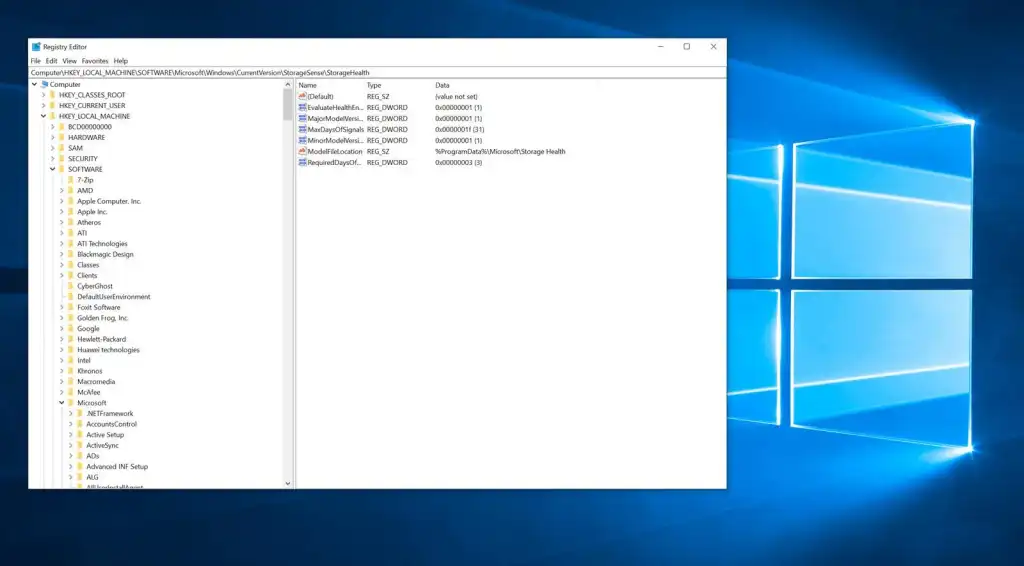
How to Clean Windows System Registry: A Step-by-step Guide
Are you tired of your computer slowing down due to a cluttered system registry? Do you experience frequent errors, crashes, or freezes? Cleaning the Windows system registry can be a daunting task, but it’s essential to keep your computer running smoothly. In this article, we’ll guide you through two methods: Using specialized software and cleaning manually.
Why Clean The System Registry?
Before diving into the process, let’s understand why cleaning the system registry is necessary:
- System Slowdown: A cluttered registry can cause your computer to slow down significantly.
- Error Messages: Corrupted or duplicate entries in the registry can trigger error messages and crashes.
- Program Malfunctions: Incompatible or outdated software can lead to program malfunctions.
Method 1: Using Specialized Software
One of the easiest ways to clean the system registry is by using specialized software. We’ll use Bleachbit, a free, open-source tool compatible with all Windows versions and available in portable format.
Step-by-step Instructions:
- Access the BleachBit website and click on “Download Now” and then “Windows” under the installation package section.
- Select the portable version of the program to download. This will save you from installing anything on your computer.
- Extract the contents of the downloaded ZIP file into a folder on your computer.
- Open the extracted folder and double-click on the Bleachbit.Exe file to launch the program.
You’ll now be presented with a user-friendly interface where you can select which areas of the registry to clean.
Cleaning Specific Areas:
To focus on cleaning specific areas, such as system records or Windows-related entries, follow these steps:
- In the left-hand menu, navigate to System.
- Expand the section by clicking on the arrow next to it.
- Locate the Records entry and click on the checkbox next to it.
- Click on the Scan button to identify which records can be safely deleted.
- Once the scan is complete, review the list of identified records. If you’re unsure about any item, you can search online or consult a trusted resource for more information.
If you’re still uncertain, we recommend consulting a professional for assistance.
Deleting Unwanted Records:
To delete unwanted records, follow these steps:
- Select all unwanted entries by pressing Ctrl + A.
- Click on the Delete button to remove the selected entries.
Please note that deleting system records can sometimes cause issues. If you’re unsure about any item, it’s best to exercise caution and avoid deletion.
Cleaning Other Areas:
To clean other areas of the registry, such as Windows-related entries or program-specific configurations, follow these steps:
- Navigate to Hkey_local_machine\software\microsoft\windows\currentversion\run.
- Locate any unwanted programs in this section. You can identify them by looking for unfamiliar names or suspicious activity.
To delete an entry, right-click on it and select Delete. Confirm your action when prompted.
Method 2: Cleaning The System Registry Manually
Cleaning the system registry manually requires more technical expertise and should be approached with caution. If you’re unsure about any step, please consult a trusted resource or seek professional assistance.
Precautions:
Before attempting to clean the registry manually, ensure you’ve taken these precautions:
- Backup: Create a backup of your system files by selecting File > Export in the Registry Editor.
- System Restore Point: Create a system restore point using System Restore or third-party software.
Step-by-step Instructions:
- Access The Registry Editor:
- Press Win + R to open the Run dialog box.
- Type Regedit and press Enter.
- Navigate to Hkey_local_machine\software\microsoft\windows\currentversion\run:
This section contains entries that load programs automatically at startup.
-
Delete Unwanted Programs:
-
Look for unfamiliar names or suspicious activity in this section.
- Right-click on any unwanted program and select Delete.
- Confirm your action when prompted.
Additional Tips:
To ensure you’ve cleaned the registry thoroughly, consider running a system file checker using built-in tools like Sfc /scannow.
Conclusion
Cleaning the Windows system registry can be a complex task, but with the right guidance and caution, it’s possible to achieve. By following these step-by-step instructions or using specialized software, you can keep your computer running smoothly and prevent errors.
Frequently Asked Questions (FAQs)
Q: What Are The Benefits of Cleaning The System Registry?
A: Cleaning the system registry can improve system performance, reduce error messages, and resolve program malfunctions.
Q: Is it Safe to Delete System Records in Bleachbit?
A: Deleting system records can sometimes cause issues. If you’re unsure about any item, exercise caution and avoid deletion or consult a trusted resource for guidance.
Q: Can I Clean The Registry Manually if I’m Not an Expert?
A: While cleaning the registry manually is possible, it’s recommended to seek professional assistance if you’re unsure about any step. Consult a trusted resource for more information.
Q: How Often Should I Clean The System Registry?
A: Clean the system registry periodically (every 3-6 months) to prevent clutter buildup and maintain system performance.
Q: What Happens if I Delete an Essential Program?
A: If you accidentally delete an essential program, consider restoring from a backup or seeking professional assistance.


