
How to Reactivate Amazon Prime: A Step-by-step Guide
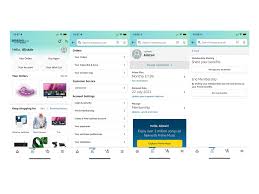
Are you tired of missing out on the benefits of Amazon Prime? Did you know that you can easily reactivate your subscription? In this article, we will guide you through the process of reactivating Amazon Prime on various devices, including PC, smartphone, and Smart TV.
What is Amazon Prime?
Amazon Prime is a membership program offered by Amazon that provides users with a range of benefits, including:
- Free shipping on millions of eligible items
- Access to Prime Video, which offers a vast library of movies and TV shows
- Music streaming through Prime Music
- Photo storage through Prime Photos
- Early access to deals and discounts
Why Reactivate Amazon Prime?
If you’ve previously had an Amazon Prime subscription but let it expire, you may be wondering why you should reactivate it. Here are a few reasons:
- You can still enjoy the benefits of free shipping and Prime Video
- You’ll have access to exclusive deals and discounts
- You can take advantage of Prime Music and Prime Photos
How to Reactivate Amazon Prime on PC
Reactivating Amazon Prime on PC is a straightforward process that can be completed in just a few steps:
- Go to The Amazon Website: Open a web browser and navigate to the Amazon website.
- Sign in to Your Account: Enter your login credentials to access your Amazon account.
- Click on “Account & Lists”: In the top right corner of the screen, click on “Account & Lists”.
- Select “My Prime Video”: From the drop-down menu, select “My Prime Video”.
- Click on “Update”: Click on the “Update” button to reactivate your Prime subscription.
How to Reactivate Amazon Prime on Smartphone
You can also reactivate Amazon Prime on your smartphone using the Amazon app:
- Open The Amazon App: Open the Amazon app on your mobile device.
- Sign in to Your Account: Enter your login credentials to access your Amazon account.
- Click on “Account & Settings”: In the top right corner of the screen, click on “Account & Settings”.
- Select “Prime Registration”: From the drop-down menu, select “Prime Registration”.
- Click on “Update”: Click on the “Update” button to reactivate your Prime subscription.
How to Reactivate Amazon Prime on Smart TV
Unfortunately, you cannot directly reactivate Amazon Prime on your Smart TV. However, you can use your smartphone or PC to reactivate it and then access Prime Video on your Smart TV:
- Open The Amazon App: Open the Amazon app on your mobile device.
- Sign in to Your Account: Enter your login credentials to access your Amazon account.
- Click on “Account & Settings”: In the top right corner of the screen, click on “Account & Settings”.
- Select “Prime Registration”: From the drop-down menu, select “Prime Registration”.
- Click on “Update”: Click on the “Update” button to reactivate your Prime subscription.
Tips And Tricks
Here are a few tips and tricks to keep in mind when reactivating Amazon Prime:
- Make sure you have a valid payment method linked to your account.
- If you’re having trouble reactivating your Prime subscription, try checking your account status on the Amazon website or app.
- You can also contact Amazon customer support for assistance.
Conclusion
Reactivating Amazon Prime is a simple process that can be completed in just a few steps. Whether you’re using a PC, smartphone, or Smart TV, you can easily access the benefits of Amazon Prime with our step-by-step guide. Remember to take advantage of exclusive deals and discounts, as well as Prime Music and Prime Photos.
Frequently Asked Questions
- Q: Can I reactivate my Amazon Prime subscription if it’s been expired for a long time?
A: Yes, you can reactivate your Amazon Prime subscription at any time. - Q: Do I need to pay again to reactivate my Prime subscription?
A: No, once you’ve reactivated your Prime subscription, you won’t have to pay again until the next billing cycle. - Q: Can I cancel my Prime subscription if I change my mind?
A: Yes, you can cancel your Prime subscription at any time.
Additional Resources
If you’re interested in learning more about Amazon Prime or want to get started with a free trial, be sure to check out our other articles and guides:
- “What is Amazon Prime?”
- “How to Get Started with Amazon Prime”
- “Amazon Prime Benefits: What You Need to Know”
We hope this article has been helpful in showing you how to reactivate your Amazon Prime subscription. Happy shopping!


