
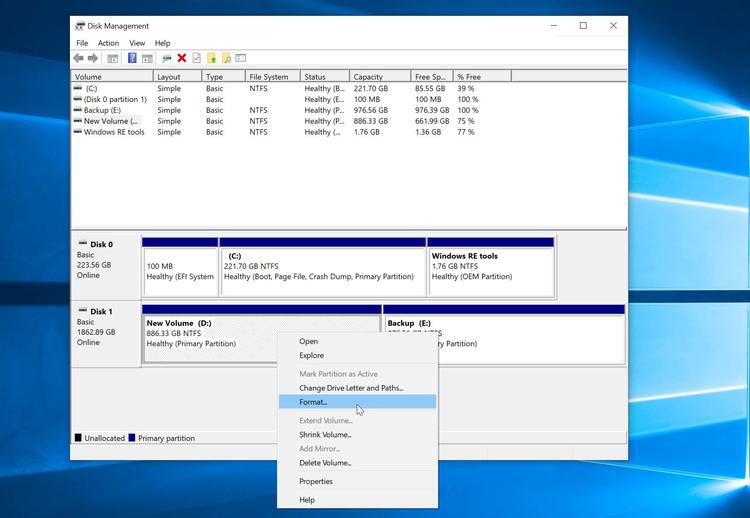
How to Format a PC Without a Cd: A Step-by-step Guide
Are you tired of dealing with a slow or unresponsive computer? Do you need to reinstall your operating system, but don’t have a CD drive available? Don’t worry, formatting your PC without a CD is possible and we’ll guide you through the process.
Why Format Your Pc?
Formatting your PC can be a great way to refresh your system and improve its performance. By removing any unnecessary files and programs, you can free up space on your hard drive and make your computer run faster. Additionally, formatting your PC can help resolve issues with malware or viruses that may have infected your system.
Step 1: Prepare Your Usb Drive
To format your PC without a CD, you’ll need to create a bootable USB drive containing the operating system files. This is known as a “live” USB drive, and it will allow you to install your OS directly from the USB drive.
- You can use a program like Rufus or Media Creation Tool to create the live USB drive.
- Make sure your USB drive has at least 8GB of free space available.
- Follow the instructions provided by the software to create the live USB drive.
Step 2: Boot From The Live Usb Drive
Once you have created the live USB drive, insert it into your PC and restart the computer. You’ll need to configure your BIOS settings to boot from the USB drive instead of the hard disk.
- Consult your motherboard manual for instructions on how to access the BIOS settings.
- Set the first boot device to the USB drive.
Step 3: Install Your Operating System
With the live USB drive inserted and the BIOS settings configured, you can now start the installation process. Follow the on-screen instructions to complete the installation of your operating system.
Formatting a PC With Windows 10/11
If you’re using Windows 10 or 11, you can format your PC directly from within the operating system. Here’s how:
- Press the Windows key + I to open the Settings app.
- Click on “Update & Security” and then select “Recovery”.
- Choose the option to reinstall Windows.
Formatting a PC With Linux
If you’re using a Linux distribution, the process is similar to formatting a PC with Windows. You’ll need to create a bootable USB drive containing the Linux files and follow the on-screen instructions to complete the installation.
Conclusion
Formatting your PC without a CD can be a straightforward process if you have the right tools and knowledge. By following these steps and using a live USB drive, you can install a fresh copy of your operating system and enjoy a faster, more responsive computer.
Here are some frequently asked questions about formatting a PC without a CD:
Q: Do I Need to Back up my Files Before Formatting my Pc?
A: Yes, it’s always a good idea to back up your important files before formatting your PC. This will ensure that you don’t lose any valuable data during the process.
Q: Can I Format my PC Without Reinstalling my Operating System?
A: No, formatting your PC requires a complete reinstallation of the operating system.
Q: Do I Need to Purchase a New Usb Drive to Create a Live Usb Drive?
A: No, you can use an existing USB drive as long as it has at least 8GB of free space available.
Q: Can I Format my PC With Windows 7/8?
A: Yes, the process is similar to formatting a PC with Windows 10 or 11. However, you’ll need to consult your motherboard manual for instructions on how to access the BIOS settings and configure them to boot from the USB drive.
Q: Can I Format my PC With Linux?
A: Yes, the process is similar to formatting a PC with Windows. You’ll need to create a bootable USB drive containing the Linux files and follow the on-screen instructions to complete the installation.


