
How to Delete Cookies on Your Pc, Smartphone, or Tablet
Are you curious about how websites keep track of your identity and preferences after your first visit? Do you want to know how to delete cookies from your computer, smartphone, or tablet? Look no further! In this article, we’ll guide you through the process of deleting cookies from various browsers, including Google Chrome, Microsoft Edge, Mozilla Firefox, and Safari.
What Are Cookies?
Cookies are small files that websites store on your device when you visit them. They help websites remember your preferences, such as language settings or login information. However, some cookies can be used to track your online behavior, which can be a concern for many users.
Why Delete Cookies?
Deleting cookies can be beneficial in several ways:
- Improved Online Security: By deleting cookies, you can prevent hackers from accessing sensitive information stored on your device.
- Enhanced Browsing Experience: Clearing cookies can improve the performance of your browser and make it easier to navigate.
- Increased Privacy: Deleting cookies can help protect your online identity and prevent websites from tracking your behavior.
How to Delete Cookies in Different Browsers
Chrome
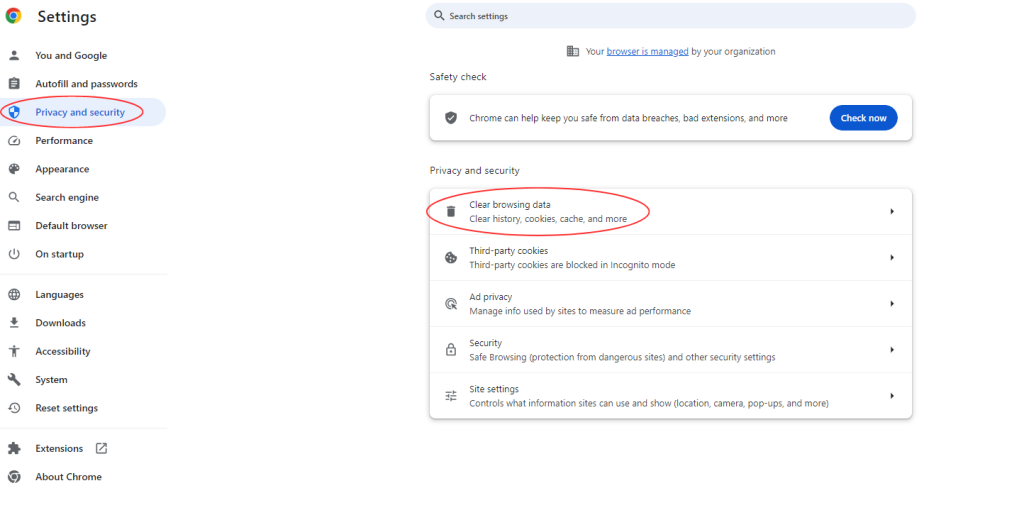
- Open Google Chrome on your computer or mobile device.
- Click on the three vertical dots in the upper right corner of the browser window.
- Select “Settings” from the drop-down menu.
- Scroll down and click on “Advanced.”
- Click on “Clear browsing data.”
- Choose the type of data you want to delete (e.G., Cookies, cache, or history).
- Select the time range for which you want to delete the data.
- Click on “Clear data.”
Edge
- Open Microsoft Edge on your computer.
- Click on the three horizontal dots in the upper right corner of the browser window.
- Select “Settings” from the drop-down menu.
- Scroll down and click on “Privacy, search, and services.”
- Click on “Clear browsing data.”
- Choose the type of data you want to delete (e.G., Cookies, cache, or history).
- Select the time range for which you want to delete the data.
- Click on “Clear.”
Firefox
- Open Mozilla Firefox on your computer or mobile device.
- Click on the three horizontal dots in the upper right corner of the browser window.
- Select “Options” from the drop-down menu (Windows) or “Preferences” (Mac).
- Click on the “Privacy & Security” tab.
- Click on “Clear Your Recent Browsing History.”
- Choose the type of data you want to delete (e.G., Cookies, cache, or history).
- Select the time range for which you want to delete the data.
- Click on “OK.”
Safari
- Open Safari on your Mac.
- Click on “Safari” in the top menu bar.
- Select “Preferences.”
- Click on the “Privacy” tab.
- Click on “Manage Website Data.”
- Choose the type of data you want to delete (e.G., Cookies, cache, or history).
- Click on “Remove All.”
Mobile Devices
Chrome For Android
- Open Google Chrome on your Android device.
- Tap the three vertical dots in the upper right corner of the browser window.
- Select “Settings.”
- Scroll down and tap “Privacy & security.”
- Tap “Clear browsing data.”
- Choose the type of data you want to delete (e.G., Cookies, cache, or history).
- Select the time range for which you want to delete the data.
- Tap “OK.”
Chrome For Ios
- Open Google Chrome on your iPhone or iPad.
- Tap the three horizontal dots in the upper right corner of the browser window.
- Select “Settings.”
- Scroll down and tap “Privacy & security.”
- Tap “Clear browsing data.”
- Choose the type of data you want to delete (e.G., Cookies, cache, or history).
- Select the time range for which you want to delete the data.
- Tap “OK.”
Edge For Android
- Open Microsoft Edge on your Android device.
- Tap the three vertical dots in the upper right corner of the browser window.
- Select “Settings.”
- Scroll down and tap “Privacy & security.”
- Tap “Clear browsing data.”
- Choose the type of data you want to delete (e.G., Cookies, cache, or history).
- Select the time range for which you want to delete the data.
- Tap “OK.”
Edge For Ios
- Open Microsoft Edge on your iPhone or iPad.
- Tap the three horizontal dots in the upper right corner of the browser window.
- Select “Settings.”
- Scroll down and tap “Privacy & security.”
- Tap “Clear browsing data.”
- Choose the type of data you want to delete (e.G., Cookies, cache, or history).
- Select the time range for which you want to delete the data.
- Tap “OK.”
Firefox
- Open Mozilla Firefox on your Android device.
- Tap the three horizontal dots in the upper right corner of the browser window.
- Select “Settings.”
- Scroll down and tap “Privacy & security.”
- Tap “Clear browsing data.”
- Choose the type of data you want to delete (e.G., Cookies, cache, or history).
- Select the time range for which you want to delete the data.
- Tap “OK.”
Safari
- Open Safari on your iPhone or iPad.
- Tap the “Settings” icon.
- Scroll down and tap “Safari.”
- Tap “Clear History and Website Data.”
- Confirm that you want to clear the data.
To delete cookies from Google, follow these steps:
- Go to the Google website (e.G., Google.Com).
- Click on the three vertical dots in the upper right corner of the browser window.
- Select “Settings” from the drop-down menu.
- Scroll down and click on “Advanced.”
- Click on “Clear browsing data.”
- Choose the type of data you want to delete (e.G., Cookies, cache, or history).
- Select the time range for which you want to delete the data.
- Click on “Clear data.”
Conclusion
Deleting cookies can be an effective way to improve your online security and enhance your browsing experience. By following these steps, you can clear cookies from various browsers, including Google Chrome, Microsoft Edge, Mozilla Firefox, and Safari. Remember to always review your browser settings and delete cookies regularly to maintain your online privacy.
Frequently Asked Questions
- What Happens if I Delete Cookies?
- Deleting cookies will remove stored information about your browsing history and preferences.
- Will Deleting Cookies Affect my Login Sessions or Saved Passwords?
- No, deleting cookies will not affect your login sessions or saved passwords.
- How Often Should I Clear Cookies?
- It is recommended to clear cookies regularly (e.G., Every 30 days) to maintain optimal browser performance and online security.
Additional Resources
If you’re interested in learning more about cookies, browsing history, and online privacy, consider the following resources:
- Google’s Cookies Policy: Learn how Google uses cookies and how you can manage them.
- Microsoft Edge’s Privacy & Security Guide: Discover how to protect your online identity with Microsoft Edge.
- Mozilla Firefox’s Privacy & Security Guide: Explore the features of Mozilla Firefox that help maintain your online security.
I hope this comprehensive guide has helped you understand how to delete cookies from various browsers! If you have any further questions or concerns, feel free to ask.


