
How to Save Videos on Iphone: A Step-by-step Guide
Are you tired of losing your favorite videos from social media platforms or streaming services? Do you want to save them on your iPhone for future reference or to watch offline? Look no further! In this article, we’ll guide you through the process of saving videos on iPhone from various sources, including Facebook, Instagram, YouTube, TikTok, Twitter, WhatsApp, and Telegram.
Why Save Videos on Iphone?
Saving videos on your iPhone can be beneficial in several ways. You can:
- Watch them offline without needing an internet connection
- Access them easily without having to search for them online
- Share them with friends and family without relying on social media platforms
- Use them as reference or educational materials
Method 1: Saving Videos From Facebook
To save videos from Facebook, you’ll need to use the “Total Files” app. Here’s how:
- Download and install Total Files from the App Store.
- Open the app and navigate to the “Browser” section.
- Select Facebook as your account and sign in with your credentials.
- Find the video you want to save and tap on it.
- Tap on the “Save” button, then select a folder to save the video.
Method 2: Saving Videos From Instagram
To save videos from Instagram, you can use the “InstDown” app or the built-in “Reels” feature. Here’s how:
- Using Instdown: Download and install InstDown from the App Store. Open Instagram, find the Reel you want to save, tap on it, then copy the link. Open InstDown, paste the link, and tap on the “Download” button.
- Using Reels: If the video is a Reel, you can save it directly by tapping on the three dots at the top-right corner of the screen, then selecting “Save.”
Method 3: Saving Videos From Youtube
To save videos from YouTube, use the official YouTube app. Here’s how:
- Open the YouTube app and find the video you want to save.
- Tap on the three dots at the top-right corner of the screen, then select “Download.”
- Choose a quality setting for your download.
Method 4: Saving Videos From Tiktok
To save videos from TikTok, use the built-in “Save” feature or an app like InstDown. Here’s how:
- Using Save: Find the video you want to save, tap on it, then tap on the share icon (the arrow). Tap on “Save video.”
- Using Instdown: Open InstDown, copy the link of the TikTok video, and tap on the “Download” button.
Method 5: Saving Videos From Twitter
To save videos from Twitter, use an app like “TweetLoad.” Here’s how:
- Download and install TweetLoad from the App Store.
- Open TweetLoad and find the tweet with the video you want to save.
- Tap on the tweet, then tap on the share icon (the arrow).
- Select “Save video” to download it.
Method 6: Saving Videos From Whatsapp
To save videos from WhatsApp, follow these steps:
- Open WhatsApp and find the conversation where the video was shared.
- Initiate the video by tapping on it, then tap on the share icon (the square with an arrow).
- Select “Save” to download the video.
Method 7: Saving Videos From Telegram
To save videos from Telegram, follow these steps:
- Open Telegram and find the chat where the video was shared.
- Tap on the video to initiate it, then tap on the share icon (the arrow).
- Select “Save video” to download it.
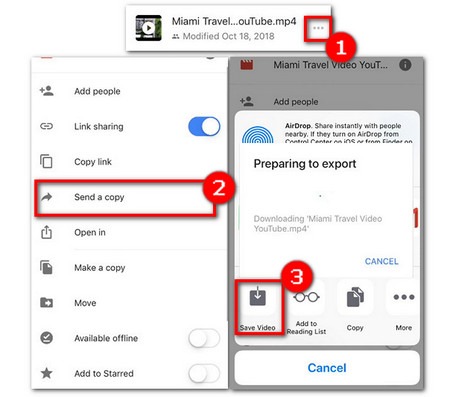
App-to-download Videos: Wetransfer
WeTransfer allows you to save videos directly from their service. Here’s how:
- Open the WeTransfer app and find the video you want to save.
- Tap on the video, then tap on the share icon (the square with an arrow).
- Select “Save” to download the video.
App-to-download Videos: Total Files
Total Files is another excellent app for downloading videos from various sources. Here’s how:
- Download and install Total Files from the App Store.
- Open the app and navigate to the “Browser” section.
- Find the video you want to save, then tap on it.
- Tap on the “Save” button, then select a folder to save the video.
Conclusion
Saving videos on your iPhone can be done easily using various methods and apps. From Facebook and Instagram to YouTube, TikTok, Twitter, WhatsApp, Telegram, WeTransfer, and Total Files, we’ve covered the most popular sources for saving videos. Remember to always check the app’s permissions and settings before downloading any video.
Faqs
- Q: Can I save videos from social media platforms without an internet connection?
A: Yes, you can download videos from social media platforms using various apps. - Q: How do I save videos from YouTube?
A: Use the official YouTube app to download videos directly. - Q: Can I save videos from TikTok without InstDown?
A: Yes, you can use the built-in “Save” feature on TikTok or other apps like Total Files. - Q: How do I save videos from Twitter?
A: Use an app like TweetLoad to download tweets with videos. - Q: Can I save videos from WhatsApp?
A: Yes, follow the steps above to save videos from WhatsApp conversations. - Q: How do I save videos from Telegram?
A: Follow the steps above to save videos from Telegram chats. - Q: What apps can I use to download videos from various sources?
A: Total Files, WeTransfer, and other specialized apps are available for downloading videos from different sources. - Q: Can I save videos without compromising their quality?
A: Yes, many of the apps mentioned above allow you to choose the video quality for your downloads.
By following these methods and using the right apps, you can easily save videos on your iPhone and enjoy them offline or share them with others. Happy saving!


