
How to Cut a Video on Instagram: A Step-by-step Guide
Are you tired of having videos that are too long or not edited well on your Instagram profile? Do you want to cut a video on Instagram without having to use any third-party apps or software? Look no further! In this article, we will guide you through the process of cutting a video on Instagram using their built-in editor.
Why Cut a Video on Instagram?
Before we dive into the steps, let’s talk about why you might want to cut a video on Instagram. Perhaps your video is too long and you only want to share a snippet with your followers. Or maybe you’ve filmed a longer video but want to create a shorter, more engaging version for your profile. Whatever the reason, cutting a video on Instagram can be a great way to make it more concise and visually appealing.
How to Cut a Video on Instagram Using The App
To cut a video on Instagram using their app, follow these steps:
- Open The Instagram App: Make sure you have the latest version of the app installed on your device.
- Select The Video: Choose the video you want to edit by selecting it from your gallery or camera roll.
- Tap The “+” Icon: Tap the “+” icon at the bottom center of the screen to add a new post.
- Select “Reel”: Select “Reel” as the type of post you want to create.
- Edit The Video: Once you’ve selected your video, tap on it and then select “Edit Video”.
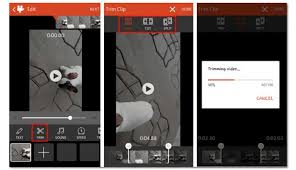
- Cut The Video: Use the two blue lines at the top and bottom of the screen to cut your video into segments. You can also use the pinch-to-zoom feature to adjust the length of each segment.
- Save And Publish: Once you’re happy with your edited video, save it and publish it on your Instagram profile.
How to Cut a Video on Instagram Using PC
If you prefer to edit videos using a computer, you can also cut a video on Instagram using their website or desktop app.
- Open The Instagram Website: Log in to your Instagram account using their website.
- Click on “Create”: Click on the “Create” button at the top right corner of the screen.
- Select “Reel”: Select “Reel” as the type of post you want to create.
- Upload Your Video: Upload your video from your computer and select it as the main video for your Reel.
- Edit The Video: Once you’ve uploaded your video, click on it and then select “Edit Video”.
- Cut The Video: Use the two blue lines at the top and bottom of the screen to cut your video into segments. You can also use the pinch-to-zoom feature to adjust the length of each segment.
- Save And Publish: Once you’re happy with your edited video, save it and publish it on your Instagram profile.
Tips For Cutting a Video on Instagram
Here are some additional tips to keep in mind when cutting a video on Instagram:
- Make sure your video is short enough: Instagram has a maximum length of 60 seconds for Reels and 90 seconds for regular posts.
- Use the right aspect ratio: Choose an aspect ratio that suits your content, such as 1:1 Or 16:9.
- Be mindful of the editing process: Cutting a video can be a bit tricky, so make sure you’re comfortable with the editing process before publishing.
Conclusion
Cutting a video on Instagram is a great way to make it more concise and visually appealing. Whether you use their app or website/desktop app, the process is relatively straightforward. Remember to keep your edited video short enough and use the right aspect ratio to ensure it looks great on your profile. Happy editing!
Frequently Asked Questions (FAQs)
- Q: Can I Cut a Video on Instagram if It’s Too Long?
A: Yes, you can cut a video on Instagram using their app or website/desktop app. - Q: What is The Maximum Length of a Reel on Instagram?
A: The maximum length of a Reel on Instagram is 60 seconds. - Q: Can I Use Third-party Apps to Edit my Videos on Instagram?
A: No, you cannot use third-party apps to edit your videos on Instagram. You must use their built-in editor or website/desktop app. - Q: How do I Cut a Video on Instagram if It’s Not Too Long?
A: If your video is already short enough, you can simply trim the beginning and end of it using the two blue lines at the top and bottom of the screen. - Q: Can I Use The Same Video For Multiple Posts on Instagram?
A: Yes, you can use the same video for multiple posts on Instagram by editing it into different segments and publishing each one separately. - Q: How do I Save a Video That I’ve Edited on Instagram?
A: To save a video that you’ve edited on Instagram, click on the “Save” button at the top right corner of the screen. - Q: Can I Use Music in my Reel on Instagram?
A: Yes, you can add music to your Reel on Instagram by selecting from their library or uploading your own track.
Additional Resources
If you’re looking for more information on how to cut a video on Instagram or need help with editing videos in general, check out the following resources:
- Instagram’s official blog
- YouTube tutorials on video editing
- Online communities and forums dedicated to video editing


