
How to Change Instagram Password Without Email: A Step-by-step Guide
Are you struggling to remember your Instagram password or want to change it without revealing your email address? You’re in the right place! In this article, we’ll guide you through a simple and secure process to modify or recover your Instagram password using just your smartphone or computer.
Why Change Your Instagram Password?
Before we dive into the nitty-gritty, let’s quickly discuss why changing your Instagram password is essential. If you’ve used the same password for multiple accounts, it’s possible that someone has gained access to your account by guessing or intercepting your password. Changing your Instagram password regularly ensures that your account remains secure.
Changing Password on Instagram Without Email (Smartphone)
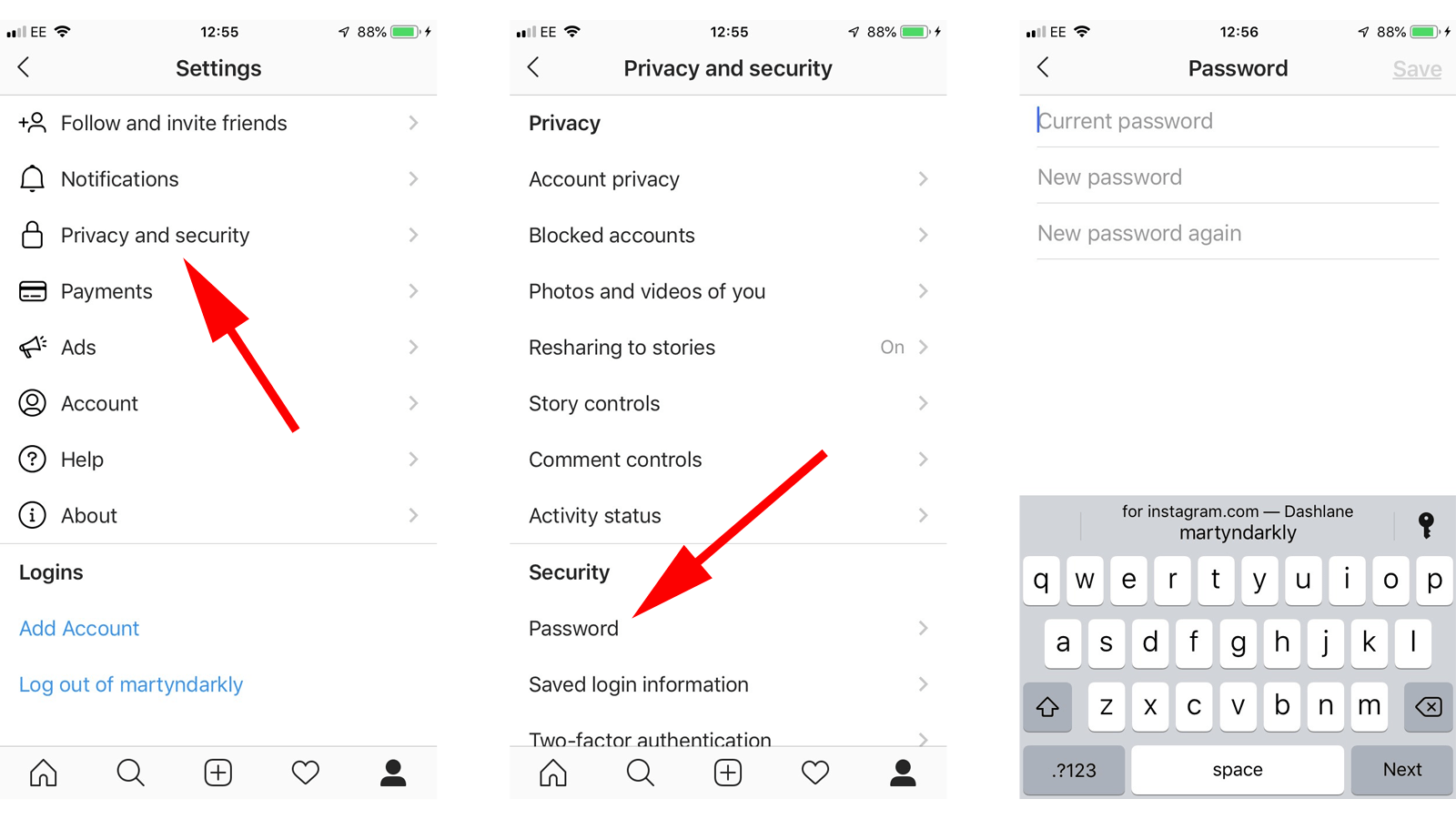
If you want to change your Instagram password using just your smartphone, follow these easy steps:
- Launch The Instagram App: Open the Instagram app on your Android or iOS device.
- Access Your Profile: Tap on your profile picture or the icon of a person in the bottom right corner.
- Tap on Settings And Privacy: Click on the three horizontal lines (≡) in the top right corner, then tap on “Settings” and select “Privacy”.
- Tap on Account Management: Select “Account Management” from the menu.
- Tap on Password And Safety: Choose “Password and Safety” from the options.
- Tap on Change Password: Click on the option to change your password.
- Enter Current Password: Type in your current Instagram password.
- Create a New Password: Enter a strong, new password for your Instagram account.
- Repeat New Password: Confirm your new password by typing it again.
- Save Changes: Tap “Done” or “Save” to apply the changes.
Changing Password on Instagram Without Email (Computer)
If you prefer using your computer to change your Instagram password, follow these steps:
- Open Instagram in a Browser: Visit Instagram.Com and sign in with your account.
- Click on ≡ Icon: Click on the three horizontal lines (≡) at the top right corner of the page.
- Select Settings: Choose “Settings” from the menu.
- See Another: Scroll down to “Security” and click on “See Another”.
- Change Password: Select “Change Password”.
- Enter Current Password: Type in your current Instagram password.
- Create a New Password: Enter a strong, new password for your Instagram account.
- Repeat New Password: Confirm your new password by typing it again.
- Save Changes: Click on the “Done” button to apply the changes.
Recovering Password on Instagram Without Email (Smartphone)
If you’ve forgotten your Instagram password and want to recover it using just your smartphone, follow these steps:
- Launch The Instagram App: Open the Instagram app on your Android or iOS device.
- Tap on Forgotten Password?: Tap on “Forgotten password?” in the login screen.
- Enter Phone Number: Type in your registered phone number to receive a code via SMS.
- Enter Code: Enter the six-digit code received via SMS.
- Create a New Password: Set up a strong, new password for your Instagram account.
Recovering Password on Instagram Without Email (Computer)
If you want to recover your Instagram password using just your computer, follow these steps:
- Visit The Recovery Page: Go to the Instagram recovery page and click on “Get back into your account”.
- Enter Phone Number or Email: Type in your registered phone number or email address.
- Click on Next: Click on the “Next” button.
- Verify Your Identity: Verify your identity by answering security questions or entering a code sent to your registered phone number.
- Create a New Password: Set up a strong, new password for your Instagram account.
Troubleshooting Tips
If you encounter any issues during the process, feel free to contact Instagram’s support team for help. You can also try visiting their Help Center page or searching online for solutions related to your specific problem.
Conclusion
Changing or recovering your Instagram password without revealing your email address is a straightforward process that requires just your smartphone or computer. Remember to create strong, unique passwords for all of your social media accounts and keep them up-to-date regularly to maintain account security.


