
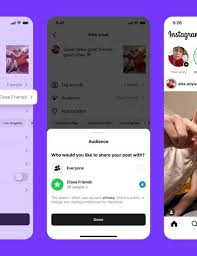
How to Share Posts on Instagram: A Step-by-step Guide
Are you new to the world of social media and technology? Don’t worry, we’ve got you covered! In this article, we’ll walk you through the process of sharing posts on Instagram, step by step.
What is Instagram And Why Should I Use It?
Instagram is a popular social media platform where users can share photos, videos, and stories with their friends and followers. With over 1 billion active users, it’s an excellent way to connect with people from all over the world.
Getting Started: Creating Your Instagram Account
Before you can start sharing posts on Instagram, you need to create your account. Follow these simple steps:
- Download the Instagram app on your smartphone or access it through a computer
- Tap on the “Sign up” button and fill out the registration form with your details (name, email address, password, etc.)
- Verify your account by following the instructions sent to your email address
Sharing Posts on Instagram
Now that you have an Instagram account, let’s dive into sharing posts! Here are some ways to do it:
Sharing Posts in The Feed
To share a post in the feed, follow these steps:
- Open the Instagram app and tap on the “+” button at the top right corner of your screen.
- Select the type of content you want to share (photo or video).
- Choose an image from your gallery or take a new one using the camera.
- Add filters, captions, or tags as desired.
- Tap “Share” to post it in the feed.
Sharing Posts in Stories
To share a post in stories, follow these steps:
- Open the Instagram app and tap on the “Your Story” button at the top right corner of your screen.
- Select the type of content you want to share (photo or video).
- Choose an image from your gallery or take a new one using the camera.
- Add filters, captions, or tags as desired.
- Tap “Share” to post it in stories.
Sharing Posts in Reels
To share a post in reels, follow these steps:
- Open the Instagram app and tap on the “Reel” button at the bottom right corner of your screen.
- Select the type of content you want to share (video).
- Choose an image from your gallery or record a new video using the camera.
- Add filters, captions, or tags as desired.
- Tap “Share” to post it in reels.
Sharing Posts Via Direct Message
To share a post via direct message, follow these steps:
- Open the Instagram app and tap on the “Direct” button at the top right corner of your screen.
- Select the contact you want to send the message to.
- Choose an image from your gallery or take a new one using the camera.
- Add filters, captions, or tags as desired.
- Tap “Send” to share it via direct message.
Tips And Tricks
Here are some additional tips and tricks to help you navigate Instagram:
- Use hashtags to reach a wider audience
- Engage with your followers by responding to comments and messages
- Experiment with different filters and editing tools to enhance your content
- Share your story in the “Reel” section for a more immersive experience
Conclusion
Sharing posts on Instagram is easier than you think! With these step-by-step guides, you can now share photos, videos, and stories with your friends and followers. Remember to have fun and be creative!
Faqs
- What is The Difference Between Sharing a Post in The Feed And Sharing it in Stories?
Sharing a post in the feed allows it to appear on your profile for all your followers to see, while sharing it in stories makes it visible only for 24 hours. - How do I Share a Video on Instagram?
To share a video, follow the same steps as sharing a photo, but choose the “Video” option instead. - Can I Edit my Post After Sharing It?
Yes, you can edit your post by tapping on the three dots at the top right corner of the screen and selecting “Edit.” - How do I Add a Caption to my Post?
To add a caption, tap on the text field at the bottom of the screen and type in your desired caption. - Can I Share a Post From my Computer?
Yes, you can share a post from your computer by accessing the Instagram website or using the official Instagram app for Windows. -
How do I Cross-post Between Instagram And Facebook?
To cross-post between Instagram and Facebook, tap on the three dots at the top right corner of the screen and select “Share” to post it on both platforms simultaneously. -
Can I Share a Post From my Computer Directly to Instagram?
Yes, you can share a post directly to Instagram from your computer by using the official Instagram app for Windows or accessing the Instagram website.
- How do I Report a Problem With Instagram?
If you encounter any issues while using Instagram, tap on the “Help” button at the bottom right corner of the screen and select “Report a Problem” to contact Instagram’s support team.


