
How to Add Rows on Excel: A Comprehensive Guide
Are you struggling to add rows on Excel? Do you want to learn how to do it manually or automatically? Look no further! In this article, we will guide you through the process of adding rows on Excel, whether you’re using a PC, Mac, smartphone, or tablet.
Why Add Rows on Excel?
Adding rows on Excel is an essential skill that can save you time and effort when working with large datasets. Whether you need to insert new data, expand your table, or simply organize your information in a more logical way, adding rows is a crucial feature of the software.
Method 1: Adding Rows Manually
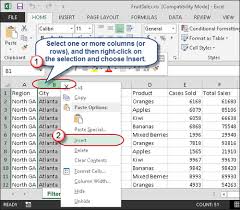
The most straightforward method of adding rows on Excel is by doing it manually. Here’s how:
- Select The Row: Choose the row below where you want to insert the new row.
- Go to Home Tab: Click on the “Home” tab in the Excel menu.
- Click Insert: Select the “Insert” option from the drop-down menu.
- Choose Insert Rows: From the sub-menu, select “Insert Rows.”
- Confirm: You’ll see a confirmation message asking if you want to insert rows. Click “OK.”
Method 2: Adding Multiple Rows
If you need to add multiple rows at once, follow these steps:
- Select The Number of Rows: Highlight the number of rows you want to add.
- Go to Home Tab: Click on the “Home” tab in the Excel menu.
- Click Insert: Select the “Insert” option from the drop-down menu.
- Choose Insert Rows: From the sub-menu, select “Insert Rows.”
- Confirm: You’ll see a confirmation message asking if you want to insert rows. Click “OK.”
Method 3: Using Vba Macros
If you’re comfortable with VBA macros, you can create a macro to add rows automatically.
- Go to Developer Tab: Click on the “Developer” tab in the Excel menu.
- Click Visual Basic: Select the “Visual Basic” option from the drop-down menu.
- Create a Macro: Create a new module and write the following code:
Sub InsertRows() Rows(6).Insert Shift:=XlDown, Count:=5 End Sub - Run The Macro: Click on the “Run” button to execute the macro.
Adding Rows on Excel Online
If you’re using Excel Online, follow these steps:
- Select The Row: Choose the row below where you want to insert the new row.
- Click Insert: Select the “Insert” option from the drop-down menu.
- Choose Insert Rows: From the sub-menu, select “Insert Rows.”
- Confirm: You’ll see a confirmation message asking if you want to insert rows. Click “OK.”
Adding Rows on Excel Mobile
If you’re using an Excel app on your smartphone or tablet, follow these steps:
- Select The Row: Choose the row below where you want to insert the new row.
- Tap Insert: Tap the “Insert” option from the drop-down menu.
- Choose Insert Rows: From the sub-menu, select “Insert Rows.”
- Confirm: You’ll see a confirmation message asking if you want to insert rows. Tap “OK.”
Tips And Tricks
- To add multiple rows at once, highlight the number of rows you want to add before selecting the “Insert” option.
- To use VBA macros, go to the Developer tab and click on Visual Basic.
- To create a macro, write the following code:
Sub InsertRows() Rows(6).Insert Shift:=XlDown, Count:=5 End Sub - To run the macro, click on the “Run” button.
Conclusion
Adding rows on Excel is a straightforward process that can be done manually or automatically. Whether you’re using a PC, Mac, smartphone, or tablet, we’ve provided step-by-step guides to help you add rows with ease. Remember to use VBA macros for more complex tasks and explore other features of Excel to optimize your workflow.
Frequently Asked Questions (FAQs)
- Q: How do I Add Multiple Rows at Once?
A: Highlight the number of rows you want to add before selecting the “Insert” option. - Q: Can I Use Vba Macros on Excel Online?
A: No, VBA macros are not supported on Excel Online. - Q: How do I Create a Macro to Add Rows Automatically?
A: Create a new module and write the following code:Sub InsertRows() Rows(6).Insert Shift:=XlDown, Count:=5 End Sub - Q: Can I Use Excel Mobile to Add Rows on Large Datasets?
A: Yes, Excel mobile allows you to add rows on large datasets. - Q: How do I Insert Rows on Excel Using a Smartphone or Tablet?
A: Tap the “Insert” option from the drop-down menu and select “Insert Rows.” - Q: Can I Use Vba Macros on Excel Mobile?
A: No, VBA macros are not supported on Excel mobile. - Q: How do I Create a Macro to Add Rows Automatically Using Vba?
A: Create a new module and write the following code:Sub InsertRows() Rows(6).Insert Shift:=XlDown, Count:=5 End Sub - Q: Can I Use Excel Online to Add Rows on Large Datasets?
A: Yes, Excel Online allows you to add rows on large datasets.
We hope this article has provided you with the necessary knowledge and skills to add rows on Excel with ease!


