
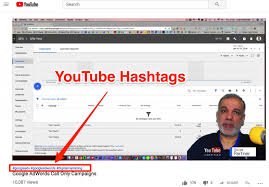
How to Add Hashtags on Youtube: A Step-by-step Guide
Are you struggling to add hashtags to your YouTube video? Do you want to increase the visibility of your content but don’t know where to start? You’re not alone! Adding hashtags on YouTube can be a bit tricky, but don’t worry, we’ve got you covered. In this article, we’ll show you how to add hashtags on YouTube using both computer and mobile devices.
Understanding Hashtags
Before we dive into the step-by-step guide, let’s first understand what hashtags are. Hashtags are labels or keywords that categorize your content online, making it easier for users to find what they’re looking for. In the context of YouTube, hashtags help viewers discover new videos and creators.
Why Add Hashtags on Youtube?
Adding hashtags on YouTube can benefit you in several ways:
- Increased Visibility: By using relevant hashtags, you can increase the visibility of your video, making it more likely to appear in search results.
- Targeted Audience: Hashtags help you target a specific audience interested in your content, leading to more engagement and views.
- Improved Seo: Hashtags contribute to your video’s SEO, helping it rank higher on YouTube’s search engine.
How to Add Hashtags on Youtube Using Computer
Adding hashtags on YouTube using computer is straightforward:
- Access Your Youtube Account: Log in to your YouTube account from a computer browser.
- Upload or Edit a Video: Click on the “Upload” button to upload a new video or edit an existing one by clicking on the three dots next to it and selecting “Edit.”
- Add Hashtags: In the “Description” section, type in relevant hashtags separated by commas.
Tips For Selecting Effective Hashtags
When selecting hashtags, keep the following tips in mind:
- Be Specific: Use specific keywords related to your content.
- Keep it Short: Limit yourself to 3-5 hashtags per video.
- Avoid Spammy Hashtags: Don’t use too many hashtags or unrelated ones that might annoy viewers.
How to Add Hashtags on Youtube Using Mobile Devices
Adding hashtags on YouTube using mobile devices is equally easy:
- Download The Youtube App: Get the YouTube app from Google Play Store (Android) or Apple App Store (iOS).
- Access Your Account: Log in to your YouTube account within the app.
- Upload a Video: Tap the “Upload” button and select the video you want to upload.
- Add Hashtags: In the “Description” section, type in relevant hashtags separated by commas.
Alternative Ways to Find Popular Hashtags
If you’re struggling to come up with relevant hashtags or want to find more popular ones, consider using:
- Hashtag Generators: Websites like Tagsfinder.Com can help you generate hashtags based on your video’s content.
- Youtube’s Auto-complete Feature: Type a keyword in the search bar, and YouTube will suggest related hashtags.
Common Mistakes to Avoid
When adding hashtags on YouTube, be mindful of these common mistakes:
- Overusing Hashtags: Don’t overdo it with too many hashtags that might look spammy.
- Using Irrelevant Hashtags: Make sure the hashtags you use are relevant to your content to avoid confusing viewers.
Conclusion
Adding hashtags on YouTube is a simple process that can increase the visibility of your content, target a specific audience, and improve SEO. By following this step-by-step guide and tips for selecting effective hashtags, you’ll be well on your way to successfully using hashtags on YouTube.


