
Optimizing Your Skype Experience: A Step-by-step Guide to Amplifying Microphone Volume
Are you tired of poor audio quality during your Skype calls? Do you find yourself struggling to be heard by the other party due to a low microphone volume? Look no further! In this comprehensive guide, we’ll walk you through the steps to amplify your microphone volume on Skype, whether you’re using it on your desktop, web browser, smartphone, or tablet.
Understanding The Problem
When you’re in the middle of an important call and your microphone volume is too low, it can be frustrating. You might feel like your voice isn’t being heard, leading to a poor communication experience. This issue can be caused by various factors, including:
- Weak internet connection
- Faulty or low-quality microphone
- Inadequate Skype settings
Amplifying Microphone Volume on Desktop
If you’re using Skype on your desktop computer, follow these steps to amplify your microphone volume:
Step 1: Accessing Skype Settings
- Launch Skype and sign in with your Microsoft account.
- Click on the three dots (…) located at the top left corner of the window.
- Select “Settings” from the dropdown menu.
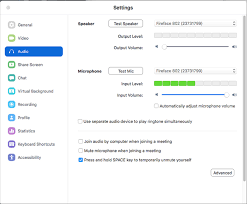
Step 2: Adjusting Audio And Video Settings
- In the Settings window, click on the “Audio and video” option.
- Toggle off the “Automatically adjust microphone settings” switch.
- Use the volume slider to adjust your microphone volume to a comfortable level.
Adjusting System Sound Settings (Windows)
If adjusting Skype’s audio settings doesn’t resolve the issue, try adjusting your system sound settings:
- Press the Windows key + I to open the Settings app.
- Click on “System” and then select “Sound”.
- Select the microphone device you’re using and adjust its volume levels.
Adjusting System Sound Settings (Mac)
If you’re using a Mac, follow these steps to adjust your system sound settings:
- Click on the Apple logo in the top left corner of the screen.
- Select “System Preferences” from the dropdown menu.
- Click on the “Sound” icon.
- Select the microphone device you’re using and adjust its volume levels.
Amplifying Microphone Volume on Web
If you’re using Skype on your web browser, follow these steps to amplify your microphone volume:
- Log in to your Skype account through the official website.
- Click on the three dots (…) located at the top right corner of the window.
- Select “Audio and video” from the dropdown menu.
Amplifying Microphone Volume on Smartphone And Tablet
If you’re using Skype on your smartphone or tablet, follow these steps to amplify your microphone volume:
Step 1: Revoking Access to Microphone
- For Android devices:
- Go to Settings > Applications and Advanced > Notifications > Authorizations
- Select “Microphone” and toggle off the switch beside Skype.
- For iOS devices:
- Go to Settings > Skype
- Toggle off the microphone switch
Step 2: Re-granting Access to Microphone
- For Android devices:
- Return to the authorizations menu and select “Microphone”
- Toggle on the switch beside Skype.
- For iOS devices:
- Re-enable the microphone switch in the Skype settings.
Conclusion
Amplifying your microphone volume on Skype is a straightforward process that can be completed using various methods depending on the device you’re using. By following these step-by-step guides, you should be able to resolve any audio quality issues and enjoy clear communication during your Skype calls.
Frequently Asked Questions
- Q: Why is my microphone volume too low?
A: There could be several reasons for this issue, including weak internet connection, faulty or low-quality microphone, or inadequate Skype settings. - Q: How can I adjust my system sound settings on Windows?
A: To adjust your system sound settings on Windows, press the Windows key + I to open the Settings app and select “System” > “Sound”. - Q: How can I adjust my system sound settings on Mac?
A: To adjust your system sound settings on Mac, click on the Apple logo in the top left corner of the screen and select “System Preferences” > “Sound”.
Additional Resources
For more information on optimizing your Skype experience, visit the official Skype website or consult with a technical expert.


