
How to Transfer Music on Iphone: A Step-by-step Guide
Are you tired of synchronizing your entire iTunes library every time you want to copy music onto your iPhone? Do you want to know how to transfer music on iPhone without syncing everything with iTunes? You’re in the right place! In this article, we’ll show you how to copy songs on iPhone using iTunes, Apple Music/iCloud, and other methods.
What You Need
Before we begin, make sure you have:
- A computer installed with iTunes (available for free download on Windows)
- An iPhone that you want to copy music onto
- A stable internet connection
Method 1: Transferring Music Using Itunes
ITunes is a powerful tool that allows you to manage your music library across multiple devices. Here’s how to transfer music using iTunes:
Synchronizing The Itunes Library With Iphone
If you want to keep your iTunes library synchronized with your iPhone, follow these steps:
- Open iTunes on your computer and select the iPhone icon from the top menu bar.
- Click on “Music” under the Settings tab on the left sidebar.
- Check the box next to “Synchronize music.”
- Choose whether to sync all songs or specific albums, artists, or playlists.
Copying Music Onto Iphone Without Synchronization
If you don’t want to synchronize your entire iTunes library with your iPhone, follow these steps:
- Open iTunes and select the iPhone icon.
- Go to “Settings” > “Music” and uncheck the box next to “Synchronize music.”
- Select the music you want to copy onto your iPhone from the top menu bar.
Method 2: Transferring Music Using Apple Music/icloud
Apple Music is a streaming service that allows you to access thousands of songs across multiple devices. Here’s how to transfer music using Apple Music/iCloud:
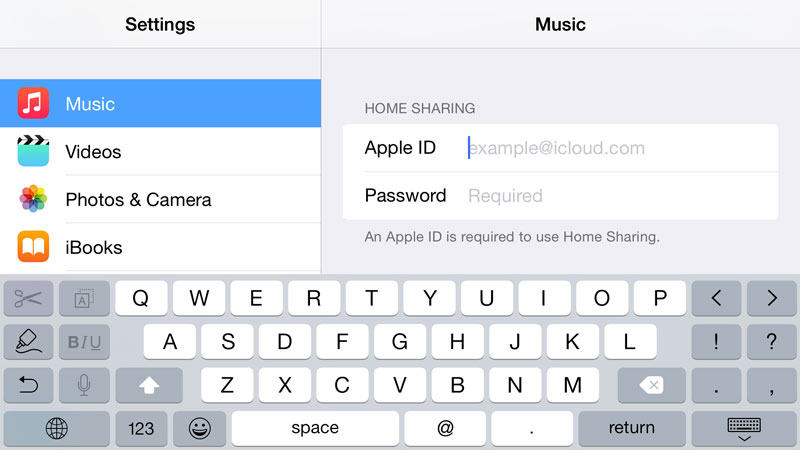
- Open Apple Music on your iPhone and sign in with your Apple ID.
- Click on the “Music” tab at the bottom of the screen.
- Select the music you want to copy onto your iPhone by tapping the three dots next to each song.
- Tap “Add to Library” and select “iCloud Music Library.”
- The music will be transferred to your iCloud library, where it can be accessed across all your devices.
Method 3: Transferring Music Using Finder (macOS Catalina)
If you’re using macOS Catalina or later, you can use the Finder app to transfer music onto your iPhone:
- Open Finder and select your iPhone from the top menu bar.
- Go to “Settings” > “Music” and uncheck the box next to “Synchronize music.”
- Select the music you want to copy onto your iPhone by dragging it into the Finder window.
Common Questions
Here are some frequently asked questions about transferring music on iPhone:
Q: How do I Transfer Music From my PC to my Iphone?
A: You can use iTunes or Apple Music/iCloud to transfer music from your PC to your iPhone.
Q: Can I Copy Music Onto my Iphone Without Syncing Everything With Itunes?
A: Yes, you can use the method described in Method 2 above to copy music onto your iPhone without synchronizing everything with iTunes.
Q: How do I Sync my Itunes Library With my Iphone Wirelessly?
A: You can sync your iTunes library with your iPhone over Wi-Fi by selecting “Synchronize with iPhone” under Settings > Music in iTunes.
Q: Can I Use Apple Music to Transfer Music Onto my Iphone Without Syncing Everything With Itunes?
A: Yes, you can use Apple Music/iCloud to transfer music onto your iPhone without syncing everything with iTunes.
Conclusion
Transferring music on iPhone doesn’t have to be a hassle. With these simple steps, you can copy songs onto your iPhone using iTunes, Apple Music/iCloud, or other methods. Remember to always back up your music library before making any changes!
Additional Resources
- Apple Support: Transferring Music from iTunes to Your iPhone
- Apple Music Help: How to Add Music to Your Library
- Finder (macOS Catalina) Documentation: Transferring Music


