
Carrying Out a Backup With Time Machine: A Step-by-step Guide
Are you tired of worrying about losing your important data on your Mac? Do you want to ensure that your files, applications, and settings are safe in case something goes wrong? Look no further than Time Machine, the built-in backup utility on macOS!
What is Time Machine?
Time Machine is a feature on macOS that allows you to create automatic backups of your computer’s data. This means that you can set up your Mac to save copies of all your files, applications, and settings at regular intervals, ensuring that you always have a safe copy in case something goes wrong.
Why Do I Need Time Machine?
In today’s digital age, it’s more important than ever to protect your data. Accidental file deletions, hard drive crashes, and other disasters can happen to anyone, at any time. By using Time Machine, you can ensure that your valuable data is safe and easily recoverable in case of an emergency.
How Do I Set Up Time Machine?
Setting up Time Machine is a straightforward process that requires just a few steps:
- Connect an External Hard Drive: You’ll need to connect an external hard drive to your Mac. This can be a USB drive, a Thunderbolt drive, or a FireWire drive.
- Format The Hard Drive: If the hard drive you’re using is not already formatted with the APFS file system, you’ll need to format it before proceeding.
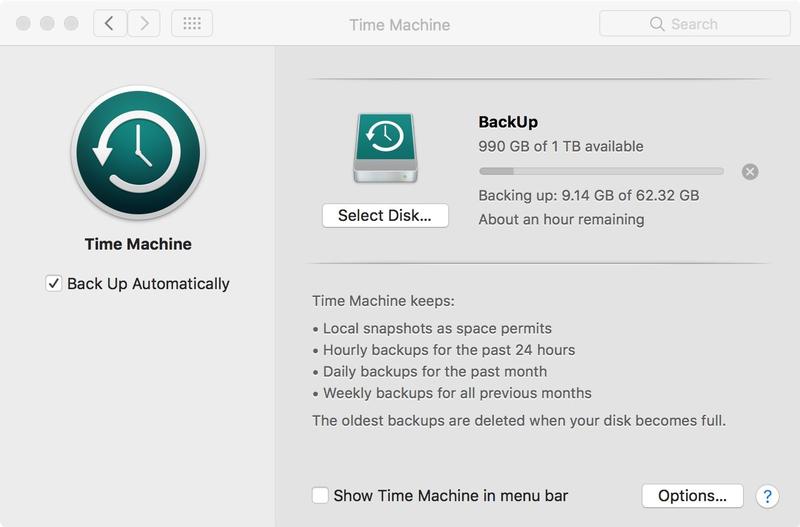
- Configure Time Machine: Once your hard drive is set up, you can configure Time Machine by going to System Preferences > Time Machine.
How Do I Use Time Machine?
Using Time Machine is simple and automatic:
- Launch Time Machine: Go to Applications > Utilities > Time Machine to launch the app.
- Configure Your Backup: Choose the drive you want to use for your backup, set a frequency for backups (e.G., Hourly, daily, weekly), and choose which files and folders you want to include in your backup.
- Start Backing Up: Click “Backup Now” to start creating your first backup.
How Do I Recover Files With Time Machine?
If you need to recover lost or deleted files, follow these steps:
- Launch Time Machine: Go to Applications > Utilities > Time Machine.
- Choose The Backup: Select the backup date and time from which you want to restore a file.
- Find And Restore Your File: Browse through your backups and select the file you need to recover.
How Do I Reinstall Macos With Time Machine?
If you’re experiencing major issues with your Mac, you can use Time Machine to reinstall macOS:
- Turn Off Your Mac: Go to Apple menu > Shut Down.
- Restart in Recovery Mode: Press and hold the power button until your Mac restarts in recovery mode.
- Restore From a Backup: Select “Reinstall macOS” and follow the prompts to restore from your Time Machine backup.
Conclusion
Time Machine is an essential tool for any Mac user who wants to protect their data and ensure that they can recover it in case of an emergency. By following these simple steps, you can set up and use Time Machine to create automatic backups of your computer’s data.
Frequently Asked Questions (FAQs)
- What is The Minimum Capacity For a Time Machine Drive?
The minimum capacity for a Time Machine drive is 1 TB. - How Often Should I Run Time Machine Backups?
We recommend running backups at least daily, but you can set a frequency that suits your needs. - Can I Use an Ssd as a Time Machine Drive?
Yes, you can use an SSD as a Time Machine drive, but keep in mind that it will be used more frequently than a traditional hard drive. - How do I Exclude Specific Files or Folders From my Backup?
To exclude specific files or folders from your backup, go to System Preferences > Time Machine and select the “Options” tab. - Can I Use Time Machine With a Nas Drive?
Yes, you can use Time Machine with a NAS drive, but make sure it’s compatible with macOS. - How do I Recover Deleted Files With Time Machine?
To recover deleted files with Time Machine, follow the steps outlined in our article on recovering lost data. -
Can I Reinstall Macos Using Time Machine?
Yes, you can reinstall macOS using Time Machine by following the steps outlined in our article on reinstalling macOS. -
Is Time Machine Compatible With All Mac Models?
Time Machine is compatible with most Mac models, but make sure to check the compatibility list before setting it up.


