
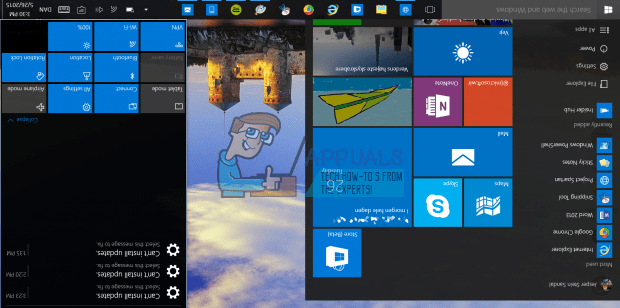
How to Rotate Your Monitor on Windows 10: A Step-by-step Guide
Are you tired of dealing with a monitor that’s spinning out of control? Do you want to rotate your screen to its normal position without any hassle? Look no further! In this article, we’ll show you how to rotate your monitor on Windows 10 in just a few simple steps.
Why Rotate Your Monitor?
Rotating your monitor can be useful for several reasons. For instance, if you’re working with graphics or video editing software, rotating your screen can help you see your work more clearly. Additionally, if you have a laptop and are using it as a desktop replacement, rotating the screen can make it easier to use.
Step 1: Access The Settings App
To rotate your monitor on Windows 10, you’ll first need to access the Settings app. You can do this by clicking on the Start button (usually located at the bottom left corner of the screen) and selecting “Settings” from the menu.
Step 2: Select Display
Once you’re in the Settings app, select the “Display” option from the list of available settings. This will take you to a page where you can adjust various display-related options.
Step 3: Choose Your Monitor
From the Display page, select your monitor (or monitors) from the list of available displays. You may need to click on the dropdown menu at the top right corner of the screen to see all the available displays.
Step 4: Rotate Your Monitor
To rotate your monitor, click on the “Orientation” option located under the display settings. This will bring up a dropdown menu where you can choose from several rotation options:
- Horizontal: Rotates the monitor to its normal position (0°).
- Vertical: Rotates the monitor by 90°.
- Horizontal (Upset): Rotates the monitor by 180° in a horizontal direction.
- Vertical (Upset): Rotates the monitor by 270° in a vertical direction.
Step 5: Apply Your Changes
Once you’ve selected your preferred rotation option, click on the “Keep changes” button to apply your changes. If you want to revert back to the original orientation, simply click on the “Revert” button.
Alternative Solutions
If you’re having trouble rotating your monitor using the built-in Settings app, there are alternative solutions available. One such solution is a third-party program called iRotate. This program allows you to rotate your monitor with ease and provides additional features such as saving your preferred rotation settings for future use.
Conclusion
Rotating your monitor on Windows 10 can be a simple process if you know where to look. By following the steps outlined in this guide, you should be able to rotate your screen with ease. If you’re still having trouble or prefer an alternative solution, consider using a third-party program like iRotate.
Frequently Asked Questions
Here are some frequently asked questions about rotating your monitor on Windows 10:
- Q: How do I Rotate my Monitor on Windows 10?
A: To rotate your monitor on Windows 10, follow the steps outlined in this guide. - Q: Why Can’t I See The Rotation Options?
A: Make sure you have selected the correct display settings and that the “Orientation” option is visible. - Q: Can I Use a Third-party Program to Rotate my Monitor?
A: Yes, there are alternative solutions available such as iRotate.
Conclusion
Rotating your monitor on Windows 10 can be a simple process if you know where to look. By following the steps outlined in this guide and considering alternative solutions, you should be able to rotate your screen with ease.


