
Updating an Old Tablet Android: A Step-by-step Guide
Are you tired of using an outdated tablet Android that can’t seem to keep up with the demands of modern technology? Do you want to breathe new life into your old device, making it faster and more efficient? Look no further! In this article, we’ll guide you through the process of updating your old tablet Android, ensuring you’re fully equipped with the latest features and functionality.
Why Update Your Old Tablet Android?
Before we dive into the nitty-gritty details, let’s explore why updating your old tablet Android is a good idea. Here are some compelling reasons:
- Improved Performance: An updated operating system can breathe new life into your device, making it faster and more responsive.
- Enhanced Security: Regular updates ensure that your device stays protected from the latest security threats.
- Access to New Features: Updates often bring new features and functionality, allowing you to enjoy a better user experience.
- Compatibility With Latest Apps: An updated operating system ensures compatibility with the latest apps, making it easier to stay connected with friends and family.
Method 1: Updating Through Official Channels
The most straightforward way to update your old tablet Android is by downloading official updates from Google. Here’s how:
Step 1: Check For Updates
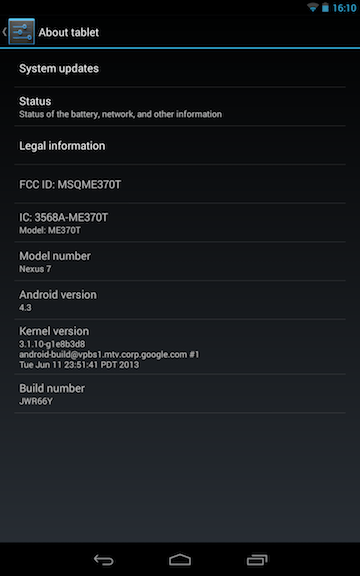
Open the Settings app on your device and navigate to “About tablet” or “Info.” Look for the “Software updates” section.
Step 2: Download And Install Updates
If there are available updates, follow the prompts to download and install them. This process may take a few minutes, depending on your internet connection speed.
Step 3: Confirm Installation
Once the update is downloaded and installed, restart your device to confirm that it has been successfully applied.
Method 2: Updating Through Custom Roms
If official updates are no longer available for your device, you can consider updating through custom ROMs. This method requires more technical expertise and may involve risks such as data loss or device bricking.
Step 1: Backup Your Data
Before proceeding with the update process, make sure to backup all your important files and data.
Step 2: Unlock Your Device’s Bootloader
To install a custom ROM, you’ll need to unlock your device’s bootloader. This may void your warranty, so proceed with caution.
Step 3: Download And Install Custom Rom
Search for a compatible custom ROM that suits your device and download it. Follow the instructions provided by the ROM developer to install the update.
Conclusion
Updating your old tablet Android can be a straightforward process if you follow the right steps. Whether you choose to update through official channels or opt for a custom ROM, remember to always backup your data and proceed with caution. By doing so, you’ll be able to enjoy a faster, more efficient, and more secure device that’s perfect for everyday use.
Frequently Asked Questions (FAQs)
Here are some frequently asked questions that may help clarify any doubts:
- Q: What Happens if I Update my Old Tablet Android?
A: Updating your old tablet Android ensures you’re running the latest operating system, which can improve performance, enhance security, and provide access to new features. - Q: Will Updating my Device Void my Warranty?
A: Yes, updating your device may void your warranty. However, if you proceed with caution and follow the right steps, this risk is minimal. - Q: Can I Update my Tablet Android Through Custom Roms?
A: Yes, if official updates are no longer available for your device, you can consider updating through custom ROMs. This method requires more technical expertise and may involve risks such as data loss or device bricking.
Stay tuned for more informative articles on technology and gadgets!


