
How to Change Your Netflix Password: A Step-by-step Guide
Are you tired of family members using your Netflix account without permission? Do you want to regain control over your password and protect your account from unauthorized access? Look no further! In this article, we’ll guide you through the process of changing your Netflix password on various devices, including computers, smartphones, tablets, and Smart TVs.
Why Change Your Netflix Password?
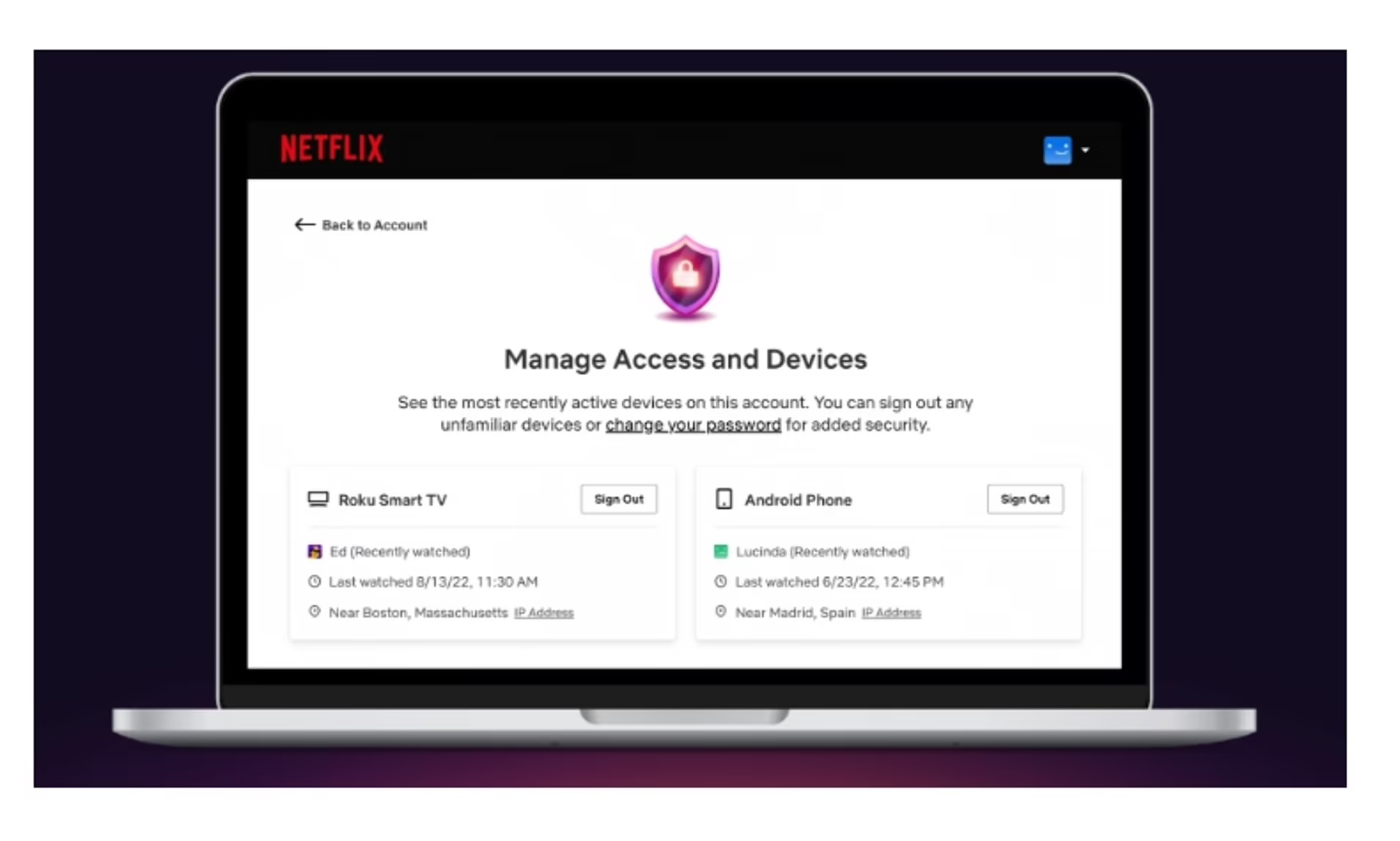
Changing your Netflix password is essential for maintaining account security. If someone has access to your password, they can view your watch history, see what you’re currently watching, and even use your account to make purchases or subscriptions. By changing your password regularly, you’ll ensure that only authorized individuals have access to your account.
How to Change Your Netflix Password on Computer
To change your Netflix password on a computer, follow these steps:
- Launch The Netflix Website: Open a web browser (e.G., Google Chrome, Mozilla Firefox) and navigate to the official Netflix website.
- Sign In: Click on the “Sign In” button at the top right corner of the page. Enter your email address and password to log in to your account.
- Select Your Profile: Choose a profile from the dropdown menu. Make sure you select an adult profile, as this will ensure that only authorized individuals have access to the account.
- Go to Account Settings: Click on the “Account” tab at the top right corner of the page.
- Click on Modify Password: Scroll down and click on the “Modify Password” button.
- Enter New Password: Enter your new password in the “New password” field. Make sure it’s strong and unique.
- Confirm New Password: Confirm your new password by re-entering it in the “Confirm new password” field.
- Save Changes: Click on the “Save” button to apply the changes.
How to Change Your Netflix Password on Smartphone And Tablet
To change your Netflix password on a smartphone or tablet, follow these steps:
- Launch The Netflix App: Open the Netflix app on your device (available for Android and iOS).
- Sign In: Tap on the “Sign In” button at the top right corner of the screen. Enter your email address and password to log in to your account.
- Select Your Profile: Choose a profile from the dropdown menu. Make sure you select an adult profile, as this will ensure that only authorized individuals have access to the account.
- Go to Account Settings: Tap on the “Account” tab at the bottom of the screen.
- Click on Modify Password: Scroll down and tap on the “Modify password” button.
- Enter New Password: Enter your new password in the “New password” field. Make sure it’s strong and unique.
- Confirm New Password: Confirm your new password by re-entering it in the “Confirm new password” field.
- Save Changes: Tap on the “Save” button to apply the changes.
How to Change Your Netflix Password on Smart TV
To change your Netflix password on a Smart TV, follow these steps:
- Launch The Netflix App: Open the Netflix app on your TV (available for various platforms).
- Sign In: Sign in to your account using your email address and password.
- Select Your Profile: Choose a profile from the dropdown menu. Make sure you select an adult profile, as this will ensure that only authorized individuals have access to the account.
- Go to Account Settings: Navigate to the account settings menu (varies depending on the platform).
- Click on Modify Password: Scroll down and click on the “Modify password” button.
- Enter New Password: Enter your new password in the “New password” field. Make sure it’s strong and unique.
- Confirm New Password: Confirm your new password by re-entering it in the “Confirm new password” field.
- Save Changes: Save the changes to apply them.
How to Change Your Netflix Password if You Forget It
If you forget your Netflix password, don’t worry! You can easily reset it using the following methods:
- Email Recovery: Go to the Netflix website and click on “Forgot email” or “Forgot password.” Enter your email address and follow the instructions to reset your password.
- Sms Recovery: If you’ve opted for SMS recovery, enter your phone number and follow the instructions to receive a verification code.
- Password Reset Form: Fill out the password reset form with your information (name, surname, credit/debit card details) to initiate the recovery process.
Conclusion
Changing your Netflix password is an essential step in maintaining account security. By following these simple steps, you can ensure that only authorized individuals have access to your account. Remember to choose a strong and unique password, and don’t hesitate to reach out to Netflix support if you encounter any issues during the password reset process.
Faqs
- Q: Why Should I Change my Netflix Password?
A: Changing your Netflix password ensures that only authorized individuals have access to your account. - Q: How Often Should I Change my Netflix Password?
A: It’s recommended to change your Netflix password every 60-90 days for maximum security. - Q: Can I Change my Netflix Password on Multiple Devices at Once?
A: Yes, you can change your Netflix password across all devices linked to your account. - Q: What if I Forget my Netflix Password?
A: You can easily reset your password using the email recovery or SMS recovery methods. - Q: Can I Use a Password Manager to Generate And Store Strong Passwords For my Netflix Account?
A: Yes, you can use a password manager to generate and store unique passwords for your Netflix account. - Q: How do I Protect my Netflix Account From Unauthorized Access?
A: Make sure to choose a strong and unique password, enable two-factor authentication, and keep your email address and phone number secure.
I hope this article has provided you with the necessary guidance on how to change your Netflix password across various devices. Remember to stay vigilant and take steps to protect your account from unauthorized access!


