
Actuating The Led of Notification on Your Smartphone: A Step-by-step Guide
As a smartphone user, you’re probably familiar with the constant stream of notifications that can be both a blessing and a curse. While it’s essential to stay connected and informed, those pesky notifications can sometimes get in the way of your work or personal time. In this article, we’ll show you how to activate the LED of notification on your Android device, as well as some alternative solutions for iPhone users.
Why Actuate The Led of Notification?
Before we dive into the step-by-step guide, let’s quickly discuss why actuating the LED of notification is a good idea. When you receive notifications, it can be distracting to constantly check your phone, especially if you’re in a meeting or working on a project. By activating the LED of notification, you’ll get a visual cue that alerts you to new messages or calls without having to physically check your phone.
Actuating The Led of Notification on Android
If you have an Android device, actuating the LED of notification is relatively straightforward. Here’s how:
- Go to Settings: Open the Settings app on your Android device.
- Scroll Down to Notifications: Look for the “Notifications” section and tap on it.
- Select Notification Light: Choose the “Notification light” option, which should be available in most Android devices.
- Turn ON The Led: Toggle the switch next to “Notification light” to turn it ON.
Actuating The Led of Notification on Oppo
If you’re using an OPPO device, the process is slightly different:
- Open Settings: Go to the Settings app on your OPPO device.
- Select Personalization: Choose the “Personalization” option from the menu.
- Tap on Always On Display: Select the “Always On Display” option and toggle the switch next to it to turn it ON.
- Customize Your Led: You can customize your LED settings by choosing the color, style, or animation you prefer.
Actuating The Led of Notification on Samsung
If you’re using a Samsung device, follow these steps:
- Go to Settings: Open the Settings app on your Samsung device.
- Select Notifications: Look for the “Notifications” section and tap on it.
- Choose Advanced Settings: Select the “Advanced settings” option from the menu.
- Turn ON The Led: Toggle the switch next to “Notification light” to turn it ON.
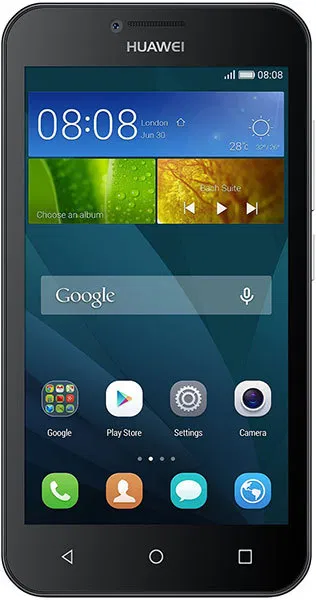
Actuating The Led of Notification on Huawei
If you’re using a HUAWEI device, follow these steps:
- Open Settings: Go to the Settings app on your HUAWEI device.
- Select Applications And Notifications: Look for the “Applications and notifications” section and tap on it.
- Choose Notifications: Select the “Notifications” option from the menu.
- Turn ON The Led: Toggle the switch next to “Notify light” to turn it ON.
Alternative Solutions: Using Apps or Flashing Leds
If your device doesn’t have a built-in LED of notification, don’t worry! There are alternative solutions available:
- Flash Alert – Call And Message: This app allows you to flash the camera’s LED for notifications, calls, or messages.
- Using The Flash as an Led: Some devices allow you to use the flash as an LED by accessing the Accessibility settings.
Actuating The Led of Notification on Iphone
Unfortunately, iPhones don’t have a built-in LED of notification like Android devices do. However, there’s a workaround:
- Enable Flash Alerts: Go to Settings > Accessibility > Audio/Visual and toggle the switch next to “Flash Alert” to turn it ON.
- Choose Silent Mode: Make sure that you’re in Silent mode when receiving notifications.
Conclusion
Actuating the LED of notification on your Android device is a simple process, and we’ve provided step-by-step guides for various devices. If you’re using an iPhone, don’t worry – there are alternative solutions available! By following these tips, you’ll be able to stay connected without the distractions of constant notifications.
Faqs
- Q: Why do I Need to Actuate The Led of Notification?
A: Actuating the LED of notification allows you to receive visual cues for new messages or calls without having to physically check your phone. - Q: How do I Enable The Led of Notification on my Android Device?
A: Go to Settings > Notifications > Notification Light and toggle the switch next to it to turn it ON. - Q: What’s The Difference Between The Always On Display Feature And The Led of Notification?
A: The Always On Display feature keeps your screen always lit, while the LED of notification provides a visual cue for new messages or calls. - Q: Can I Customize my Led Settings on Android?
A: Yes! Most Android devices allow you to customize your LED settings, including color, style, and animation. - Q: How do I Actuate The Led of Notification on my Iphone?
A: Unfortunately, iPhones don’t have a built-in LED of notification. However, you can enable Flash Alerts in Accessibility settings. - Q: What’s The Best App For Flashing Leds on Android?
A: One popular app is Flash Alert – Call and Message, which allows you to flash your camera’s LED for notifications, calls, or messages. - Q: Will Using an App Consume a Lot of Battery Power?
A: Yes, some apps may consume more battery power than others. Make sure to check the permissions required by the app before installing it. - Q: Can I Use my Flash as an Led on Android?
A: Some devices allow you to use your flash as an LED by accessing the Accessibility settings.
We hope this article has been helpful in showing you how to actuate the LED of notification on your device!


