
Actuating Cellular Data on Iphone: A Step-by-step Guide
Are you among the millions of people who have recently acquired an iPhone and are struggling to set up cellular data? Do not worry; we’re here to help! In this comprehensive guide, we’ll walk you through the steps to activate cellular data on your iPhone, whether you’re using a physical SIM card or eSIM.
Choosing The Right Operator
Before diving into the setup process, it’s essential to choose a reliable mobile operator that suits your needs. Some of the most popular options in Italy include TIM, WINDTRE, Vodafone, Iliad, ho, and Fastweb. Each operator has its unique features, pricing plans, and coverage areas.
Understanding Iphone’s Dual Sim Functionality
One of the notable features of newer iPhone models is the dual SIM capability. This allows you to use two different mobile operators or two eSIMs on a single device. The dual SIM functionality can be configured in two modes: Physical SIM and eSIM, or two eSIMs.
Benefits of Dual Sim
Using dual SIM on your iPhone offers several advantages:
- Multiple Phone Numbers: You can have two separate phone numbers for personal and professional use.
- Separate Voice And Data Plans: With dual SIM, you can have different plans for voice calls and internet usage.
- Cost-effective: Using a single device with two SIMs can be more cost-effective than carrying multiple devices.
Configuring Cellular Data on Iphone
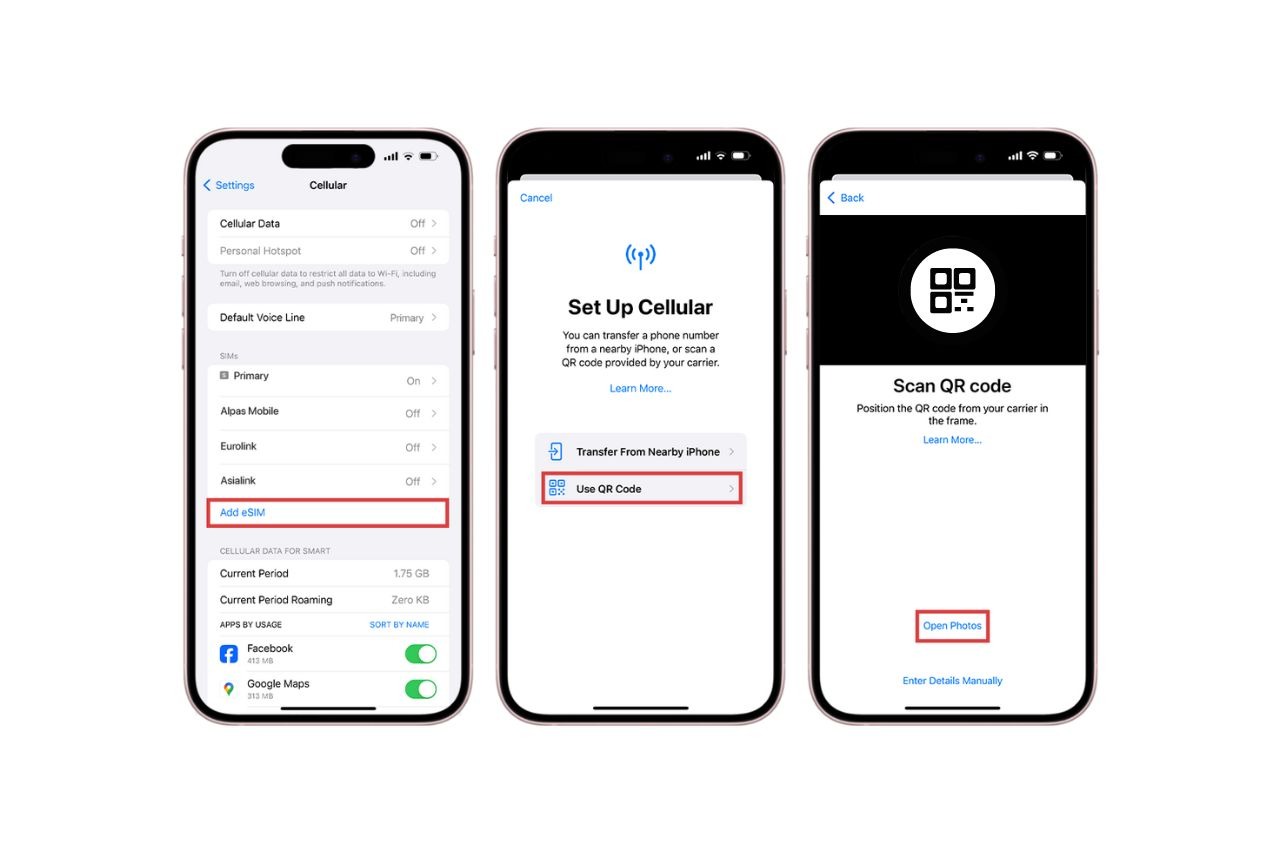
To activate cellular data on your iPhone, follow these steps:
- Insert The Sim Card: Place the physical SIM card into the correct slot on your iPhone or scan the QR code to match the eSIM with your device.
- Access The Settings App: Open the Settings app and navigate to Cellular.
- Enable Cellular Data: Toggle the switch next to “Cellular Data” to enable it.
- Select a Network Type: Choose from 3G, 4G, or 5G as your preferred network type.
Configuring Apn For Each Operator
For each mobile operator you use, you’ll need to configure the Access Point Name (APN) on your iPhone:
- Tim: Enter
wap.Tim.Itin the Cellular Data/ APN field. - Windtre: Set
internet.Itas the APN for cellular data andibox.Windtre.Itfor the Hotspot Personal section. - Vodafone: Use
iphone.Vodafone.Itas the APN for cellular data andweb.Omnitel.Itfor the Hotspot Personal section. - Iliad: Configure the APN to
iliadfor cellular data and use the same value for the Hotspot Personal section. - Ho: Enter
web.I-mobile.Itas the APN for cellular data, while using the same value for the Hotspot Personal section. - Fastweb: Set
apn.Fastweb.Itas the APN for cellular data and use the same value for the Hotspot Personal section.
Troubleshooting
In case you encounter any issues with your cellular data connection, follow these steps to troubleshoot:
- Check Your Sim Card: Ensure that your physical SIM card is correctly inserted or scan the QR code for eSIM.
- Verify Apn Settings: Confirm that the APN configuration matches your mobile operator’s requirements.
- Restart Your Device: Restart your iPhone to refresh the connection.
Conclusion
Activating cellular data on your iPhone is a straightforward process once you understand the necessary steps and configurations required for each mobile operator. By following this comprehensive guide, you’ll be able to set up your cellular data connection efficiently and enjoy seamless internet access on your iPhone.
Faqs
- What Are The Benefits of Using Dual Sim on my Iphone?
Using dual SIM offers multiple phone numbers, separate voice and data plans, and cost-effectiveness. - How do I Configure Apn For Each Mobile Operator?
Enter the specific APN value for your chosen operator in the Cellular Data/ APN field. - What Should I do if I Encounter Issues With my Cellular Data Connection?
Check your SIM card, verify APN settings, and restart your device to troubleshoot.
By following this step-by-step guide, you’ll be able to activate cellular data on your iPhone and enjoy a seamless mobile experience.


