
How to Record Your Mobile Screen: A Step-by-step Guide
Are you tired of trying to explain a problem or process on your mobile screen to someone? Or perhaps you want to create tutorials, videos, or social media content that showcases what’s happening on your phone. Whatever the reason, recording your mobile screen can be a game-changer. In this article, we’ll show you how to do it using both Android and iOS devices.
Why Record Your Mobile Screen?
Before we dive into the nitty-gritty of how to record your mobile screen, let’s quickly discuss why you might want to do so in the first place. Here are a few reasons:
- To create tutorials or guides that showcase specific features or processes on your phone
- To capture evidence of bugs, errors, or other issues with your device
- To share what’s happening on your screen with friends, family, or colleagues
- To monetize your mobile gaming experiences by recording and sharing gameplay videos
How to Record Your Mobile Screen With Android
Recording your mobile screen with an Android device is relatively straightforward. Here are the steps:
- Check if Your Device Has a Built-in Screen Recorder: Many recent Android devices come with a built-in screen recorder feature. To check if yours does, go to Settings > Advanced features > Screen recorder.
- Use The Screen Recorder App: If you don’t have a built-in screen recorder, you can download and install the Screen Recorder app from the Google Play Store. This app allows you to record your screen with or without audio commentary.
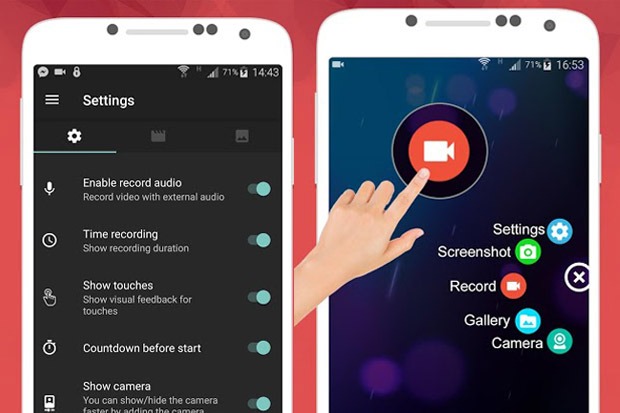
- Use a Third-party App: There are many third-party apps available that allow you to record your mobile screen. Some popular options include AZ Screen Recorder, Screen Recorder, and DU Recorder.
How to Record Your Mobile Screen With Ios
Recording your mobile screen with an iOS device is also relatively straightforward. Here are the steps:
- Check if Your Device Has a Built-in Screen Recorder: Starting from iOS 11, Apple added a built-in screen recorder feature. To access it, go to Settings > Control Center > Customize Controls and add the Screen Recording option.
- Use The Built-in Screen Recorder: Once you’ve added the Screen Recording option to your Control Center, you can use it to record your mobile screen by swiping up from the bottom of the screen, tapping the Screen Recording icon, and selecting the area you want to record.
- Use a Third-party App: If you don’t have access to the built-in screen recorder or prefer to use a third-party app, there are many options available in the App Store, including QuickTime Player.
How to Record Your Mobile Screen With a Computer
While recording your mobile screen directly from your device is convenient, sometimes it’s more practical to do so from a computer. Here’s how you can record your mobile screen using a computer:
- Choose a Screen Recording Software: There are many screen recording software options available for computers, including OBS Studio, Camtasia, and Snagit.
- Connect Your Device to The Computer: Connect your Android or iOS device to your computer via USB or wirelessly using a tool like TeamViewer.
- Record Your Mobile Screen: Once connected, you can record your mobile screen by following the on-screen instructions provided by the software.
Conclusion
Recording your mobile screen is easier than ever, thanks to built-in features and third-party apps available for both Android and iOS devices. Whether you want to create tutorials, capture evidence of issues, or share what’s happening on your screen with others, this guide has shown you how to do it using various methods.
Frequently Asked Questions
Here are some additional questions and answers related to recording your mobile screen:
**Q: What are the benefits of recording my mobile screen?**
A: Recording your mobile screen can be beneficial for creating tutorials, capturing evidence of issues, sharing what’s happening on your screen with others, and monetizing your mobile gaming experiences.
**Q: How do I record my mobile screen using a third-party app?**
A: To record your mobile screen using a third-party app, download and install the app from the Google Play Store (for Android) or App Store (for iOS). Follow the on-screen instructions provided by the app to begin recording.
**Q: Can I use a computer to record my mobile screen?**
A: Yes, you can use a computer to record your mobile screen. Connect your device to the computer via USB or wirelessly using a tool like TeamViewer, and then follow the on-screen instructions provided by the software to begin recording.
**Q: What are some popular third-party apps for recording my mobile screen?**
A: Some popular third-party apps for recording your mobile screen include AZ Screen Recorder (for Android), QuickTime Player (for iOS), and OBS Studio (for computers).
Let me know if you have any other questions or need further clarification on any of the points mentioned in this article.


