
How to Conceal Folders on Windows: A Step-by-step Guide
Are you tired of having your private files and folders easily accessible by others? Do you want to keep your personal data safe from prying eyes? Look no further! In this article, we will guide you through the process of concealing folders on Windows using various methods, including built-in features and third-party software.
The Importance of Concealing Folders
Concealing folders is an essential step in maintaining online security. With so many people having access to your computer or device, it’s crucial to protect your sensitive information from being compromised. By concealing your folders, you can prevent others from accessing them without permission.
Method 1: Using Built-in Features
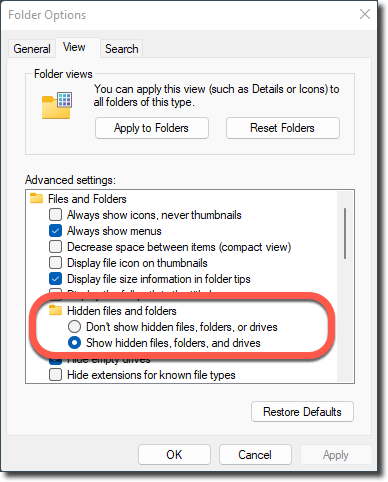
Windows provides a built-in feature that allows you to conceal folders on the operating system. Here’s how to do it:
Step-by-step Instructions
- Right-click on the folder you want to conceal.
- Select Properties from the context menu.
- In the Properties window, select the General tab.
- Check the box next to Hidden.
- Click Apply and then OK.
What Happens When You Conceal a Folder?
When you conceal a folder using this method, it will be invisible in the File Explorer. However, if someone has administrative rights or uses a third-party software, they may still be able to access the concealed folder.
Method 2: Using Alternative Methods
If the built-in feature doesn’t work for you, there are alternative methods you can use to conceal folders on Windows.
Free Hide Folder
One such method is using the Free Hide Folder software. Here’s how to do it:
Step-by-step Instructions
- Download and install the Free Hide Folder software from its official website.
- Launch the software and create a password.
- Add the folder you want to conceal by clicking on the Add button.
- Select the folder and click OK.
Veracrypt
Another method is using VeraCrypt, a free and open-source software that allows you to create encrypted containers.
Step-by-step Instructions
- Download and install VeraCrypt from its official website.
- Launch VeraCrypt and select Create a New Volume.
- Choose the encryption algorithm and password for your container.
- Select the folder where you want to save the container.
- Follow the prompts to complete the setup.
What’s Next?
Concealing folders on Windows is an easy process that can be completed using various methods. By following the steps outlined in this article, you can protect your sensitive information from being compromised.
Frequently Asked Questions (FAQs)
Q: How do I conceal a folder on Windows?
A: You can use the built-in feature by right-clicking on the folder and selecting Properties, or use alternative methods like Free Hide Folder or VeraCrypt.
Q: What happens when I conceal a folder using the built-in feature?
A: The folder will be invisible in the File Explorer, but someone with administrative rights or using third-party software may still access it.
Q: Can I use other operating systems to access concealed folders created on Windows?
A: Yes, you can use VeraCrypt to create encrypted containers that can be accessed on macOS and Linux devices.
Conclusion
Concealing folders on Windows is a simple process that can be completed using various methods. By following the steps outlined in this article, you can protect your sensitive information from being compromised. Remember to always keep your data safe and secure by taking necessary precautions to conceal your folders.
Additional Faqs
Q: How do I unhide a folder concealed using Free Hide Folder or VeraCrypt?
A: You can unhide a folder by launching the software and clicking on the Unhide button for Free Hide Folder, or by repeating the encryption process for VeraCrypt.
Q: Can I use other versions of Windows to conceal folders?
A: Yes, you can use alternative methods like Free Hide Folder or VeraCrypt to conceal folders on older versions of Windows.
Q: How do I protect my concealed folders from being accessed without permission?
A: You should always use strong passwords and encryption algorithms to protect your concealed folders.


