
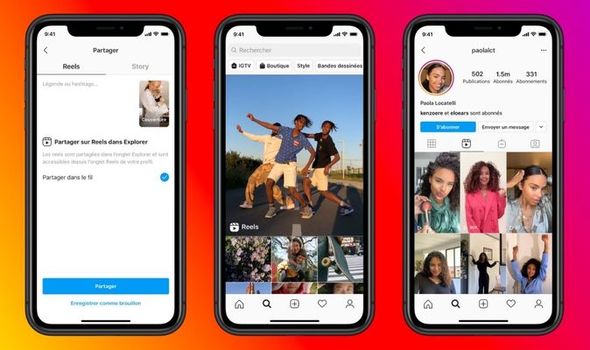
How to Record Video on Instagram: A Step-by-step Guide
Are you curious about how to record video on Instagram? Look no further! In this article, we will guide you through the process of recording video on Instagram, both for posting and for stories.
Why Use Instagram For Recording Videos?
Instagram is an excellent platform for sharing videos with your friends and family. With its vast user base and engaging features, it’s a great way to share your favorite moments with others.
Prerequisites: Understanding The Basics of Instagram
Before we dive into the process of recording video on Instagram, let’s make sure you’re familiar with the basics of the app. You’ll need to:
- Download And Install The App: Get the official Instagram app from the Google Play Store (for Android) or the Apple App Store (for iOS).
- Create an Account: Sign up for a new account or log in to your existing one.
- Familiarize Yourself With The Interface: Understand how to navigate the app, including the menu, tabs, and features.
How to Record Video on Instagram: A Step-by-step Guide
Recording Video For Posting
- Launch The App: Open Instagram and log in to your account.
- Tap The (+) Icon: Find the plus sign icon in the bottom-right corner of the screen.
- Select “Video”: Choose the video option from the menu.
- Record Your Video: Tap the camera button to start recording your video. You can record up to 60 minutes, but we recommend keeping it concise and engaging.
- Add a Caption And Tags: Once you’ve recorded your video, add a caption and relevant hashtags to make it discoverable.
Recording Video For Stories
- Open The App: Launch Instagram and log in to your account.
- Tap The Camera Icon: Find the camera icon in the top-left corner of the screen.
- Record Your Story: Tap the record button to start capturing your story.
- Add Effects, Filters, And Music: Use the various tools available on the app to enhance your video, such as filters, effects, and music.
Recording Video With Music
- Launch The App: Open Instagram and log in to your account.
- Tap The Camera Icon: Find the camera icon in the top-left corner of the screen.
- Create a New Story: Tap the record button to start creating a new story.
- Add Music: Use the music feature to add a soundtrack to your video.
Recording Video Monitor on Instagram
- Enable Screen Recording: On Android devices, go to Settings > Advanced Features > Screen Recording and follow the prompts. On iOS devices, navigate to Settings > Control Center > Customize Controls and toggle on Screen Recording.
- Record Your Video: Start recording your screen by tapping the record button.
Conclusion
Recording video on Instagram is a straightforward process that requires some basic understanding of the app’s features. Whether you’re creating content for posting or stories, follow these steps to capture high-quality videos that engage and entertain your audience.
Frequently Asked Questions (FAQs)
- Q: Can I Record Video on Instagram For Youtube?
A: Yes, but it requires some extra steps. You can record a video on Instagram and share it directly to your YouTube account. - Q: What’s The Maximum Length of a Video I Can Record on Instagram?
A: The maximum duration is 60 minutes, but we recommend keeping it concise for better engagement. - Q: Can I Use Third-party Apps to Edit my Videos?
A: Yes, you can utilize various editing apps available on both Android and iOS devices to enhance your video content. - Q: How do I Add Music to my Instagram Video?
A: You can find the music feature within the app by creating a new story or posting a video. - Q: Can I Record Video Monitor on my Device?
A: Yes, but it requires enabling screen recording features on your Android or iOS device. - Q: What Are Some Popular Third-party Apps For Editing Videos?
A: Some recommended apps include Adobe Premiere Rush, InShot, and Video Downloader for Instagram. - Q: Can I Record Video For Instagram Using my Device’s Camera App?
A: Yes, you can use your device’s built-in camera app to record a video and then share it on Instagram.
Additional Resources
For more information on recording video on Instagram or exploring other features of the app, visit our blog section dedicated to technological tutorials.


