
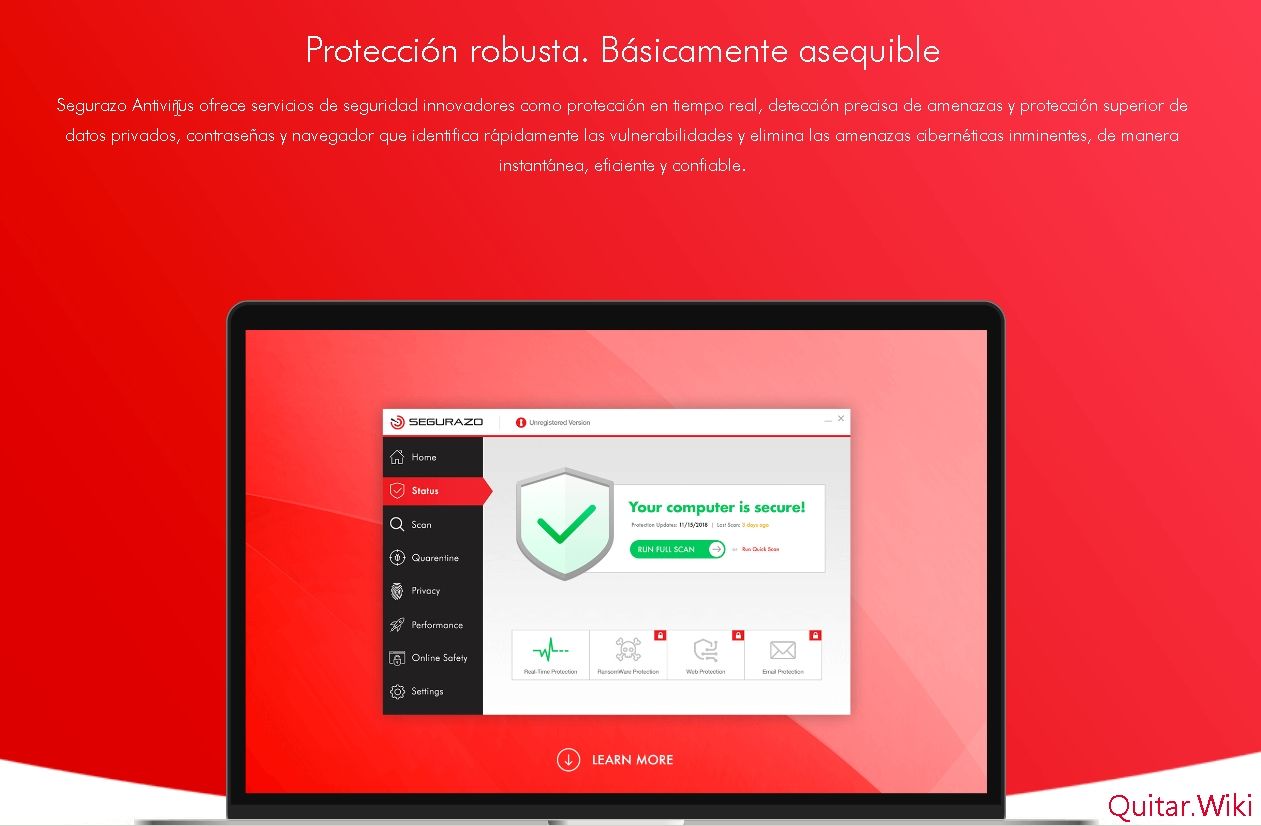
Unveiling The Truth About Segurazo: A Guide to Remove This Potentially Unwanted Software
Are you tired of dealing with annoying software that takes control of your computer without your consent? Look no further! In this article, we will delve into the world of potentially unwanted programs (PUPs) and provide a step-by-step guide on how to remove Segurazo from your Windows 10 or 8.1 Computer.
What is Segurazo?
Segurazo is a software that claims to be an antivirus program but has been known to exhibit suspicious behavior, such as installing unnecessary programs and consuming system resources excessively. It is classified as a PUP, which means it was installed without your knowledge or consent, often bundled with other free software.
Why Should You Remove Segurazo?
Removing Segurazo from your computer can prevent potential security risks, data corruption, and overall system instability. By uninstalling this program, you will also be protecting yourself from the possibility of being tricked into installing more unwanted programs in the future.
How to Uninstall Segurazo on Windows 10 or 8.1
To remove Segurazo from your computer, follow these steps:
Step 1: Delete The Program
- Click on the Start button and select Settings.
- Select Apps & features.
- Find the entry for Segurazo Antivirus in the list of installed programs.
- Click on the Uninstall button next to it.
- Confirm the uninstallation by clicking Yes, Uninstall.
Step 2: Remove Hidden Files
Segurazo may have left hidden files or folders on your computer. To remove them, follow these steps:
- Press the Windows key + E to open File Explorer.
- Navigate to the C:\ProgramData and C:\Users[YourUsername]\AppData\Local folders.
- Look for any folders or files related to Segurazo.
- Delete them permanently.
Step 3: Use an Antimalware Tool
To ensure that all remnants of Segurazo are removed, use a reputable antimalware tool such as Malwarebytes. Download and install the free version of Malwarebytes, and then follow these steps:
- Run Malwarebytes and click on the Scan button.
- Wait for the scanning process to complete.
- If any threats are detected, click on the Quarantine button to remove them.
How to Clean Up Your Browser
Segurazo may have left extensions or other unwanted programs in your browser. To clean up your browser:
Step 1: Remove Extensions
For Google Chrome, Firefox, and Microsoft Edge browsers, follow these steps to remove any Segurazo-related extensions:
- Click on the three vertical dots (⋮) at the top right corner of the browser.
- Select More tools > Extensions.
- Look for any extensions related to Segurazo.
- Click on the Remove button next to each extension.
Step 2: Reset Your Browser
If your browser is still behaving abnormally after removing the extensions, consider resetting it to its default settings. This will remove all customizations and preferences, but it’s a good way to start fresh.
Troubleshooting Tips
If you encounter any issues during the removal process or if Segurazo persists in causing problems, try using Fixit, a tool provided by Microsoft, to resolve uninstallation issues. If that doesn’t work, consider using Revo Uninstaller, an advanced program removal tool.
Conclusion
Removing Segurazo from your computer is essential for maintaining the security and stability of your system. By following these steps, you can ensure that this potentially unwanted software is completely removed, leaving your computer in a clean and secure state.
Frequently Asked Questions (FAQs)
- Is Segurazo a Virus?
No, Segurazo is classified as a PUP (potentially unwanted program), not a virus. - Will Removing Segurazo Affect my Computer’s Performance?
Removing Segurazo will likely improve your computer’s performance and stability. - How do I Prevent Unwanted Programs From Being Installed on my Computer?
To avoid installing unwanted programs, always read the terms of service carefully and opt out of any additional software installations when prompted. - What Should I do if I Encounter Issues During The Removal Process?
If you experience problems while removing Segurazo, try using Fixit or Revo Uninstaller for assistance.
By following this guide, you can confidently remove Segurazo from your computer and maintain a clean and secure digital environment.


