
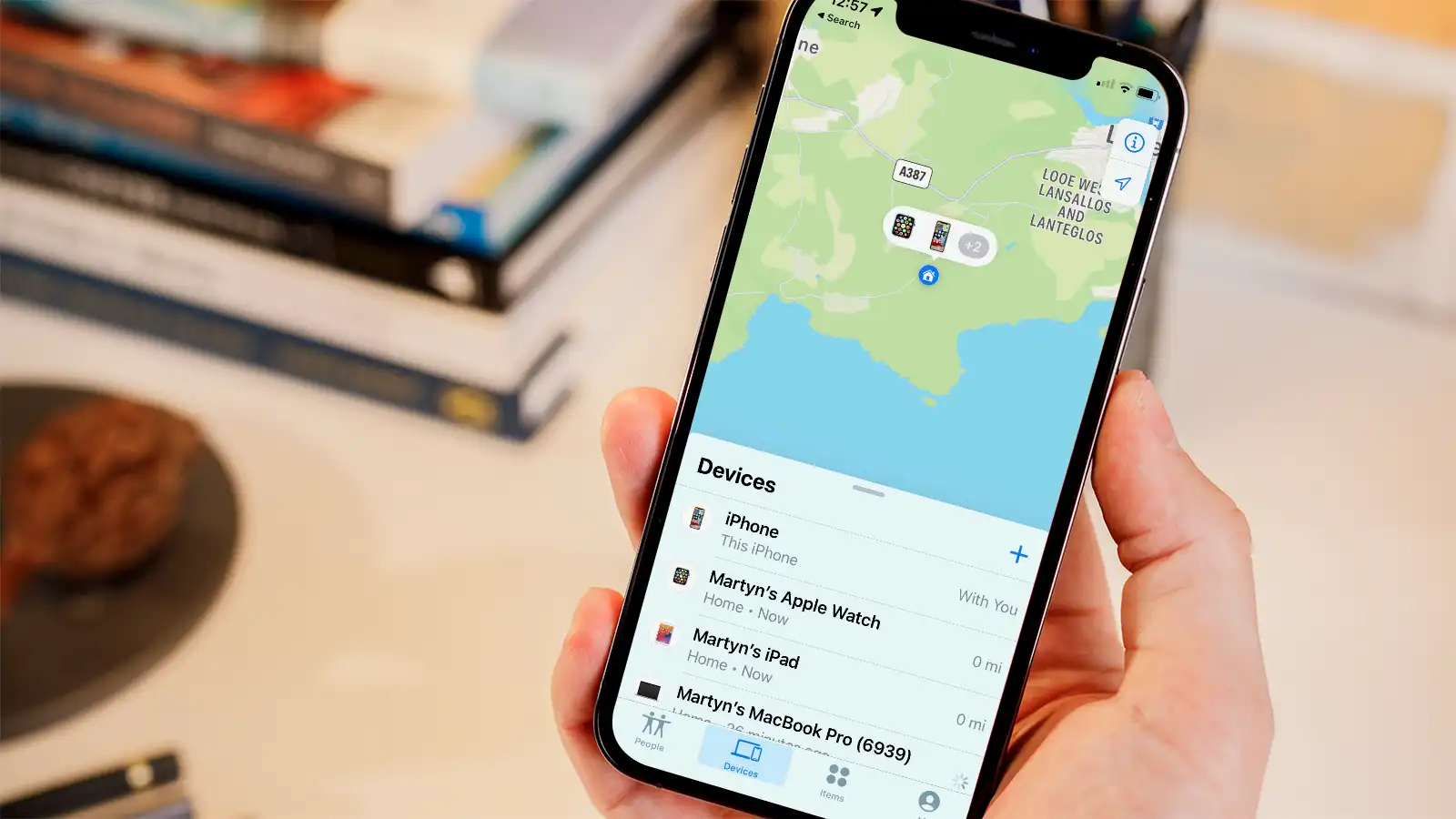
How to Track Down Your Iphone: A Step-by-step Guide
Losing your iPhone can be a stressful experience, especially if it’s been stolen or misplaced. But don’t worry, we’ve got you covered! In this article, we’ll show you how to track down your iPhone using various methods.
Table 1: Methods For Tracking Down Your Iphone
| Method | Description |
|---|---|
| From Another Apple Device | Use the Find My app on another Apple device to locate your iPhone. |
| From a Mac | Use the Find My app on a Mac to track down your iPhone. |
| From a Browser | Use the web version of the Find My app to locate your iPhone from any browser. |
Why You Need to Follow These Steps
Before we dive into the nitty-gritty details, it’s essential to understand why following these steps is crucial. If you’ve lost or stolen your iPhone, you need to act quickly to minimize the damage.
Pre-requisites For Tracking Down Your Iphone
To track down your iPhone, you’ll need to ensure that:
- Your iPhone has a chip U1 (available on iPhone 11 and later models).
- Your iPhone is running iOS 15 or later.
- Location services are enabled on your iPhone.
- The “Find My” feature is enabled.
Step-by-step Guide: Tracking Down Your Iphone
From Another Apple Device
If you have another Apple device, such as an iPad or Mac, follow these steps:
- Open the Find My app on your other Apple device.
- Tap on “Devices” in the bottom left corner of the screen.
- Select the name of your missing iPhone from the list.
- Check if your iPhone is listed with a battery level.
How to Use Other Devices to Track Down Your Iphone
If you have another Apple device, such as an iPad or Mac, you can use it to track down your iPhone. Simply follow the steps above to access the Find My app and locate your missing iPhone.
From a Mac
If you prefer using a Mac to track down your iPhone, here’s what you need to do:
- Open the Find My app on your Mac.
- Click on “Devices” in the top left corner of the screen.
- Select the name of your missing iPhone from the list.
- Check if your iPhone is listed with a battery level.
How to Use a Browser to Track Down Your Iphone
If you don’t have another Apple device, but still want to track down your iPhone, you can use the web version of the Find My app:
- Visit the Find My website on any browser.
- Sign in with your Apple ID and password.
- Click on “Devices” in the top left corner of the screen.
- Select the name of your missing iPhone from the list.
What If Your Iphone Is Not Listed?
If your iPhone is not listed, it may be due to a few reasons:
- Your iPhone does not have a chip U1.
- Your iPhone is running an earlier version of iOS.
- Location services are not enabled on your iPhone.
- The “Find My” feature is not enabled.
How to Enable The “Find My” Feature
To enable the “Find My” feature, follow these steps:
- Open the Settings app on your iPhone.
- Tap on [your name] in the top right corner of the screen.
- Scroll down and tap on “Location Services.”
- Make sure that Location Services are enabled.
Tracking Down Your Iphone: Tips And Tricks
To increase your chances of tracking down your iPhone, here are some additional tips:
- Make sure that you have a strong Wi-Fi or cellular connection on your other Apple device.
- Use the Find My app to track down your iPhone as soon as possible after realizing it’s missing.
Conclusion
Tracking down your iPhone can be a stressful experience, but with these step-by-step guides, you’ll be able to locate it in no time. Remember to follow the pre-requisites and tips and tricks provided above to increase your chances of success.
Frequently Asked Questions (FAQs)
Here are some additional FAQs to help you better understand how to track down your iPhone:
- Q: What if my Iphone is Not Listed on Find My?
A: It may be due to a few reasons, such as the lack of chip U1 or running an earlier version of iOS. - Q: Can I Use The Find My App to Locate my Iphone Even if It’s Turned Off?
A: Yes, but only if your iPhone has a chip U1 and is running iOS 15 or later. - Q: How do I Enable The “Find My” Feature on my Iphone?
A: Open the Settings app, tap on [your name], scroll down to Location Services, and make sure it’s enabled.
Additional Tips
- Keep your other Apple devices connected to Wi-Fi or cellular networks for optimal tracking.
- Use the Find My app as soon as possible after realizing your iPhone is missing.


