
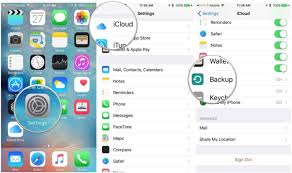
How to Execute a Perfect Backup on Your Iphone
As a responsible iPhone user, you want to ensure that your data is safe and secure in case something happens to your device. Executing a backup on your iPhone is an essential step in protecting your valuable information. In this article, we will guide you through the process of executing a perfect backup on your iPhone using various methods.
Understanding Backup Options
Before we dive into the nitty-gritty of backing up your iPhone, it’s essential to understand the different options available. You can back up your iPhone to iCloud, iTunes, or an external hard drive. Each method has its pros and cons, which we will discuss later in this article.
Why Execute a Backup on Your Iphone?
Backing up your iPhone is crucial for several reasons:
- Data Protection: A backup ensures that all your data, including photos, contacts, messages, and more, are safe in case something happens to your device.
- Peace of Mind: Knowing that your data is backed up gives you peace of mind and allows you to focus on other things without worrying about losing valuable information.
Method 1: Executing a Backup on Icloud
The most convenient way to execute a backup on your iPhone is by using iCloud. Here’s how:
- Access The Settings App: Open the Settings app on your iPhone.
- Tap on Your Name: Tap on your name at the top of the screen.
- Select Icloud: Select iCloud from the list of options.
- Tap on Backup & Update: Tap on Backup & Update.
- Turn On Icloud Backup: Turn on iCloud Backup and choose which data you want to include in the backup.
Method 2: Executing a Backup Without Icloud
If you don’t have enough storage space on your iCloud account or prefer not to use it, there are other ways to execute a backup on your iPhone:
- Use Itunes: Connect your iPhone to your computer and open iTunes. Select your device from the top left corner of the screen, then click on “Summary” and finally click on “Backup Now.”
- Use an External Hard Drive: You can also use an external hard drive to backup your iPhone data. This method is more secure than using iCloud because it’s not dependent on internet connectivity.
Method 3: Executing a Backup on Your PC
To execute a backup on your PC, follow these steps:
- Connect Your Iphone: Connect your iPhone to your computer using the USB cable.
- Open Itunes: Open iTunes on your computer.
- Select Your Device: Select your device from the top left corner of the screen.
- Click on Backup Now: Click on “Backup Now” and choose which data you want to include in the backup.
Method 4: Executing a Backup on Your Mac
To execute a backup on your Mac, follow these steps:
- Connect Your Iphone: Connect your iPhone to your computer using the USB cable.
- Open Finder: Open Finder on your computer.
- Select Your Device: Select your device from the left-hand menu.
- Click on Backup Now: Click on “Backup Now” and choose which data you want to include in the backup.
Method 5: Executing a Backup With a Broken Monitor
If your iPhone’s monitor is broken, you can still execute a backup using an external hard drive or by connecting it to another device. Here’s how:
- Connect Your Iphone: Connect your iPhone to another device using the USB cable.
- Open Itunes: Open iTunes on the connected device.
- Select Your Device: Select your device from the top left corner of the screen.
- Click on Backup Now: Click on “Backup Now” and choose which data you want to include in the backup.
Conclusion
Backing up your iPhone is a crucial step in protecting your valuable information. By understanding the different options available, you can choose the method that best suits your needs. Whether it’s using iCloud, iTunes, or an external hard drive, executing a backup on your iPhone will give you peace of mind and ensure that your data is safe in case something happens to your device.
Frequently Asked Questions (FAQs)
Q: Why should I execute a backup on my iPhone?
A: Executing a backup ensures that all your data is safe in case something happens to your device.
Q: How do I execute a backup using iCloud?
A: To execute a backup using iCloud, go to Settings > [Your Name] > iCloud > Backup & Update and turn on iCloud Backup.
Q: Can I use iTunes to backup my iPhone without iCloud?
A: Yes, you can use iTunes to backup your iPhone. Connect your iPhone to your computer and open iTunes. Select your device from the top left corner of the screen, then click on “Summary” and finally click on “Backup Now.”
Q: How do I execute a backup using an external hard drive?
A: To execute a backup using an external hard drive, connect your iPhone to the hard drive and use software like iTunes or Finder to create a backup.
Q: Can I execute a backup with a broken monitor?
A: Yes, you can execute a backup even if your iPhone’s monitor is broken. Use an external hard drive or connect it to another device to access its data.
Q: How often should I execute a backup on my iPhone?
A: It’s recommended to execute a backup regularly, such as weekly or monthly, depending on how frequently you use your iPhone and add new data.
Best Softwares For Recovery
If you need to recover data from your iPhone, there are several software options available. Some popular ones include:
- Tenorshare Iphone Data Recovery: A powerful tool that can recover up to 25 types of data from your iPhone.
- Fonelab Iphone Data Recovery: A user-friendly software that can quickly and easily recover deleted or lost data from your iPhone.
Make sure to choose the best software for recovery based on your specific needs and requirements.


