
Transforming a Powerpoint Presentation Into a Word Document: A Step-by-step Guide
Are you tired of manually transferring data from a PowerPoint presentation to a Word document? Look no further! In this article, we will guide you through the process of converting a PowerPoint presentation into a Word document using various methods.
Understanding The Limitations of Conversion
Before we dive into the nitty-gritty details, it’s essential to understand that converting a PowerPoint presentation into a Word document is not an exact science. The final outcome depends on the conversion method and settings used. Unfortunately, transitions, animations, and other multimedia effects will not be transferred to the Word document. However, static images, text, and headings from each slide will be converted into separate paragraphs in the Word document.
Method 1: Converting Powerpoint to Word Using Microsoft Office
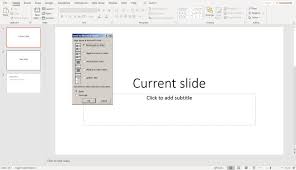
If you have access to Microsoft Office or the Microsoft 365 subscription, you can use PowerPoint’s built-in feature to convert your presentation into a Word document. Here’s how:
- Open Powerpoint: Launch PowerPoint on your Windows computer and initiate a new presentation.
- Import Your Presentation: Click on “File” > “Open” and select the PowerPoint presentation you want to convert.
- Export as Word Document: Click on “File” > “Save As” and choose the location where you want to save the converted document. Select “Word Document” (.Docx) as the file format.
- Convert And Save: Wait for the conversion process to complete, and your Word document will be saved in the specified location.
Method 2: Converting Powerpoint to Word Using Microsoft Office on Mac
If you’re using a Mac, the procedure is slightly different:
- Open Powerpoint: Launch PowerPoint on your Mac and initiate a new presentation.
- Import Your Presentation: Click on “File” > “Open” and select the PowerPoint presentation you want to convert.
- Export as Rtf File: Click on “File” > “Save As” and choose the location where you want to save the converted document. Select “Rich Text Format” (.Rtf) as the file format.
- Import Into Word: Open your .Rtf file in Microsoft Word, and it will be converted automatically.
Method 3: Converting Powerpoint to Word Online
If you don’t have access to Microsoft Office or prefer not to use it, there are several online services that can help you convert a PowerPoint presentation into a Word document. Some popular options include:
- Convertio: A free and user-friendly online converter that supports multiple file formats.
- Online Convert: Another reliable online converter that allows you to upload your PowerPoint presentation and download the converted Word document.
- Zamzar: An online converter that supports various file formats, including PowerPoint and Word.
Converting a Powerpoint Presentation on Mobile Devices
If you’re using a smartphone or tablet, unfortunately, there is no direct conversion feature available in the PowerPoint app. However, you can use an online service like ZamZar to convert your presentation into a Word document.
Conclusion
Converting a PowerPoint presentation into a Word document may seem daunting at first, but with these step-by-step guides, you’ll be able to achieve it with ease. Remember that the final outcome depends on the conversion method and settings used. Always keep in mind the limitations of conversion, especially when dealing with multimedia effects.
Frequently Asked Questions (FAQs)
- Q: Can I Convert a Powerpoint Presentation Into a Word Document Using Google Docs?
A: Unfortunately, Google Docs does not have an automatic conversion feature for PowerPoint presentations. - Q: Will The Original Formatting And Layout be Preserved After Conversion?
A: The final outcome depends on the conversion method and settings used. However, static images, text, and headings from each slide will be converted into separate paragraphs in the Word document. - Q: Can I Convert a Powerpoint Presentation Into a Pdf File Instead of a Word Document?
A: Yes, many online services offer PDF conversion options. However, keep in mind that this may not be exactly what you’re looking for. - Q: Are There Any Limitations to Converting a Powerpoint Presentation Into a Word Document?
A: Unfortunately, transitions, animations, and other multimedia effects will not be transferred to the Word document. - Q: Can I Use an Online Service to Convert my Powerpoint Presentation Into a Word Document on my Smartphone or Tablet?
A: Yes, you can use an online service like ZamZar to convert your presentation into a Word document using your mobile device. - Q: How Long Does The Conversion Process Take?
A: The time taken for conversion depends on the size of the PowerPoint presentation and the speed of your internet connection. - Q: Can I Use This Guide to Convert Multiple Powerpoint Presentations at Once?
A: Yes, many online services allow you to convert multiple files simultaneously. - Q: Will The Converted Word Document be Editable in Microsoft Word or Google Docs?
A: The converted Word document should be editable in both Microsoft Word and Google Docs.


