
Testing Your Ram: A Guide to Diagnosing And Resolving Issues
Are you experiencing issues with your computer’s performance, such as slowdowns or crashes? One possible culprit could be a problem with your RAM (Random Access Memory). In this article, we’ll explore the importance of testing your RAM, how to do it, and what steps to take if issues are found.
Why Test Your Ram?
Your RAM is a crucial component of your computer’s hardware. It stores data temporarily while your CPU processes it. If your RAM is faulty or insufficient, it can cause a range of problems, including:
- System crashes
- Slowdowns and freezes
- Error messages and notifications
- Difficulty running resource-intensive programs
Tools For Testing Your Ram
There are several tools available to test your RAM, both free and paid. Some popular options include:
- Novabench: A user-friendly software that tests the performance of your RAM, as well as other components like your CPU and GPU.
- Geekbench: A widely-used benchmarking tool that assesses the performance of various hardware components, including your RAM.
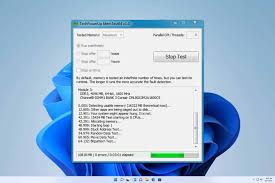
- Memtest: A free application for Windows users that checks the correct operation and goodness of their memory directly from the operating system.
How to Test Your Ram
Here’s a step-by-step guide to using Novabench, one of the most popular tools for testing your RAM:
Step 1: Download And Install Novabench
To get started, visit the Novabench website and download the software. Follow the prompts to install it on your computer.
Step 2: Run a Test With Novabench
Once installed, run Novabench and select the “Start Tests” option. The program will then analyze your RAM’s performance.
Step 3: Review Your Results
After completing the test, review your results to see if any issues were found. If problems are detected, you may need to take further action.
Alternatives to Novabench
If you’re not satisfied with Novabench or prefer a different tool, there are other options available:
- Memtest86: A free software that tests your RAM on a CD or DVD and runs from the operating system.
- Passmark Performance Test: A benchmarking tool for Windows users that tests various hardware components, including RAM.
Resolving Issues With Your Ram
If you’ve identified problems with your RAM, take the following steps:
- Contact Your Computer Manufacturer: Reach out to the manufacturer or a trusted technician for assistance.
- Run a Diagnostic Tool: Use a diagnostic tool like MemTest to confirm the issue and identify potential solutions.
- Consider Upgrading: If your RAM is insufficient, consider upgrading to improve system performance.
Conclusion
Testing your RAM can help you identify issues with your computer’s hardware and ensure optimal performance. By using tools like Novabench or Geekbench, you can diagnose problems and take corrective action. Don’t hesitate to reach out for assistance if needed.
Frequently Asked Questions
- What Are The Symptoms of a Faulty Ram?
- System crashes
- Slowdowns and freezes
- Error messages and notifications
- Difficulty running resource-intensive programs
- How do I Test my Ram Using Novabench?
- Download and install Novabench
- Run a test with Novabench
- Review your results to identify potential issues
- What Are Some Alternative Tools For Testing my Ram?
- MemTest86
- PassMark Performance Test
- How do I Resolve Issues With my Ram?
- Contact the computer manufacturer or a trusted technician
- Run a diagnostic tool like MemTest to confirm the issue and identify potential solutions
- Consider upgrading your RAM if it’s insufficient


