
How to Use Filezilla: A Step-by-step Guide
Are you looking to transfer files between your local computer and a remote server? Look no further than FileZilla, a free and open-source FTP client that makes it easy to manage your file transfers.
In this guide, we’ll show you how to use FileZilla to upload and download files, configure your connections, and troubleshoot common issues. Whether you’re a beginner or an experienced user, this guide will walk you through the process of using FileZilla like a pro.
What is Filezilla?
FileZilla is a popular FTP client that allows you to transfer files between your local computer and a remote server. It supports both FTP and SFTP protocols, making it easy to connect to most servers.
Why Use Filezilla?
There are many reasons why you should use FileZilla:
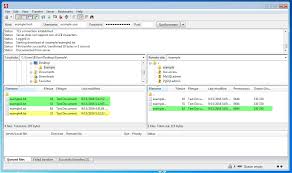
- Easy to Use: FileZilla has a simple and intuitive interface that makes it easy to upload and download files.
- Fast Transfers: FileZilla uses a fast and efficient transfer engine that minimizes the time it takes to transfer large files.
- Secure Connections: FileZilla supports SFTP connections, which provide an additional layer of security for your data.
How to Install Filezilla
Installing FileZilla is easy. Here’s how:
- Download Filezilla: Go to the FileZilla website and download the latest version of the software.
- Run The Installer: Run the installer and follow the prompts to install FileZilla on your computer.
- Launch Filezilla: Launch FileZilla by double-clicking on the icon in your applications folder.
How to Configure Filezilla
Configuring FileZilla is easy. Here’s how:
- Create a New Site: Create a new site by clicking on “Site Manager” and then “New Site.”
- Enter Your Server Details: Enter your server details, including the hostname, username, password, and port number.
- Save Your Changes: Save your changes by clicking on “OK.”
How to Use Filezilla
Using FileZilla is easy. Here’s how:
- Connect to Your Server: Connect to your server by clicking on “Connect” and entering your username and password.
- Upload Files: Upload files by dragging them from your local computer to the remote server.
- Download Files: Download files by dragging them from the remote server to your local computer.
Troubleshooting Common Issues
Here are some common issues you may encounter when using FileZilla and how to troubleshoot them:
- Connection Issues: If you’re having trouble connecting to your server, check that your hostname, username, password, and port number are correct.
- Transfer Issues: If you’re having trouble transferring files, try increasing the transfer buffer size or reducing the number of simultaneous transfers.
- Security Issues: If you’re concerned about security, make sure to use SFTP connections and keep your FileZilla software up-to-date.
Conclusion
FileZilla is a powerful and easy-to-use FTP client that makes it simple to manage your file transfers. With its fast transfer engine, secure connections, and intuitive interface, FileZilla is the perfect tool for anyone looking to upload or download files between their local computer and a remote server.
In this guide, we’ve shown you how to install, configure, and use FileZilla like a pro. Whether you’re a beginner or an experienced user, this guide will help you troubleshoot common issues and make the most of FileZilla’s features.
Frequently Asked Questions
Here are some frequently asked questions about FileZilla:
- Q: What is Filezilla?
A: FileZilla is a free and open-source FTP client that allows you to transfer files between your local computer and a remote server. - Q: Why Use Filezilla?
A: There are many reasons why you should use FileZilla, including its easy-to-use interface, fast transfers, and secure connections. - Q: How do I Install Filezilla?
A: Installing FileZilla is easy. Simply download the software from the FileZilla website and follow the prompts to install it on your computer.
Additional Resources
Here are some additional resources that may be helpful:
- Filezilla Website: The official FileZilla website provides detailed information about the software, including its features, installation instructions, and troubleshooting guides.
- Filezilla Forum: The FileZilla forum is a great place to ask questions, share knowledge, and get help from other users.
- Filezilla Documentation: The FileZilla documentation provides detailed information about the software’s features, configuration options, and troubleshooting guides.


