
How to Change Your Youtube Channel Name: A Step-by-step Guide
Are you tired of your old YouTube channel name? Do you want to give it a fresh new look? Look no further! In this article, we will guide you through the process of changing your YouTube channel name with ease.
Understanding The Basics
Before we dive into the nitty-gritty of changing your channel name, let’s first understand some basic concepts. You can change both your channel name and your user handle on YouTube without affecting your Google account. However, if you have a verified badge next to your name (which requires 100,000 subscribers), changing your name will also remove the badge.
Changing Your Channel Name
If you’re ready to give your channel a new identity, follow these steps:
Step 1: Access Youtube Studio
- Open YouTube Studio on your PC or mobile device.
- Select your account and enter your password to access the platform.
Step 2: Edit Your Channel Information
- Click on your profile picture in the top-right corner of the screen (or tap on it if you’re using a mobile device).
- Select YouTube Studio from the dropdown menu.
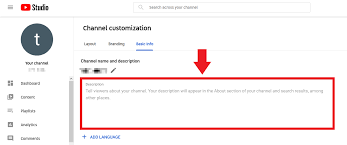
- In the left-hand sidebar, click on “Personalization” and then select the “Info” tab.
Step 3: Update Your Channel Name
- Click on the pencil icon next to your channel name in the top-left corner of the screen.
- Enter your new channel name in the text field provided.
- Click on the “Publish” button to save your changes.
Tips And Reminders
Keep in mind that it may take a few days for your new channel name to be updated across all platforms. Additionally, make sure your new name complies with YouTube’s community guidelines to avoid any issues.
Changing Your User Handle (Username)
If you want to change your user handle on YouTube, follow these steps:
1. Open YouTube Studio on your PC or mobile device.
2. Click on your profile picture in the top-right corner of the screen (or tap on it if you’re using a mobile device).
3. Select YouTube Studio from the dropdown menu.
4. In the left-hand sidebar, click on “Personalization” and then select the “Info” tab.
5. Scroll down to the “Handle” section and click on the pencil icon next to your current handle.
6. Enter your new user handle in the text field provided.
7. Click on the “Publish” button to save your changes.
If you’re using a smartphone or tablet, you can also change your user handle through the YouTube app. Simply tap on the three horizontal lines in the top-left corner of the screen (on iOS devices) or click on your profile picture and select the “You” tab (on Android devices). Then, tap on the pencil icon next to your current handle and enter your new user handle.
Changing Your Comment Display Name
If you want to change the name displayed in comments, simply follow the same steps as above for changing your channel name. The comment display name will automatically be updated to match your new channel name.
Frequently Asked Questions (FAQs)
Q: How long does it take for my new channel name to update across all platforms?
A: It may take a few days for your new channel name to be updated across all platforms.
Q: Can I change my channel name without affecting my Google account?
A: Yes, you can change your channel name without affecting your Google account.
Q: What happens if I have a verified badge next to my name and I change it?
A: Changing your channel name will also remove the verified badge from your profile.
Q: How do I know if my new channel name complies with YouTube’s community guidelines?
A: Make sure your new name is not already in use by another creator, and avoid using any profanity or explicit content.


