
Modifying Pdf Files in Word: A Step-by-step Guide
Are you tired of struggling to modify PDF files in Microsoft Word? Look no further! In this article, we’ll show you how to easily convert and edit PDF files using various methods.
Understanding Pdf Files
Before we dive into the nitty-gritty, it’s essential to understand what PDF files are and why they can be tricky to modify. PDF stands for Portable Document Format, a file format developed by Adobe in 1993. PDFs are designed to preserve the layout and formatting of documents, making them ideal for sharing and printing.
However, this same feature that makes PDFs so useful also makes them challenging to edit. When you try to modify a PDF in Word, it may not convert correctly, or you might end up with a messy document.
Method 1: Modifying Pdf Files in Microsoft Word
If you have Microsoft Word installed on your computer, you can use the built-in feature to open and modify PDF files. Here’s how:
- Open Word: Launch Microsoft Word and click on “File” > “Open.”
- Select Pdf File: Navigate to the location of your PDF file and select it.
- Convert Pdf: Click on “OK” to convert the PDF to a Word document.
Limitations of Method 1
While this method is convenient, it has some limitations. Not all PDF files can be converted correctly using this method. If you have a PDF with images or scanned text, you might need to use alternative methods.
Method 2: Using Wondershare Pdfelement
Wondershare PDFelement is a powerful tool that allows you to edit and convert PDF files. Here’s how:
- Download Pdfelement: Download and install Wondershare PDFelement on your computer.
- Open Pdfelement: Launch PDFelement and click on “File” > “Open.”
- Select Pdf File: Navigate to the location of your PDF file and select it.
- Edit Pdf: Use the tools in PDFelement to edit and convert your PDF.
Method 3: Using Doxillion
Doxillion is another versatile tool that allows you to convert and modify PDF files. Here’s how:
- Download Doxillion: Download and install Doxillion on your computer.
- Open Doxillion: Launch Doxillion and click on “File” > “Add rows.”
- Select Pdf File: Navigate to the location of your PDF file and select it.
- Convert Pdf: Use Doxillion’s tools to convert and edit your PDF.
Method 4: Using Online Services
If you don’t want to download software, there are several online services that allow you to convert and modify PDF files. Here are a few:
- Ilovepdf: A free online service that allows you to convert and edit PDF files.
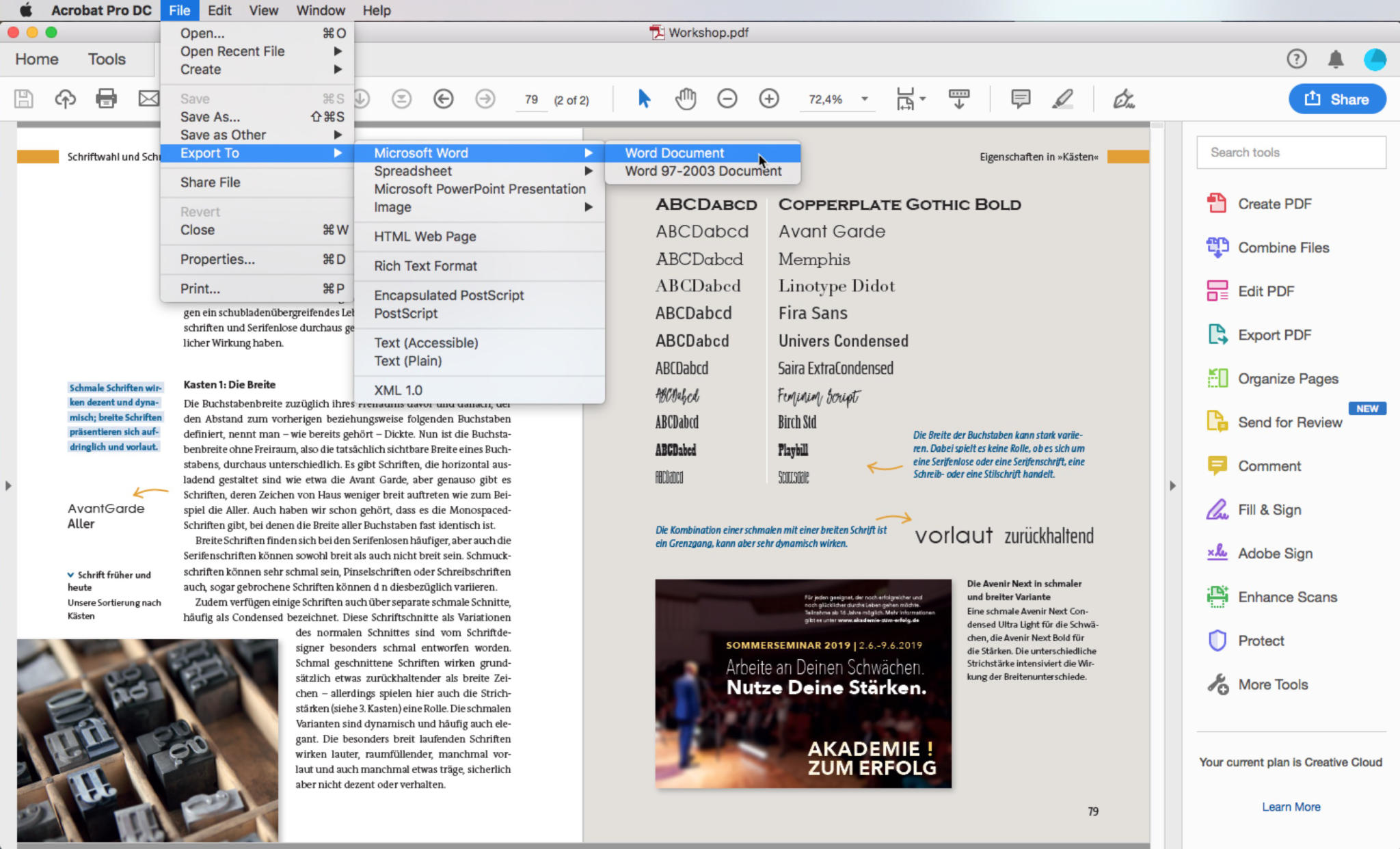
- Adobe Acrobat: Adobe’s online conversion tool that converts PDFs to Word documents.
- Xodo: Another online service that allows you to convert and edit PDF files.
Method 5: Using Mobile Apps
If you have a smartphone or tablet, there are several mobile apps that allow you to convert and modify PDF files on-the-go. Here are a few:
- Ilovepdf (Mobile App): A free mobile app that converts and edits PDF files.
- Wps Office: A powerful office suite that allows you to edit and convert PDF files.
- Document Converter: A simple mobile app that converts PDFs to Word documents.
Conclusion
Modifying PDF files in Microsoft Word can be a challenge, but with the right tools and methods, it’s easier than ever. Whether you use Wondershare PDFelement, Doxillion, online services, or mobile apps, you can convert and edit your PDF files with ease.
In this article, we’ve covered five different methods to modify PDF files in Word. From using Microsoft Word’s built-in feature to leveraging powerful tools like Wondershare PDFelement, there’s a solution for every need.
So next time you encounter a PDF file that needs editing, don’t hesitate to try out one of these methods. With practice and patience, you’ll be a pro at modifying PDF files in no time!
Frequently Asked Questions (FAQs)
Here are some frequently asked questions about modifying PDF files in Word:
Q: Can I modify a PDF file in Microsoft Word?
A: Yes, but only if the PDF is created from a digital source and not an image.
Q: What tools can I use to convert and edit PDF files?
A: Wondershare PDFelement, Doxillion, iLovePDF, Adobe Acrobat, Xodo, and mobile apps like iLovePDF (Mobile App), WPS Office, and Document Converter.
Q: Can I modify a scanned PDF file using these methods?
A: No, scanned PDFs require OCR (Optical Character Recognition) technology to convert them into editable text.
Q: How long does it take to convert and edit a PDF file?
A: The time taken depends on the size of the PDF file and the complexity of the editing process.
Q: Can I use these methods for commercial purposes?
A: Yes, but you should check the licensing terms and conditions of each tool or service before using them for commercial purposes.


