
How to Synchronise Google Calendar
Introduction
Google Calendar is an indispensable tool for managing your appointments, events, and meetings. However, synchronising it with other devices and services can be a bit tricky. In this guide, we will walk you through the steps of synchronising Google Calendar with various programs, devices, and services.
Why Synchronise Google Calendar?
Synchronising Google Calendar allows you to access your events and appointments from multiple devices and platforms. This is particularly useful if you have multiple devices or use different services for managing your events.
How to Synchronise Google Calendar With Computer Programs
Synchronising Google Calendar With Outlook
To synchronise Google Calendar with Outlook, you can follow these steps:
- Open Outlook and click on the “Calendar” tab.
- Click on the “Settings” button and select “Account Settings”.
- Click on the “Add a new account” button and select “Google”.
- Enter your Google account credentials and authorise Outlook to access your calendar.
Synchronising Google Calendar With Windows 10 And Windows 11
To synchronise Google Calendar with Windows 10 or Windows 11, follow these steps:
- Click on the Start button and select “Settings”.
- Click on the “Accounts” option and select “Google”.
- Enter your Google account credentials and authorise Windows to access your calendar.
Synchronising Google Calendar With Thunderbird
To synchronise Google Calendar with Thunderbird, follow these steps:
- Install the Provider for Google Calendar component in Thunderbird.
- Open Thunderbird and click on the “Calendar” tab.
- Click on the “New” button and select “Google Calendar”.
- Enter your Google account credentials and authorise Thunderbird to access your calendar.
How to Synchronise Google Calendar With Mobile Devices
Synchronising Google Calendar With Android
To synchronise Google Calendar with Android, follow these steps:
- Open the Google Calendar app on your Android device.
- Tap on the menu button and select “Settings”.
- Select the account you want to synchronise and toggle the switch next to “Calendar” to ON.
Synchronising Google Calendar With Iphone
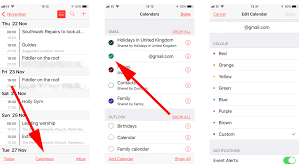
To synchronise Google Calendar with iPhone, follow these steps:
- Open the Google Calendar app on your iPhone.
- Tap on the menu button and select “Settings”.
- Select the account you want to synchronise and toggle the switch next to “Calendar” to ON.
How to Synchronise Google Calendar With Online Services
Synchronising Google Calendar With Ical
To synchronise Google Calendar with iCal, follow these steps:
- Open iCal and click on the “Calendar” menu.
- Select “Subscribe to calendar…” And enter the URL of your Google Calendar.
- Click on the “Subscribe” button to add the calendar.
Synchronising Google Calendar With Outlook.com
To synchronise Google Calendar with Outlook.Com, follow these steps:
- Open Outlook.Com and click on the “Calendar” tab.
- Click on the “Settings” icon and select “Add a calendar”.
- Select “Google Calendar” and enter your Google account credentials.
Synchronising Google Calendar With Facebook
To synchronise Google Calendar with Facebook, follow these steps:
- Open Facebook and click on the “Events” tab.
- Click on the “+” button and select “Create event”.
- Enter the URL of your Google Calendar in the “Location” field.
How to Synchronise Google Calendar With Icloud
To synchronise Google Calendar with iCloud, follow these steps:
- Open the Calendar app on your Mac.
- Click on the menu button and select “Accounts”.
- Select the account you want to synchronise and toggle the switch next to “Google” to ON.
Conclusion
Synchronising Google Calendar is a straightforward process that allows you to access your events and appointments from multiple devices and platforms. By following the steps outlined in this guide, you can easily synchronise your Google Calendar with various programs, devices, and services.
Faqs
Q: What is the difference between monodirectional and bidirectional synchronisation?
A: Monodirectional synchronisation allows you to view events from one calendar on another device or platform, but not edit them. Bidirectional synchronisation allows you to view and edit events on both calendars.
Q: How do I add a new account in Outlook?
A: To add a new account in Outlook, click on the “File” menu and select “Add Account”.
Q: Can I synchronise Google Calendar with multiple devices at once?
A: Yes, you can synchronise Google Calendar with multiple devices at once by using the same Google account credentials.
Q: How do I remove a calendar from my Google account?
A: To remove a calendar from your Google account, click on the “Settings” icon and select “Remove calendar”.
Q: Can I use Google Calendar with other calendar apps?
A: Yes, you can use Google Calendar with other calendar apps by synchronising them through iCal or Outlook.Com.
Q: How do I access my Google Calendar on a Mac?
A: To access your Google Calendar on a Mac, open the Calendar app and select “Accounts”.
Q: Can I share my Google Calendar with others?
A: Yes, you can share your Google Calendar with others by clicking on the “Share” button and selecting the people you want to share it with.


