
How to Set a Dynamic Background on Android: A Step-by-step Guide
Are you tired of looking at the same old wallpaper on your Android device? Do you want to add some excitement to your home screen? Look no further! In this article, we will guide you through the process of setting a dynamic background on your Android device.
Why Set a Dynamic Background?
A dynamic background can add a touch of personality to your device and make it stand out from the crowd. It’s also a great way to express yourself and showcase your interests. With a dynamic background, your home screen will change automatically, keeping things fresh and interesting.
Method 1: Using The Settings App
The first method is the easiest and most straightforward way to set a dynamic background on Android. Here’s how:
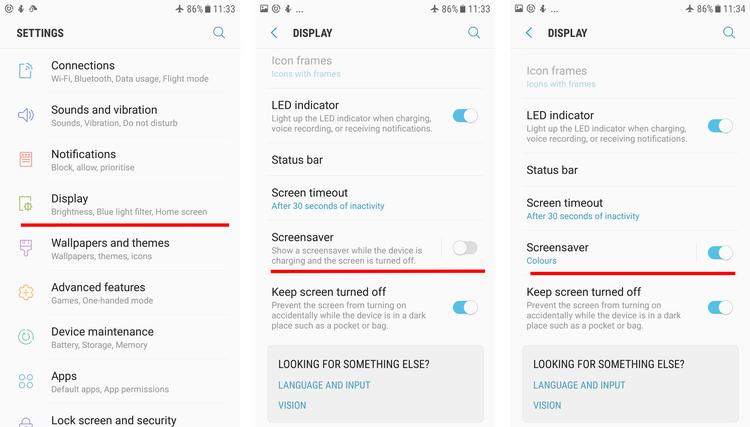
- Go to Settings: Open the Settings app on your device.
- Select Display: Choose “Display” from the settings menu.
- Tap on Home Screen: Select “Home screen” from the display options.
- Choose Dynamic Background: Tap on the “Dynamic background” option.
- Select a Style: Choose a style for your dynamic background, such as “Random images” or “Live wallpaper”.
- Customize Settings: Customize the settings to suit your preferences.
Method 2: Using an App
The second method involves using an app specifically designed for setting dynamic backgrounds on Android. Here’s how:
- Download a Dynamic Background App: Download and install a dynamic background app from the Google Play Store, such as “My Wallpaper Slideshow” or “Live Wallpapers”.
- Launch The App: Launch the app and follow the instructions to set up your dynamic background.
- Select Images: Select the images you want to use for your dynamic background.
- Customize Settings: Customize the settings to suit your preferences.
How to Remove a Dynamic Background
If you’ve had enough of your dynamic background, here’s how to remove it:
- Go to Settings: Open the Settings app on your device.
- Select Display: Choose “Display” from the settings menu.
- Tap on Home Screen: Select “Home screen” from the display options.
- Choose a Static Wallpaper: Choose a static wallpaper to replace the dynamic background.
Tips And Variations
Here are some additional tips and variations to keep in mind:
- Use High-quality Images: Use high-quality images for your dynamic background to ensure they look great on your device.
- Experiment With Different Styles: Experiment with different styles, such as random images or live wallpaper, to find what works best for you.
- Customize Settings: Customize the settings to suit your preferences and adjust the animation speed, transition effects, and more.
- Try Out Different Apps: Try out different apps to see which one suits your needs and preferences.
Conclusion
Setting a dynamic background on Android is easy and fun! With these step-by-step guides, you can add some excitement to your home screen and showcase your personality. Whether you use the settings app or an app specifically designed for this purpose, you’ll be able to enjoy a fresh and interesting look on your device.
Frequently Asked Questions (FAQs)
- Q: Can I Set a Dynamic Background on my Android Device?
A: Yes, you can set a dynamic background on your Android device using the settings app or an app specifically designed for this purpose. - Q: What Are The Benefits of Setting a Dynamic Background?
A: The benefits of setting a dynamic background include adding a touch of personality to your device, making it stand out from the crowd, and showcasing your interests. - Q: How do I Remove a Dynamic Background?
A: To remove a dynamic background, go to settings > display > home screen > choose a static wallpaper. - Q: What Are Some Popular Apps For Setting Dynamic Backgrounds on Android?
A: Some popular apps for setting dynamic backgrounds on Android include “My Wallpaper Slideshow” and “Live Wallpapers”. - Q: Can I Customize The Settings to Suit my Preferences?
A: Yes, you can customize the settings to suit your preferences by adjusting the animation speed, transition effects, and more. - Q: Are There Any Tips or Variations For Setting a Dynamic Background on Android?
A: Yes, some additional tips and variations include using high-quality images, experimenting with different styles, customizing settings, and trying out different apps.
Additional Resources
If you’re interested in learning more about setting dynamic backgrounds on Android, here are some additional resources to check out:
- Google Play Store: Search for “dynamic background” or “live wallpaper” to find relevant apps.
- Android Authority: Check out their article on how to set a dynamic background on Android for more detailed instructions and tips.
- Xda Developers: Look for forums discussing dynamic backgrounds and live wallpapers for technical details and customization options.


