
How to Read Pdf Files on Your Ipad: A Step-by-step Guide
Are you struggling to open and read PDF files on your iPad? Look no further! This article will guide you through the simple steps of reading PDFs on your iPad, using various methods and apps.
Introduction
In today’s digital age, we’re constantly dealing with digital documents in the form of PDFs. Whether it’s a bill, a contract, or a research paper, PDFs have become an essential part of our daily lives. But sometimes, we might find ourselves struggling to open and read these files on our iPads. Don’t worry; this article is here to help!
Method 1: Using Safari
The easiest way to open and read PDFs on your iPad is by using the Safari browser. Here’s how:
- Open Safari and navigate to the website that contains the PDF file you want to view.
- Tap on the PDF file to open it in Safari.
- You can then zoom in and out of the document, search for specific words, and even save the PDF to your device.
Method 2: Using Rows
If you have a file saved locally on your iPad or received via AirDrop, you can use the Rows app to view and edit it. Here’s how:
- Open Rows and navigate to the folder that contains the PDF file.
- Tap on the PDF file to open it in Rows.
- You can then zoom in and out of the document, add annotations, and even export the PDF as a new file.
Method 3: Using Books
The Books app is another great way to read PDFs on your iPad. Here’s how:
- Open Books and navigate to the section that contains the PDF file.
- Tap on the PDF file to open it in Books.
- You can then zoom in and out of the document, add bookmarks, and even share the PDF with others.
Method 4: Using Third-party Apps
There are several third-party apps available that allow you to read and edit PDFs on your iPad. Some popular options include:
- Pdfelement Pro: This app offers a range of features, including annotating, signing, and editing PDFs.
- Adobe Acrobat Reader: This app allows you to open and edit PDFs, as well as create new ones.
- Documents by Readdle: This app is a file manager that also allows you to view and edit PDFs.
Tips And Tricks
Here are some additional tips and tricks for reading PDFs on your iPad:
- Use the share button to save PDFs directly to your device or cloud storage services like iCloud Drive.
- Use the search bar to quickly find specific words within a PDF document.
- Use the annotations feature to add notes, highlights, and signatures to your PDFs.
Conclusion
Reading PDFs on your iPad is easier than you think! With these simple methods and apps, you can view, edit, and even create new PDF files with ease. Whether you’re a student, professional, or simply someone who needs to access digital documents, this article has provided you with the tools you need to get started.
Frequently Asked Questions (FAQs)
Q: How do I open a PDF file on my iPad?
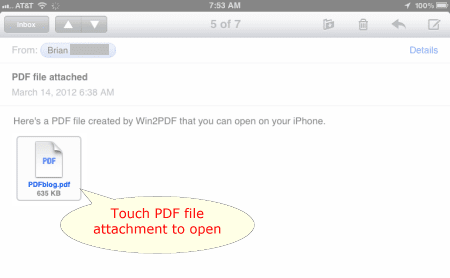
A: You can open a PDF file by tapping on it in Safari, Rows, or Books.
Q: Can I edit PDFs on my iPad?
A: Yes, many apps allow you to edit PDFs, including annotating, signing, and editing text.
Q: How do I save a PDF file on my iPad?
A: You can save a PDF file directly to your device or cloud storage services like iCloud Drive using the share button.
Q: Can I create new PDF files on my iPad?
A: Yes, some apps allow you to create new PDFs from scratch or by combining existing documents.
Q: How do I access my PDF files in iCloud Drive?
A: You can access your PDF files in iCloud Drive by going to Settings > [Your Name] > iCloud > iCloud Drive.
Q: Can I use my Apple Pencil to annotate PDFs on my iPad?
A: Yes, many apps support the use of an Apple Pencil for annotating PDFs.
Q: How do I export a PDF file from Rows or Books?
A: You can export a PDF file by going to the share menu and selecting Save as PDF.


