
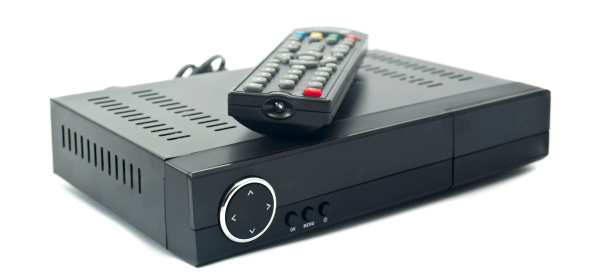
How to Record a TV Program: A Step-by-step Guide
Are you tired of missing your favorite TV shows? Do you want to be able to watch them again at a later time? Recording a TV program is easier than ever, and in this article, we will guide you through the process.
Recording a TV Program on a Usb Drive or Computer: A Convenient Solution
With the rise of streaming services, it’s become increasingly easy to access your favorite shows online. However, sometimes you might want to watch them offline or at a later time. That’s where recording a TV program comes in. You can record a TV program using a USB drive or directly on your computer.
The Benefits of Recording a TV Program
Recording a TV program has several benefits. For one, it allows you to watch your favorite shows again at a later time without having to rely on streaming services. It’s also a great way to save space on your hard drive and reduce clutter. Plus, with the rise of digital storage, recording a TV program is now more convenient than ever.
Recording a TV Program: A Step-by-step Guide
So, how do you record a TV program? Here are the steps:
- Check if Your TV Has Pvr Capability: Before you start recording, make sure your TV has PVR (Personal Video Recorder) capability. This feature allows you to record programs onto an external device.
- Connect Your Usb Drive or External Hard Drive: Connect your USB drive or external hard drive to your TV. Make sure it’s formatted with the correct file system for your TV.
- Choose The Program You Want to Record: Select the program you want to record from the TV guide.
- Press The “Record” Button: Press the “Record” button on your remote control or use the menu options to select the recording option.
- Select The Storage Device: Choose the storage device where you want to save the recorded program.
Recording a TV Program on Samsung Smart Tvs
If you have a Samsung smart TV, here’s how to record a TV program:
- Format Your Usb Drive With Exfat or Fat32 File System: Make sure your USB drive is formatted with the correct file system for your Samsung TV.
- Connect Your Usb Drive to The TV: Connect your USB drive to the TV and wait for it to be recognized.
- Select The Program You Want to Record: Choose the program you want to record from the TV guide.
- Press The “Record” Button: Press the “Record” button on your remote control or use the menu options to select the recording option.
Recording a TV Program on LG Smart Tvs
If you have an LG smart TV, here’s how to record a TV program:
- Connect Your Usb Drive to The TV: Connect your USB drive to the TV and wait for it to be recognized.
- Select The Program You Want to Record: Choose the program you want to record from the TV guide.
- Press The “Record” Button: Press the “Record” button on your remote control or use the menu options to select the recording option.
Recording a TV Program on Your Computer
If you don’t have a smart TV, you can also record a TV program on your computer using a digital TV tuner and video capture card. Here’s how:
- Connect Your Digital TV Tuner And Video Capture Card: Connect your digital TV tuner and video capture card to your computer.
- Install The Necessary Software: Install the necessary software for capturing video from your digital TV tuner.
- Select The Program You Want to Record: Choose the program you want to record from the TV guide.
- Press The “Record” Button: Press the “Record” button on your remote control or use the menu options to select the recording option.
Alternative Solutions
There are other ways to access and watch recorded TV programs, such as:
- Using a streaming service like RaiPlay, Mediaset Infinity, or Discovery+
- Accessing past transmissions through your smart TV’s HbbTV feature
- Watching recorded programs on your computer using software like OBS Studio
Conclusion
Recording a TV program is easier than ever. With the right equipment and knowledge, you can record your favorite shows and watch them again at a later time. Whether you have a smart TV or not, there are plenty of options available to you. So next time you miss your favorite show, don’t worry – just record it!
Faqs
Q: What is PVR capability?
A: PVR (Personal Video Recorder) capability allows you to record programs onto an external device.
Q: How do I connect my USB drive or external hard drive to my TV?
A: Connect the USB drive or external hard drive to your TV and wait for it to be recognized.
Q: What file system should I use on my USB drive or external hard drive?
A: The correct file system depends on your TV brand. Check with your TV manufacturer for more information.
Q: Can I record a TV program on my computer using software like OBS Studio?
A: Yes, you can record a TV program on your computer using software like OBS Studio.
Q: Are there other ways to access and watch recorded TV programs?
A: Yes, there are alternative solutions such as streaming services or accessing past transmissions through your smart TV’s HbbTV feature.
Q: What is HbbTV?
A: HbbTV (Hybrid Broadcast Broadband TV) is a technology that allows you to access interactive content on your TV using Internet protocols.


