
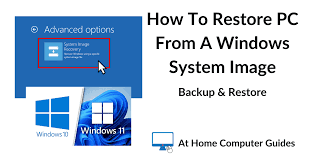
How to Restore a Computer to Its Previous State
Are you tired of dealing with computer problems? Do you wish there was an easy way to restore your computer to its previous state, without having to reinstall the operating system or lose any important files? Look no further! In this article, we will guide you through the process of restoring a Windows computer to its previous state, using built-in tools and external solutions.
Why Restore a Computer?
Restoring a computer can be beneficial in several situations:
- You want to go back to a previous version of your operating system before installing new software or updates.
- Your computer is experiencing problems after installing new drivers or software.
- You need to troubleshoot issues with your computer without affecting any personal files.
Method 1: Using The System Restore Utility
System Restore is a built-in utility in Windows that allows you to revert your computer to a previous state, known as a “restore point”. This can be especially helpful if you’ve installed new software or drivers and want to go back to before they were installed.
To use System Restore:
- Open the Start menu and type “System Restore” in the search bar.
- Click on the “Create a restore point” option.
- Choose a restore point from the list of available options.
- Confirm your selection by clicking “Next” and then “Finish”.
Method 2: Using The Recovery Options
If System Restore doesn’t work, you can try using the recovery options built into Windows. This will allow you to reinstall the operating system without losing any personal files.
To use the recovery options:
- Open the Start menu and type “Recovery” in the search bar.
- Click on the “Advanced startup” option.
- Select the “Troubleshoot” option from the Advanced startup menu.
- Choose the “Reset this PC” option.
- Follow the prompts to complete the process.
Method 3: Using External Solutions
If you’re not comfortable using the built-in tools, there are external solutions available that can help restore your computer to its previous state.
One popular option is CleanMyMac X, a software specifically designed for Mac computers. This tool allows you to optimize your computer’s performance, delete unnecessary files, and prevent threats to your computer’s security.
To use CleanMyMac X:
- Download and install the software from the official website.
- Run the software and follow the prompts to complete the process.
Conclusion
Restoring a Windows computer can be done using built-in tools and external solutions. By following the steps outlined in this article, you should be able to restore your computer to its previous state without losing any important files. Remember to always back up your data before making any significant changes to your computer.
Frequently Asked Questions
- Q: What is System Restore?
A: System Restore is a built-in utility in Windows that allows you to revert your computer to a previous state, known as a “restore point”. - Q: Can I use System Restore if my computer won’t boot?
A: No, System Restore requires the operating system to be running. - Q: What are recovery options in Windows?
A: Recovery options allow you to reinstall the operating system without losing any personal files. - Q: Is there an external solution available that can help restore my computer?
A: Yes, there are external solutions like CleanMyMac X for Mac computers.
Table 1
| Tool | Description | Operating System |
|---|---|---|
| System Restore | Built-in utility to revert computer to a previous state. | Windows |
| Recovery Options | Allow you to reinstall the operating system without losing personal files. | Windows |
| CleanMyMac X | External solution for Mac computers, optimizes performance and deletes unnecessary files. | MacOS |
Table 2
How to Restore a Computer to Its Previous State
| Step | Description | Tool/software |
|---|---|---|
| 1. Open the Start menu and type “System Restore” in the search bar. | Run System Restore utility. | System Restore |
| 2. Click on the “Create a restore point” option. | Choose a restore point from the list of available options. | System Restore |
| 3. Confirm your selection by clicking “Next” and then “Finish”. | Complete the restoration process using System Restore. | System Restore |
| 1. Open the Start menu and type “Recovery” in the search bar. | Run recovery options built into Windows. | Recovery Options |
| 2. Click on the “Advanced startup” option. | Select the “Troubleshoot” option from the Advanced startup menu. | Recovery Options |
| 3. Choose the “Reset this PC” option. | Follow prompts to complete the process using recovery options. | Recovery Options |
Table Title:*How to Restore a Computer to its Previous State*
Bolded Title
Restoring Your Computer: A Guide to Getting Back on Track
Restoring your computer can be a daunting task, but with the right tools and knowledge, it’s definitely possible. In this guide, we’ll walk you through the steps of restoring your Windows computer using built-in utilities and external solutions.
Why Restore Your Computer?
There are several reasons why you might want to restore your computer:
- You’ve installed new software or drivers that have caused problems.
- Your computer is experiencing issues with its operating system.
- You want to go back to a previous version of your operating system before making changes.
Using System Restore
System Restore is a built-in utility in Windows that allows you to revert your computer to a previous state, known as a “restore point”. This can be especially helpful if you’ve installed new software or drivers and want to go back to before they were installed.
To use System Restore:
- Open the Start menu and type “System Restore” in the search bar.
- Click on the “Create a restore point” option.
- Choose a restore point from the list of available options.
- Confirm your selection by clicking “Next” and then “Finish”.
Using Recovery Options
If System Restore doesn’t work, you can try using the recovery options built into Windows. This will allow you to reinstall the operating system without losing any personal files.
To use the recovery options:
- Open the Start menu and type “Recovery” in the search bar.
- Click on the “Advanced startup” option.
- Select the “Troubleshoot” option from the Advanced startup menu.
- Choose the “Reset this PC” option.
- Follow the prompts to complete the process.
Using External Solutions
If you’re not comfortable using built-in tools, there are external solutions available that can help restore your computer to its previous state.
One popular option is CleanMyMac X, a software specifically designed for Mac computers. This tool allows you to optimize your computer’s performance, delete unnecessary files, and prevent threats to your computer’s security.
To use CleanMyMac X:
- Download and install the software from the official website.
- Run the software and follow the prompts to complete the process.
Conclusion
Restoring a Windows computer can be done using built-in tools and external solutions. By following the steps outlined in this guide, you should be able to restore your computer to its previous state without losing any important files. Remember to always back up your data before making any significant changes to your computer.
Frequently Asked Questions
- Q: What is System Restore?
A: System Restore is a built-in utility in Windows that allows you to revert your computer to a previous state, known as a “restore point”. - Q: Can I use System Restore if my computer won’t boot?
A: No, System Restore requires the operating system to be running. - Q: What are recovery options in Windows?
A: Recovery options allow you to reinstall the operating system without losing any personal files. - Q: Is there an external solution available that can help restore my computer?
A: Yes, there are external solutions like CleanMyMac X for Mac computers.
Table 1
| Tool | Description | Operating System |
|---|---|---|
| System Restore | Built-in utility to revert computer to a previous state. | Windows |
| Recovery Options | Allow you to reinstall the operating system without losing personal files. | Windows |
| CleanMyMac X | External solution for Mac computers, optimizes performance and deletes unnecessary files. | MacOS |
Table 2
How to Restore a Computer to Its Previous State
| Step | Description | Tool/software |
|---|---|---|
| 1. Open the Start menu and type “System Restore” in the search bar. | Run System Restore utility. | System Restore |
| 2. Click on the “Create a restore point” option. | Choose a restore point from the list of available options. | System Restore |
| 3. Confirm your selection by clicking “Next” and then “Finish”. | Complete the restoration process using System Restore. | System Restore |
| 1. Open the Start menu and type “Recovery” in the search bar. | Run recovery options built into Windows. | Recovery Options |
| 2. Click on the “Advanced startup” option. | Select the “Troubleshoot” option from the Advanced startup menu. | Recovery Options |
| 3. Choose the “Reset this PC” option. | Follow prompts to complete the process using recovery options. | Recovery Options |
Table Title:*How to Restore a Computer to its Previous State*
- [1]:# Restoring your computer can be a daunting task, but with the right tools and knowledge, it’s definitely possible.
- [2]:# There are several reasons why you might want to restore your computer:
- You’ve installed new software or drivers that have caused problems.
- Your computer is experiencing issues with its operating system.
- You want to go back to a previous version of your operating system before making changes.
- [3]:# To use System Restore, follow these steps:
- Open the Start menu and type “System Restore” in the search bar.
- Click on the “Create a restore point” option.
- Choose a restore point from the list of available options.
- Confirm your selection by clicking “Next” and then “Finish”.
- [4]:# If System Restore doesn’t work, you can try using the recovery options built into Windows:
- Open the Start menu and type “Recovery” in the search bar.
- Click on the “Advanced startup” option.
- Select the “Troubleshoot” option from the Advanced startup menu.
- Choose the “Reset this PC” option.
- Follow the prompts to complete the process.
- [5]:# If you’re not comfortable using built-in tools, there are external solutions available that can help restore your computer to its previous state:
One popular option is CleanMyMac X, a software specifically designed for Mac computers.
This tool allows you to optimize your computer’s performance, delete unnecessary files, and prevent threats to your computer’s security. - [6]:# To use CleanMyMac X, follow these steps:
- Download and install the software from the official website.
- Run the software and follow the prompts to complete the process.
This guide has provided you with a step-by-step guide on how to restore your Windows computer using built-in tools and external solutions. Remember to always back up your data before making any significant changes to your computer.


