
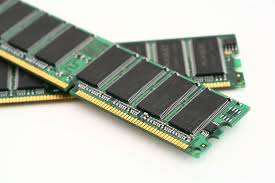
How to Increase Ram on Your Pc: A Step-by-step Guide
Are you tired of your computer slowing down due to insufficient RAM? Look no further! In this article, we will guide you through the process of increasing your PC’s RAM, making it faster and more efficient.
What is Ram And Why Do I Need More?
RAM (Random Access Memory) is a type of computer memory that temporarily stores data while it is being processed. Having sufficient RAM ensures that your computer can handle multiple tasks simultaneously without slowing down. If you’re experiencing frequent crashes, slow performance, or difficulty running resource-intensive programs, it’s likely due to low RAM.
Types of Ram
Before we dive into the steps, let’s briefly discuss the different types of RAM:
- DDR2: An older type of RAM that is no longer widely used.
- DDR3: A more common type of RAM that offers faster speeds and improved performance.
- DDR4: The latest and most efficient type of RAM available.
How to Increase Ram on Your PC
Increasing RAM on your PC is a relatively straightforward process, but it requires some technical know-how. Here’s a step-by-step guide:
Step 1: Determine The Type of Ram Needed
To increase RAM, you need to determine the type of RAM compatible with your PC. You can use software like CPU-Z or CheckRAM to identify the existing RAM and available slots.
[Info Box]
CPU-Z is a free utility that displays detailed information about your computer’s hardware, including RAM specifications.
Step 2: Choose The Right Ram
Once you’ve determined the type of RAM needed, select a compatible model from reputable manufacturers like Corsair or Kingston. Ensure the new RAM matches the speed and capacity of the existing memory.
[Tip]
When shopping for RAM, consider factors like price, compatibility, and warranty.
Step 3: Purchase And Install The New Ram
Acquire the chosen RAM module and follow these steps:
- Shut down your PC and unplug the power cord.
- Locate the RAM slots on your motherboard (usually found near the CPU).
- Remove any existing RAM modules from their slots.
- Align the new RAM module with the slot, making sure the notches are properly aligned.
- Gently push the RAM into place, ensuring it clicks securely.
[Safety Reminder]
When working with electrical components, ensure your PC is turned off and unplugged to avoid damage or injury.
Step 4: Verify The New Ram
To confirm that the new RAM has been successfully installed:
- Restart your PC.
- Open the Task Manager (Ctrl + Shift + Esc).
- Click on “Performance” to verify the increased RAM capacity.
[Troubleshooting]
If you encounter issues during installation or verification, consult online resources like YouTube tutorials or manufacturer documentation for assistance.
Step 5: Test And Enjoy
With your new RAM installed, test its performance by running resource-intensive programs or multitasking. You should notice significant improvements in speed and efficiency.
[Conclusion]
Increasing RAM on your PC is a simple yet effective way to enhance its performance. By following these steps and choosing the right RAM, you’ll be able to enjoy a faster, more efficient computing experience.
Frequently Asked Questions (FAQs)
- What is The Recommended Amount of Ram For my Computer?
The ideal RAM capacity varies depending on your usage; general guidelines are:- 4GB: Basic tasks and web browsing.
- 8GB: Standard office work, media consumption, and light gaming.
- 16GB or more: Heavy multitasking, video editing, and intense gaming.
- Can I Add Ram to a Laptop?
Yes, but be aware that some laptops have soldered RAM, making it impossible to upgrade. - How do I Know if my Computer Needs More Ram?
Look for signs like slow performance, frequent crashes, or difficulty running resource-intensive programs. - What is The Difference Between Ddr2 And Ddr4 Ram?
DDR4 offers faster speeds, improved performance, and better compatibility with modern hardware. - Can I Mix Different Types of Ram in my Computer?
It’s generally not recommended to mix RAM types, as it may cause compatibility issues or reduced performance.
By following this guide and considering your specific needs, you’ll be able to increase your PC’s RAM and enjoy a faster, more efficient computing experience.


