
How to Reset Your Smartphone Keyboard: A Step-by-step Guide
Are you tired of using a keyboard on your smartphone that just doesn’t feel right? Do you find yourself constantly switching between different keyboards, only to have the same issues pop up again and again? Look no further! In this article, we’ll show you how to reset your smartphone keyboard and get back to typing like a pro.
Why Reset Your Smartphone Keyboard?
There are several reasons why you might want to reset your smartphone keyboard. Maybe you’ve accidentally changed some settings and can’t figure out how to switch them back. Or perhaps you’re trying to troubleshoot an issue with the way your keyboard is behaving. Whatever the reason, resetting your keyboard can be a quick and easy solution.
How to Reset Your Smartphone Keyboard: A Step-by-step Guide
For Android Users
Step 1: Access The Settings Menu
The first step in resetting your smartphone keyboard is to access the settings menu on your device. This will vary depending on which type of Android you’re using, but generally speaking, you can find the settings menu by tapping on the icon that looks like a gear or a cog.
Step 2: Find The Keyboard Settings
Once you’ve accessed the settings menu, look for the option that says “Language & input” or something similar. This is where you’ll be able to change your keyboard settings and reset your keyboard to its default state.
Step 3: Choose Your Keyboard Settings
In this section, you can choose whether you want to use the default keyboard or one of the other options available on your device. You may also see an option for adding new keyboards – if you want to try out a different keyboard, now is the time!
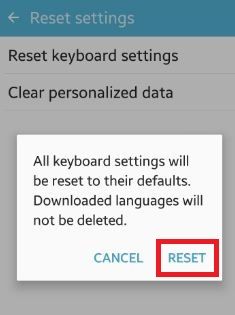
Step 4: Reset Your Keyboard
Finally, look for the option that says “Reset keyboard” or something similar. This will reset your keyboard back to its default settings.
For Iphone Users
If you’re using an iPhone, the process of resetting your keyboard is a bit different. Here’s how:
Step 1: Access The Settings Menu
Just like on Android, the first step in resetting your smartphone keyboard is to access the settings menu on your device.
Step 2: Find The Keyboard Settings
Once you’ve accessed the settings menu, look for the option that says “General” and then select it. From there, scroll down until you see an option called “Keyboard”.
Step 3: Choose Your Keyboard Settings
In this section, you can choose whether you want to use the default keyboard or one of the other options available on your device.
Step 4: Reset Your Keyboard
Finally, look for the option that says “Reset keyboard” and select it. This will reset your keyboard back to its default settings.
Tips And Tricks For Using Your Smartphone Keyboard
In addition to resetting your smartphone keyboard, there are a few other things you can do to get the most out of your device:
- Use The Autocorrect Feature: If you’re having trouble with typos or misspellings, try using the autocorrect feature on your device. This will automatically correct common mistakes as you type.
- Experiment With Different Keyboards: If you’re not happy with the default keyboard, consider trying out one of the other options available on your device. You may find that a different keyboard is better suited to your typing style and preferences.
- Practice Makes Perfect: The more you practice using your smartphone keyboard, the faster and more accurate you’ll become.
How to Reset Your Smartphone Keyboard: Frequently Asked Questions
Q: How do I reset my smartphone keyboard?
A: To reset your smartphone keyboard, access the settings menu on your device and look for the option that says “Language & input” or something similar. From there, choose whether you want to use the default keyboard or one of the other options available.
Q: Why do I need to reset my smartphone keyboard?
A: You may need to reset your smartphone keyboard if it’s not functioning properly or if you’re experiencing issues with typing accuracy.
Q: Will resetting my smartphone keyboard delete all of my saved information?
A: No, resetting your smartphone keyboard will only change the settings for that specific feature. All of your other saved information and data will remain intact.
Conclusion
Resetting your smartphone keyboard can be a quick and easy solution to any issues you may be experiencing with typing accuracy or functionality. By following these simple steps, you’ll be back to typing like a pro in no time!
Frequently Asked Questions (FAQs)
- Q: How do I Reset my Android Keyboard?
A: To reset your Android keyboard, access the settings menu and look for the option that says “Language & input”. - Q: Can I Reset my Iphone Keyboard?
A: Yes, you can reset your iPhone keyboard by accessing the settings menu and looking for the option that says “General” > “Keyboard”. - Q: Will Resetting my Smartphone Keyboard Delete All of my Saved Information?
A: No, resetting your smartphone keyboard will only change the settings for that specific feature. - Q: How do I Troubleshoot Issues With my Smartphone Keyboard?
A: If you’re experiencing issues with your smartphone keyboard, try restarting your device or checking for software updates.


