
How to Modify a Photo Online Free: A Step-by-step Guide
Are you looking for ways to modify a photo online without installing any software on your computer? Look no further! In this article, we’ll explore the best options for editing photos online, and I’ll show you how to do it step by step.
What You Need to Know Before We Begin
Before we dive into the guide, let me tell you that modifying a photo online is easier than ever. With the rise of cloud-based services, you can now edit your photos without having to install any software on your computer. This means that you can access these services from anywhere, at any time.
The Top 5 Online Photo Editing Services
Here are the top 5 online photo editing services that I’ll be covering in this guide:
- Photopea
- Canva
- Sumo Paint
- Polarr
- Ipiccy
How to Modify a Photo With Photopea
Let’s start with the first service, Photopea.
To modify a photo with Photopea, follow these steps:
- Go to www.Photopea.Com and click on “Open” to select your image.
- Drag and drop your image into the editor.
- Use the toolbar on the left to access various editing tools such as crop, resize, and filters.
- To apply a filter, click on the three dots icon at the top right corner of the screen and select “Filters”.
- Choose from a wide range of filters and adjust their settings as needed.
- Once you’re satisfied with your edits, click on “File” > “Save” to download your edited image.
How to Modify a Photo With Canva
Next up is Canva, a popular online design platform that also offers photo editing capabilities.
To modify a photo with Canva, follow these steps:
- Go to www.Canva.Com and sign in to your account.
- Click on “Uploads” and select the image you want to edit.
- Use the editor toolbar on the right to access various editing tools such as crop, resize, and filters.
- To apply a filter, click on the “Effects” tab at the top of the screen and select from a range of pre-made filters.
- Adjust the settings as needed and click on “Apply”.
- Once you’re satisfied with your edits, click on “File” > “Download” to download your edited image.
How to Modify a Photo With Sumo Paint
Now let’s move on to Sumo Paint, another popular online photo editing service.
To modify a photo with Sumo Paint, follow these steps:
- Go to www.Sumopaint.Com and click on “Open” to select your image.
- Drag and drop your image into the editor.
- Use the toolbar on the left to access various editing tools such as crop, resize, and filters.
- To apply a filter, click on the three dots icon at the top right corner of the screen and select “Filters”.
- Choose from a wide range of filters and adjust their settings as needed.
- Once you’re satisfied with your edits, click on “File” > “Save” to download your edited image.
How to Modify a Photo With Polarr
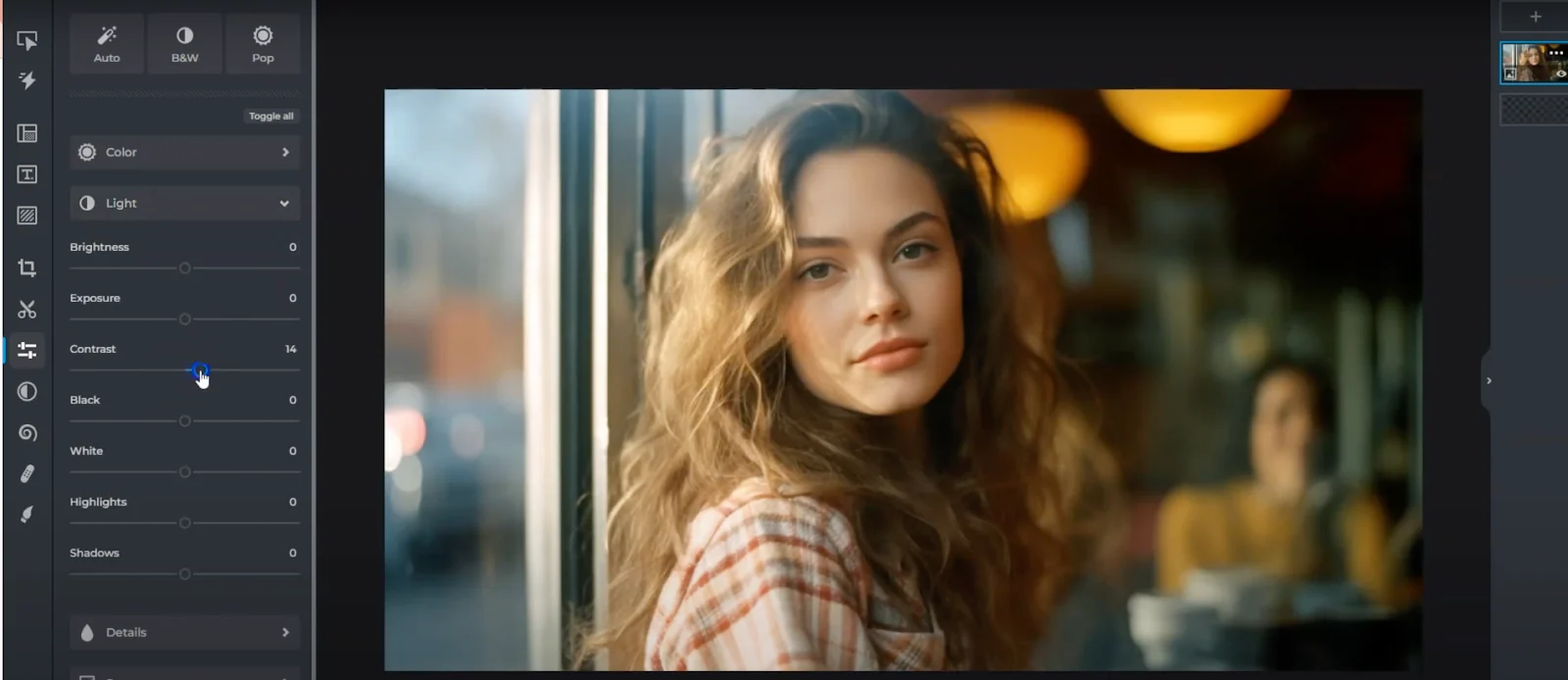
Next up is Polarr, an online photo editing service that offers advanced features like layers and masking.
To modify a photo with Polarr, follow these steps:
- Go to www.Polarr.Com and sign in to your account.
- Click on “Open” to select your image.
- Use the editor toolbar on the right to access various editing tools such as crop, resize, and filters.
- To apply a filter, click on the three dots icon at the top right corner of the screen and select “Filters”.
- Choose from a wide range of filters and adjust their settings as needed.
- Once you’re satisfied with your edits, click on “File” > “Save” to download your edited image.
How to Modify a Photo With Ipiccy
Last but not least is Ipiccy, an online photo editing service that offers advanced features like curves and color balance.
To modify a photo with iPiccy, follow these steps:
- Go to www.Ipiccy.Com and click on “Open” to select your image.
- Drag and drop your image into the editor.
- Use the toolbar on the left to access various editing tools such as crop, resize, and filters.
- To apply a filter, click on the three dots icon at the top right corner of the screen and select “Filters”.
- Choose from a wide range of filters and adjust their settings as needed.
- Once you’re satisfied with your edits, click on “File” > “Save” to download your edited image.
Conclusion
And that’s it! You now know how to modify a photo online free using the top 5 online photo editing services. Whether you’re looking for advanced features or just want to make some basic adjustments, these services have got you covered.
Frequently Asked Questions
Here are some frequently asked questions about modifying photos online:
- Q: What is The Best Online Photo Editing Service?
A: The best online photo editing service depends on your needs and preferences. However, Photopea and Canva are two popular options that offer a wide range of features. - Q: How do I Edit a Photo in Canva?
A: To edit a photo in Canva, follow the steps outlined above. - Q: What is Sumo Paint And How Does it Work?
A: Sumo Paint is an online photo editing service that allows you to access various editing tools like crop, resize, and filters. Follow the steps outlined above to learn more. - Q: How do I Save my Edited Image in Polarr?
A: To save your edited image in Polarr, click on “File” > “Save” to download your edited image. - Q: What is Ipiccy And How Does it Work?
A: IPiccy is an online photo editing service that offers advanced features like curves and color balance. Follow the steps outlined above to learn more. - Q: Can I Use These Services on my Smartphone or Tablet?
A: Yes, all of these services can be accessed from your smartphone or tablet.
I hope this article has been helpful in teaching you how to modify a photo online free. Happy editing!


