
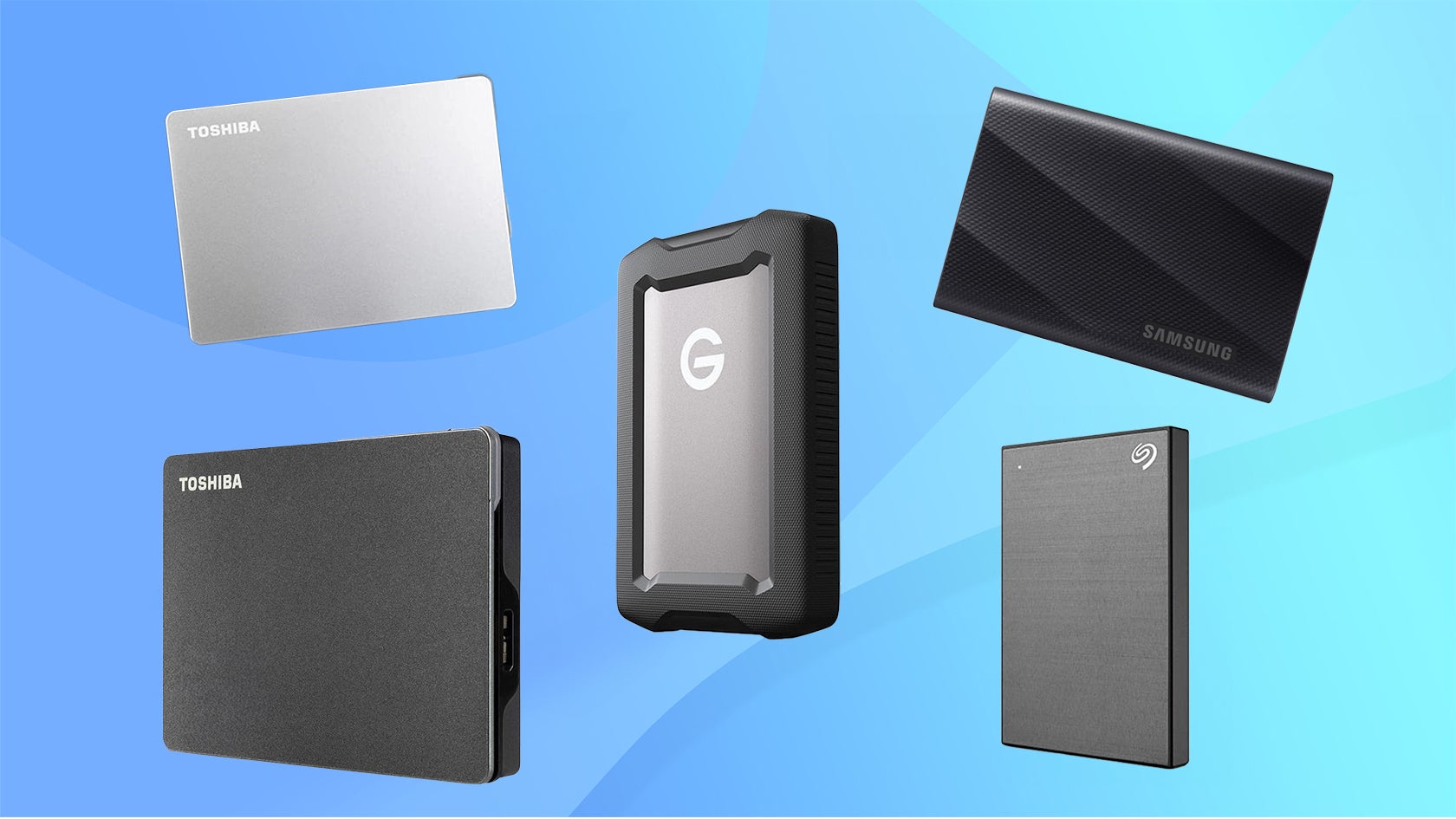
How to Test a Hard Disk External: A Comprehensive Guide
As technology advances, external hard drives have become an essential tool for storing and transferring large amounts of data. However, like any other electronic device, they can be prone to errors and damage. In this article, we will explore the best ways to test a hard disk external on both Windows and Mac operating systems.
Why Test Your Hard Disk External?
Before you start using your external hard drive, it’s essential to ensure that it’s in good working condition. A damaged or faulty hard drive can cause data loss, corruption, or even physical damage to your computer. Testing your hard disk external can help identify potential issues before they become major problems.
Testing a Hard Disk External on Windows
If you’re using a Windows operating system, there are several tools available to test your hard disk external. Here are some of the most popular ones:
1. Control Disc
The first tool we recommend is Control Disc, which is an evolution of the classic ScanDisk utility included with Windows. This free software allows you to check the integrity of your external hard drive and repair any errors that might be preventing it from functioning correctly.
How to Use Control Disc:
- Open the File Explorer and navigate to the “This PC” section.
- Select the icon for your external hard drive (the yellow folder).
- Right-click on the external hard drive and choose “Properties.”
- In the Properties window, select the “Tools” tab.
- Click on the “Check” button under the “Error checking” section.
- Follow the prompts to complete the analysis.
2. Chkdsk
The second tool we recommend is CHKDSK (Check Disk), a built-in Windows utility that can help identify and repair errors on your external hard drive.
How to Use Chkdsk:
- Open the Command Prompt as an administrator.
- Type “chkdsk C:” (Replace “C” with the letter assigned to your external hard drive).
- Press Enter to start the analysis.
3. Crystaldisk
CrystalDisk is a free software that allows you to test the S.M.A.R.T. Parameters of your external hard drive and predict potential issues before they become major problems.
How to Use Crystaldisk:
- Download and install CrystalDisk from its official website.
- Launch the application and select your external hard drive from the menu.
- Click on the “Info” button to view the S.M.A.R.T. Parameters and any errors that might be present.
4. HD Tune
HD Tune is a free software that allows you to test the speed, capacity, and error rate of your external hard drive.
How to Use HD Tune:
- Download and install HD Tune from its official website.
- Launch the application and select your external hard drive from the menu.
- Click on the “Bench” button to run a speed test.
5. Hdd Health
HDD Health is another free software that allows you to test the health of your external hard drive.
How to Use Hdd Health:
- Download and install HDD Health from its official website.
- Launch the application and select your external hard drive from the menu.
- Click on the “Info” button to view the health status and any errors that might be present.
Testing a Hard Disk External on Mac
If you’re using a Mac operating system, there are several tools available to test your hard disk external. Here are some of the most popular ones:
1. Utility Disc
The first tool we recommend is Utility Disc, which is a built-in macOS utility that allows you to check the integrity of your external hard drive and repair any errors that might be preventing it from functioning correctly.
How to Use Utility Disc:
- Launch the Launchpad.
- Select the icon for Utility Disc (the folder with the hard disk).
- Click on the “Continue” button to start the analysis.
2. Terminal
The second tool we recommend is the Terminal, a built-in macOS utility that allows you to run commands and scripts to test your external hard drive.
How to Use Terminal:
- Launch the Launchpad.
- Select the icon for Terminal (the black window with code).
- Type “diskutil verifyvolume /Volumes/name” (replace “name” with the name of your external hard drive).
- Press Enter to start the analysis.
3. Smartreporter
SMARTReporter is a free software that allows you to test the S.M.A.R.T. Parameters of your external hard drive and predict potential issues before they become major problems.
How to Use Smartreporter:
- Download and install SMARTReporter from its official website.
- Launch the application and select your external hard drive from the menu.
- Click on the “Status” button to view the S.M.A.R.T. Parameters and any errors that might be present.
4. Blackmagic Disk Speed Test
Blackmagic Disk Speed Test is a free software that allows you to test the speed, capacity, and error rate of your external hard drive.
How to Use Blackmagic Disk Speed Test:
- Download and install Blackmagic Disk Speed Test from its official website.
- Launch the application and select your external hard drive from the menu.
- Click on the “Start” button to run a speed test.
5. Drivedx
DriveDx is another free software that allows you to test the health of your external hard drive.
How to Use Drivedx:
- Download and install DriveDx from its official website.
- Launch the application and select your external hard drive from the menu.
- Click on the “Info” button to view the health status and any errors that might be present.
6. Drive Genius
Drive Genius is a free software that allows you to test the speed, capacity, and error rate of your external hard drive.
How to Use Drive Genius:
- Download and install Drive Genius from its official website.
- Launch the application and select your external hard drive from the menu.
- Click on the “Bench” button to run a speed test.
In conclusion, testing your hard disk external is an essential step in ensuring that it’s in good working condition. By using the tools recommended above, you can identify potential issues before they become major problems and prevent data loss or corruption.
Faqs
- Q: What Are Some Common Issues With External Hard Drives?
A: Some common issues include data loss, corruption, physical damage, and compatibility problems. - Q: How Often Should I Test my External Hard Drive?
A: We recommend testing your external hard drive every 6-12 months or whenever you notice any unusual behavior. - Q: Can I Use The Same Tools to Test Multiple External Hard Drives at Once?
A: Yes, most of the tools recommended above can be used to test multiple external hard drives simultaneously.
Best Practices
- Always back up your data before testing your external hard drive.
- Use a reputable tool to test your external hard drive.
- Regularly update your operating system and software to ensure compatibility.
- Avoid physical damage to your external hard drive by handling it with care.
- Keep multiple copies of your data in different locations.
Recommended Tools
- Control Disc (Windows)
- CHKDSK (Windows)
- CrystalDisk (Windows)
- HD Tune (Windows)
- HDD Health (Windows)
- Utility Disc (Mac)
- Terminal (Mac)
- SMARTReporter (Mac)
- Blackmagic Disk Speed Test (Mac)
- DriveDx (Mac)
Remember to always follow best practices and recommended tools when testing your external hard drive.


