
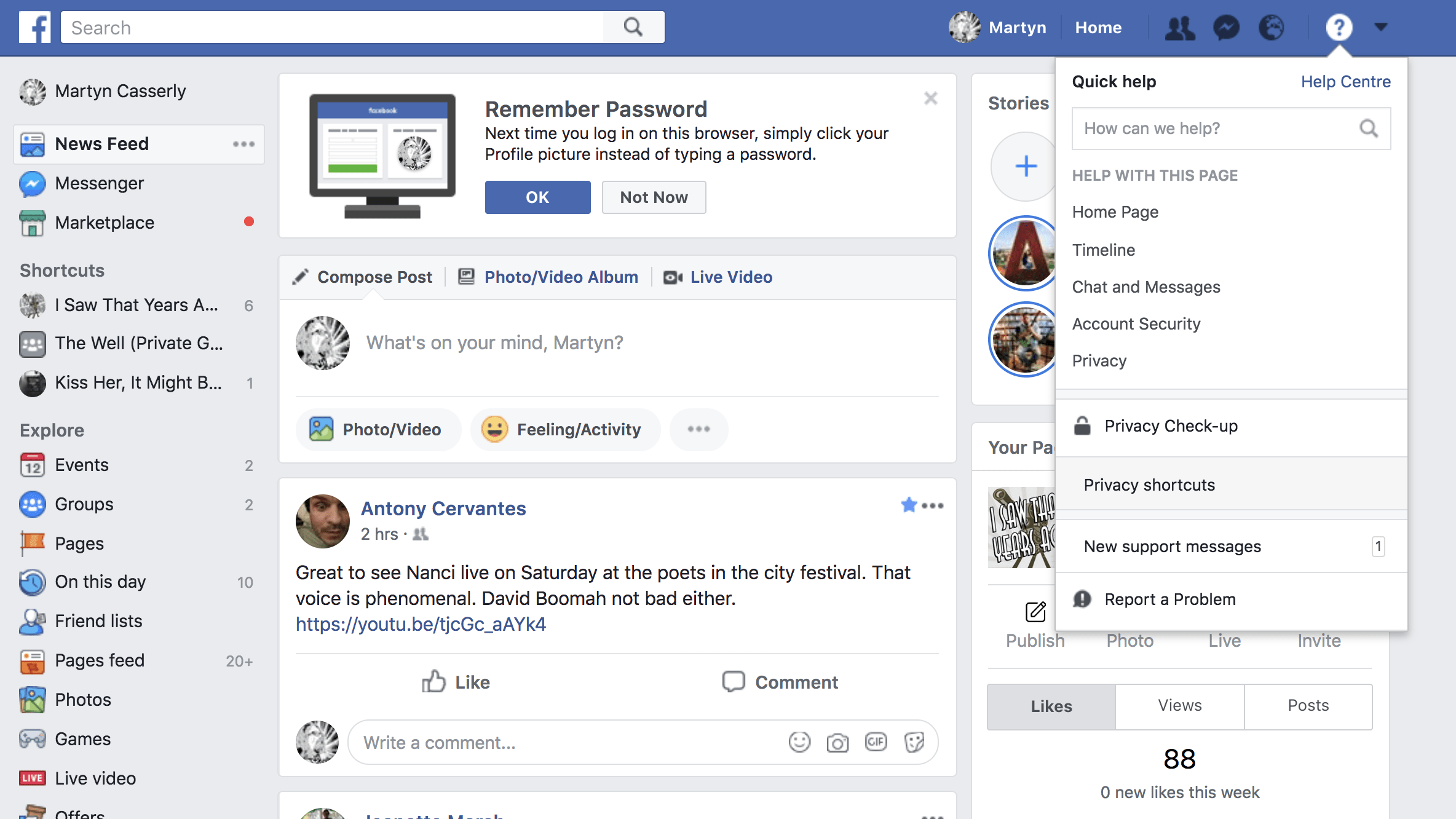
Blocking a Person on Facebook: A Step-by-step Guide
Have you had enough of seeing annoying content shared by a particular “friend” on Facebook? Or perhaps you’ve sent them some lovely messages, but they just won’t take the hint? Whatever your reason, blocking someone on Facebook can be a great way to maintain your online sanity. In this article, we’ll show you how to block a person on Facebook, both from a desktop computer and mobile device.
What Happens When You Block Someone on Facebook?
Before we dive into the step-by-step guide, it’s essential to understand what happens when you block someone on Facebook. When you block a user, their profile will no longer be visible to you, and they won’t be able to:
- See your posts or updates
- Send you messages (via Messenger or comments)
- Tag you in posts or photos
- Find you through the “People You May Know” feature
Additionally, if the blocked person was a friend of yours on Facebook, their friendship will automatically be removed.
Blocking Someone on Facebook From a Desktop Computer
To block someone on Facebook from your desktop computer:
- Log in to your Facebook account and navigate to the profile of the person you want to block.
- Click on the three dots at the top right corner of the profile picture.
- Select “Block [Name]” from the dropdown menu.
- Confirm that you want to block the user by clicking “Block” again.
Alternatively, you can access the block feature through your account settings:
- Click on the arrow at the top right corner of Facebook and select “Settings.”
- Scroll down to the “Blocking” section and click “Edit.”
- Enter the name of the person you want to block in the “Block users” field.
- Click “Save Changes.”
Blocking Someone on Facebook From a Mobile Device
To block someone on Facebook from your mobile device:
- Open the Facebook app and navigate to the profile of the person you want to block.
- Tap on the three dots at the top right corner of the profile picture.
- Select “Block [Name]” from the dropdown menu.
- Confirm that you want to block the user by tapping “Block” again.
Alternatively, you can access the block feature through your account settings:
- Open the Facebook app and navigate to your profile.
- Tap on the three dots at the top right corner of your profile picture.
- Select “Settings.”
- Scroll down to the “Blocking” section and tap on “Edit.”
- Enter the name of the person you want to block in the “Block users” field.
- Tap “Save Changes.”
What Happens If You’ve Already Blocked Someone?
If you’ve already blocked someone, but you’re not sure if they’ve been unblocked or not, don’t worry! You can check by searching for their name on Facebook.
- If you find their profile, it means they’ve been unblocked.
- If you don’t find their profile, it means they’re still blocked.
Blocking Someone on Messenger
Unfortunately, it’s not possible to block someone on Messenger but not on Facebook. When you block someone on Facebook, it automatically blocks them on Messenger as well.
However, if you want to block someone on Messenger without blocking them on Facebook, you can follow the instructions in our separate article on how to block someone on Messenger.
Blocking Someone Before 48 Hours
If you’ve already blocked someone and they’ve been unblocked within the past 48 hours, you won’t be able to block them again until the 48-hour window has passed. This is a security feature designed to prevent harassment and abuse.
In this case, you’ll see a message saying “Try again later” when you try to block the user. Just wait for 48 hours, and you should be able to block them again.
Conclusion
Blocking someone on Facebook can be a great way to maintain your online sanity, but it’s essential to understand what happens when you do so. By following these step-by-step guides, you’ll be able to block unwanted users from your profile, both from desktop computers and mobile devices.
We hope this article has been helpful in answering any questions you may have had about blocking someone on Facebook.
Frequently Asked Questions (FAQs)
- What Happens When I Block Someone on Facebook?
When you block someone on Facebook, their profile will no longer be visible to you, and they won’t be able to send you messages or tag you in posts. - Can I Block Someone on Messenger But Not on Facebook?
No, it’s not possible to block someone on Messenger but not on Facebook. When you block someone on Facebook, it automatically blocks them on Messenger as well. - How do I Unblock Someone on Facebook?
To unblock someone on Facebook, go to the “Blocking” section of your account settings and select “Unblock [Name]”. - What Happens if I’ve Already Blocked Someone And They’ve Been Unblocked Within 48 Hours?
If you’ve already blocked someone and they’ve been unblocked within the past 48 hours, you won’t be able to block them again until the 48-hour window has passed. - Can I See a List of People I’ve Blocked on Facebook?
Yes, you can access a list of people you’ve blocked by going to the “Blocking” section of your account settings. - How do I Know if Someone Has Been Unblocked?
If someone has been unblocked, their profile will reappear in your search results, and they’ll be able to send you messages again. - Can I Block a Person on Facebook Without Them Knowing?
Yes, blocking someone on Facebook is a private action, and the blocked user won’t receive any notifications or alerts. - What Are The Consequences of Blocking Someone on Facebook?
Blocking someone on Facebook can lead to the removal of your friendship, and you may not be able to see their posts or updates anymore.
We hope this article has been helpful in answering any questions you may have had about blocking someone on Facebook!


