
Unlocking The Power of Safari: A Comprehensive Guide to Plugins And Extensions
Are you looking to take your browsing experience on Safari to the next level? Do you want to know how to install and utilize plugins and extensions on your Mac or iOS device? Look no further! In this article, we will delve into the world of Safari plugins and extensions, exploring their differences, benefits, and step-by-step guides on how to install and use them.
Understanding Plugins And Extensions
Before we dive into the nitty-gritty, let’s clarify the difference between plugins and extensions. Plugins are external programs that are called upon by the browser to display specific content (e.G., Adobe Flash Player). On the other hand, Extensions are components that integrate directly into the browser, enhancing its functionality with additional features.
The Decline of Plugins
Plugins, once a staple in the browsing world, have largely fallen out of favor due to security concerns and the rise of HTML5 technology. Most modern websites can function without plugins, making them redundant in many cases.
Why You Should Use Extensions Instead
Extensions, however, remain a valuable asset for enhancing your browsing experience. With thousands of extensions available, you can customize Safari to suit your needs, from blocking unwanted content to accessing online services and more!
Installing Plugins on Mac
To install plugins on your Mac, follow these steps:
- Ensure the plugin software is installed on your computer.
- Download the plugin installer from the official website.
- Install the plugin using the guided procedure.
Activating Plugins in Safari
Once you’ve installed a plugin, follow these steps to activate it:
- Open Safari and navigate to the webpage that requires the plugin.
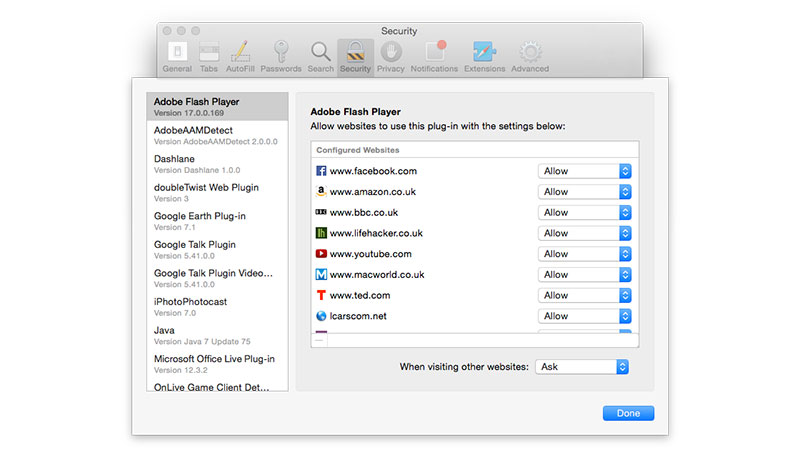
- Go to Preferences > Websites and select the plugin name from the sidebar.
- Check the box next to the plugin name to enable it.
Note: Be cautious when enabling plugins on specific websites, as they can pose security risks if not used judiciously.
Installing Extensions on Mac
To install extensions on your Mac:
- Open Safari and navigate to the Extensions tab in Preferences.
- Find the extension you want to install and click “Get” or “Install.”
- Follow the guided procedure to complete the installation.
Activating Extensions in Safari
Once installed, follow these steps to activate an extension:
- Open Safari and navigate to the webpage that requires the extension.
- Go to Preferences > Extensions and find the extension you want to enable.
- Check the box next to the extension name to activate it.
Extensions on Ios/ipados
IOS and iPadOS devices do not support plugins, nor are extensions directly supported in Safari. However, some apps can be used in conjunction with Safari to enhance your browsing experience (e.G., Using Pocket to save articles).
Installing Apps For Enhanced Browsing
Some apps can be used in combination with Safari on iOS/iPadOS:
- Open Safari and navigate to the webpage you want to interact with.
- Access the app from the sharing menu and select it.
- The app will launch, and you can use its features.
Conclusion
In this comprehensive guide, we’ve explored the world of Safari plugins and extensions, highlighting their differences, benefits, and step-by-step guides on how to install and use them. Whether you’re looking to enhance your browsing experience or access specific features, extensions remain a valuable asset for Mac users. For iOS/iPadOS users, while there are no native extensions, some apps can be used in combination with Safari to provide a similar level of customization.
Faqs
- What’s The Difference Between Plugins And Extensions?
Plugins are external programs that display specific content (e.G., Adobe Flash Player), whereas extensions integrate directly into the browser, enhancing its functionality. - Why Have Plugins Fallen Out of Favor?
Security concerns and the rise of HTML5 technology have made plugins redundant in many cases. - How do I Install Extensions on my Mac?
Open Safari, navigate to Preferences > Extensions, find the extension you want to install, and click “Get” or “Install.” - Can I Use Extensions on Ios/ipados Devices?
No, iOS and iPadOS devices do not support plugins or direct extension support in Safari. - What Can I Use Instead of Extensions on Ios/ipados?
Some apps can be used in combination with Safari to provide a similar level of customization. - How do I Activate an Extension in Safari?
Open Safari, navigate to Preferences > Extensions, find the extension you want to enable, and check the box next to its name. - Are There Any Risks Associated With Enabling Plugins or Extensions?
Yes, be cautious when enabling plugins on specific websites, as they can pose security risks if not used judiciously. - How do I Find Extensions For Safari?
Search online or visit the App Store to find suitable extensions for your needs.


