
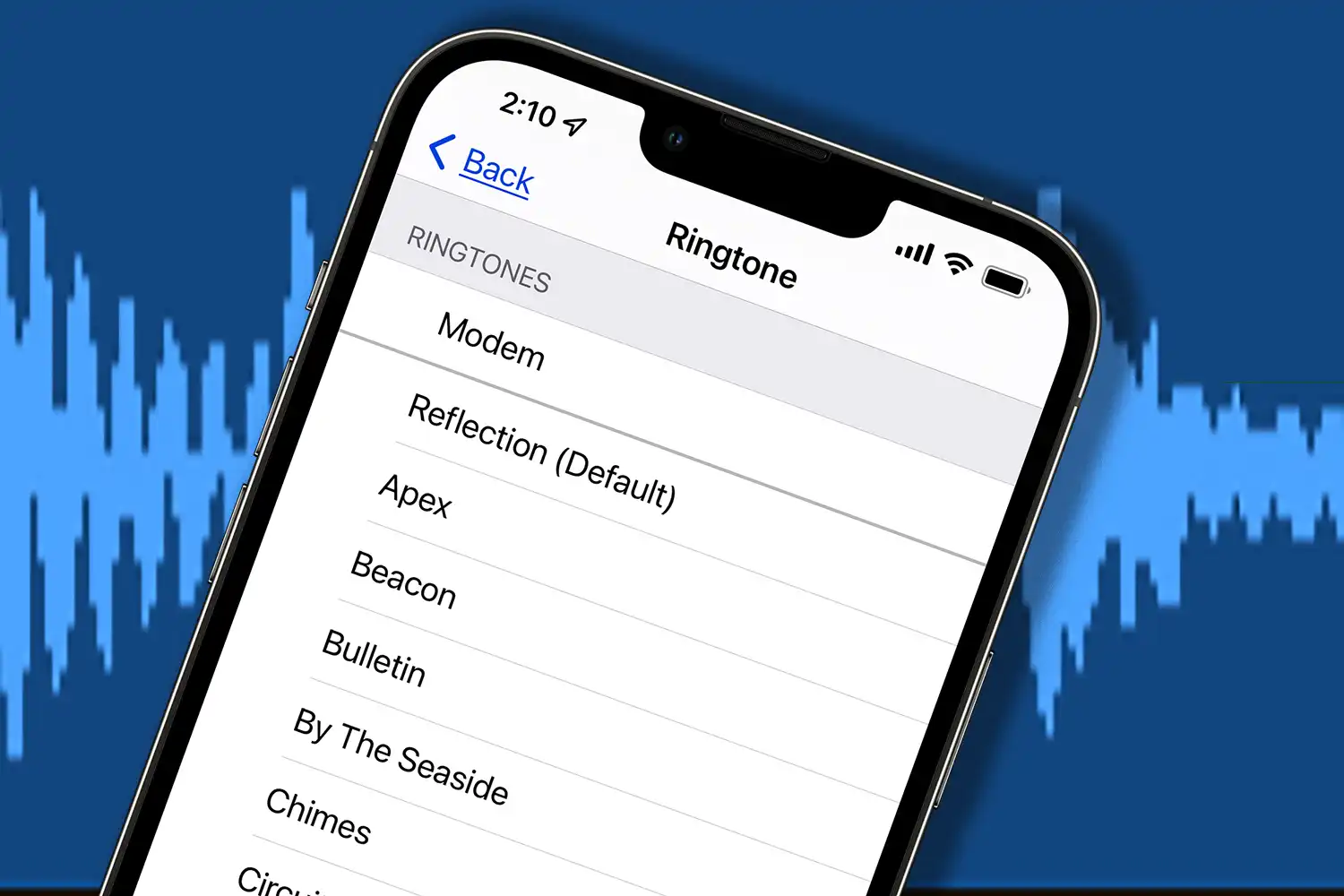
How to Create Custom Ringtones For Your Smartphone
Are you tired of using the same old default ringtones on your smartphone? Do you want to personalize your phone with unique tones that reflect your personality? Look no further! In this article, we’ll guide you through the process of creating custom ringtones for your Android or iOS device.
Why Create Custom Ringtones?
Creating custom ringtones is a great way to express yourself and make your phone stand out. With a vast array of music available at our fingertips, it’s easy to find a song that resonates with you. But did you know that you can also create a ringtone from a specific part of your favorite song? That’s right! By extracting the perfect snippet, you can turn any song into a unique and memorable ringtone.
Methods For Creating Custom Ringtones
There are several methods to create custom ringtones, depending on your device and preferred software. Let’s explore each method in detail:
Method 1: Using Ringtone Maker (Android)
If you’re an Android user, you can use the Ringtone Maker app to create custom ringtones. This free app is available for download from the Play Store and offers a user-friendly interface.
- Download and install the Ringtone Maker app on your device.
- Launch the app and select the file audio you want to transform into a ringtone.
- Trim the selected part of the song using the visual editor or by entering specific timecodes.
- Preview and adjust the trimmed portion as needed.
- Save the new ringtone, which can then be set as your default or assigned to a specific contact.
Method 2: Using Garageband (iOS/iPadOS)
For iOS users, GarageBand is an excellent app for creating custom ringtones. This free music editing software comes preinstalled on your device and allows you to create and modify audio files.
- Launch GarageBand and tap the (+) button to start a new project.
- Select the keyboard as the instrument and choose the file audio you want to use for your ringtone.
- Import the selected file into GarageBand and trim it using the visual editor or by entering specific timecodes.
- Preview and adjust the trimmed portion as needed.
- Export the final ringtone in the desired format (e.G., .M4r) and set it as your default or assign it to a specific contact.
Method 3: Using Audacity (Windows/macOS/Linux)
Audacity is a free, open-source audio editing software available for Windows, macOS, and Linux. It’s an excellent choice for creating custom ringtones on PC or Mac.
- Download and install Audacity on your device.
- Launch Audacity and select the file audio you want to transform into a ringtone.
- Trim the selected part of the song using the visual editor or by entering specific timecodes.
- Preview and adjust the trimmed portion as needed.
- Export the final ringtone in the desired format (e.G., .Mp3) and set it as your default or assign it to a specific contact.
Other Methods
There are other software solutions available for creating custom ringtones, such as:
- ITunes/Music (Windows/macOS): You can create custom ringtones using iTunes 12.7 Or later versions.
- Mp3DirectCut (Windows): A free audio editing software specifically designed for Windows.
- GarageBand (macOS): The macOS counterpart of the iOS app, perfect for creating custom ringtones on your Mac.
Online Services
You can also use online services to create custom ringtones. Some popular options include:
- Cut audio of 123apps: A free online service that allows you to trim and edit audio files.
- BearAudio: An online audio editor with a user-friendly interface, perfect for creating custom ringtones.
- Audio Trimmer: Another online service that enables you to cut and edit audio files.
How to Set Up Your Custom Ringtones
Once you’ve created your custom ringtone, follow these steps to set it up on your device:
- Save the new ringtone in the desired format (e.G., .Mp3 or .M4r).
- Go to your phone’s settings and navigate to the “Sounds” or “Ringtones” section.
- Select the custom ringtone you created as your default ringtone, or assign it to a specific contact.
Conclusion
Creating custom ringtones is an easy and fun process that can elevate your phone experience. With these methods and software solutions, you can personalize your device with unique tones that reflect your personality. Whether you’re an Android or iOS user, there’s a method for everyone. So go ahead, get creative, and show off your customized ringtone!
Frequently Asked Questions (FAQs)
- Q: Can I Create Custom Ringtones on my PC or Mac?
A: Yes! You can use software like Audacity, GarageBand, or mp3DirectCut to create custom ringtones on Windows, macOS, or Linux. - Q: Are There Any Online Services That Allow me to Create Custom Ringtones?
A: Yes! Services like Cut audio of 123apps, BearAudio, and Audio Trimmer enable you to create custom ringtones directly from the browser. - Q: How do I Set up my Custom Ringtone on my Device?
A: Simply save your new ringtone in the desired format, go to your phone’s settings, navigate to the “Sounds” or “Ringtones” section, and select the custom ringtone as your default or assign it to a specific contact. - Q: Can I Use Any Song For my Custom Ringtone?
A: Yes! As long as you have permission to use the song, you can create a custom ringtone from it. - Q: Are There Any Limitations on The Duration of Custom Ringtones?
A: Yes! Most services and software have a maximum limit of 40 seconds for custom ringtones.
I hope this article has been helpful in showing you how to create custom ringtones for your smartphone. Happy creating!


