
How to Delete Unwanted Apps on Android: A Step-by-step Guide
Are you tired of having too many apps on your Android device, taking up space and consuming resources? Do you want to declutter your phone and tablet, but don’t know where to start? Look no further! In this article, we’ll guide you through the process of deleting unwanted apps on Android.
Why Delete Unwanted Apps on Android?
Before we dive into the step-by-step guide, let’s talk about why deleting unwanted apps is a good idea. Having too many apps on your device can lead to:
- Space issues: Unused apps take up space on your device, making it slower and less responsive.
- Resource consumption: Running unnecessary apps in the background can consume battery life and resources.
- Security risks: Leaving unused apps installed can make your device vulnerable to security threats.
How to Delete Apps on Android: Standard Procedure
Deleting apps on Android is a straightforward process. Here’s how to do it:
- Access The Home Screen: Start by accessing the home screen of your device.
- Open Settings: Tap on the gear icon (Settings) in the top-right corner.
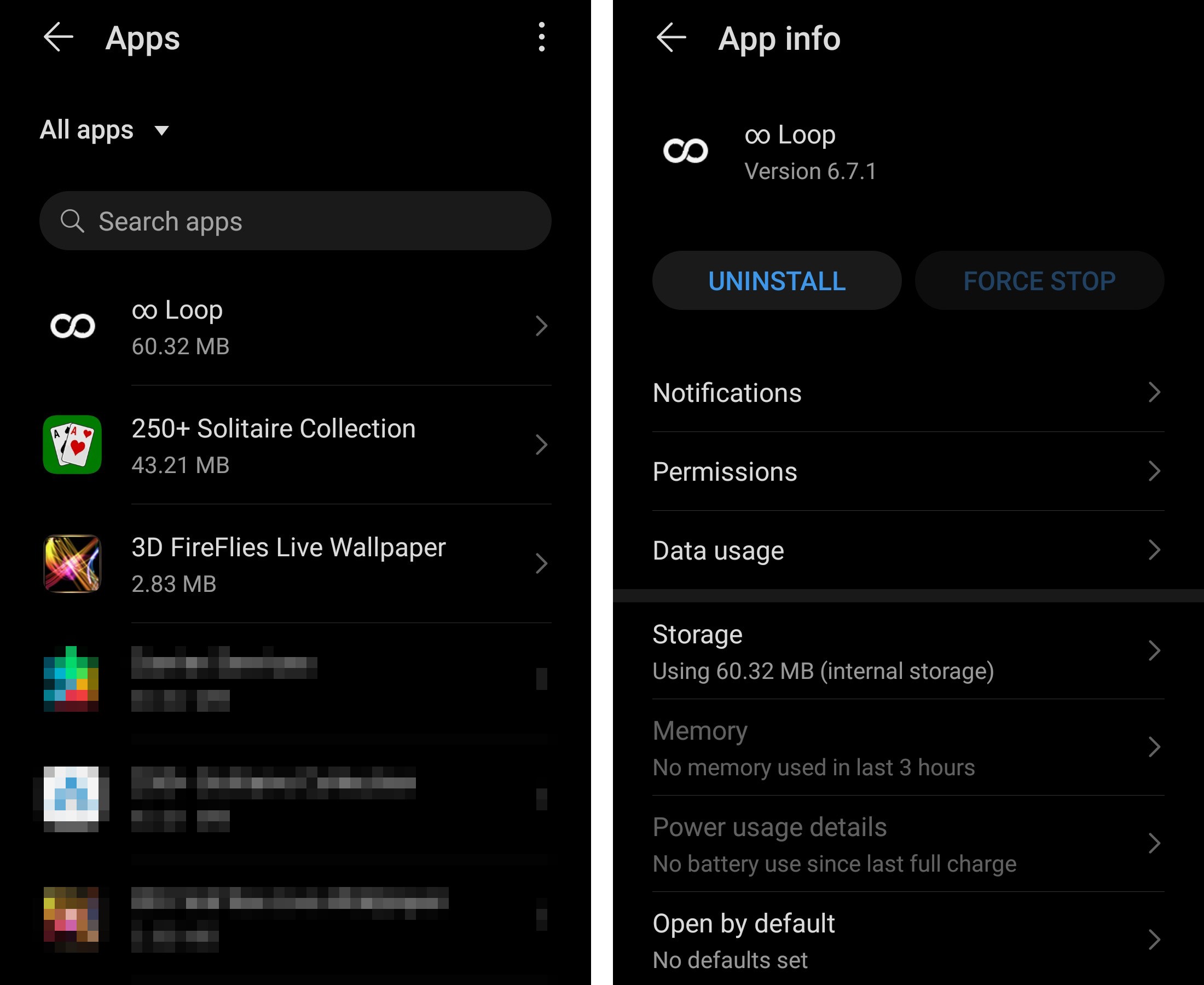
- Select Applications And Notifications/manage Apps: Scroll down and select “Applications and notifications” or “Manage apps.”
- See All And [Number] of Applications: Tap on the “See all” option, followed by the number of installed apps.
- Find The App to Delete: Browse through the list of installed apps and find the one you want to delete.
- Tap Uninstall: Tap the “Uninstall” button next to the app’s name.
- Confirm Deletion: Confirm that you want to uninstall the app by tapping “OK.”
How to Delete Pre-installed Apps on Android
Some apps are pre-installed on your device, and deleting them might cause system instability or other issues. To delete pre-installed apps safely:
- Download System App Remover: Download the System App Remover app from the Play Store.
- Grant Root Access: Grant the app root access to function correctly.
- Access The App’s Menu: Open the System App Remover app and select the menu icon (three horizontal lines).
- Find The Pre-installed App: Browse through the list of installed apps and find the pre-installed app you want to delete.
- Select Uninstall: Select the “Uninstall” option next to the app’s name.
- Confirm Deletion: Confirm that you want to uninstall the app by tapping “OK.”
How to Delete Suggested Apps on Android
If you don’t like the suggested apps on your device, you can disable them:
- Access The Home Screen: Start by accessing the home screen of your device.
- Tap And Hold The Home Button: Tap and hold the home button (or tap and hold the recent apps key).
- Select Settings: Select “Settings” from the menu options.
- Disable Suggested Apps: Toggle off the switch next to “Suggested apps.”
How to Delete Apps in Background on Android
If you notice that your device is consuming battery life or resources, it might be due to unnecessary apps running in the background:
- Access The Multitasking Screen: Access the multitasking screen by tapping and holding the home button (or tap and hold the recent apps key).
- Find The App: Browse through the list of running apps and find the one you want to close.
- Tap The Close Button: Tap the close button next to the app’s name.
- Repeat For Multiple Apps: Repeat this process for multiple apps.
How to Delete Duplicate Apps on Android
If you notice that your device has duplicate apps, it might be due to a synchronization issue or other problems:
- Access The Multitasking Screen: Access the multitasking screen by tapping and holding the home button (or tap and hold the recent apps key).
- Find The Duplicate App: Browse through the list of running apps and find the duplicate app.
- Tap The Close Button: Tap the close button next to the app’s name.
- Repeat For Multiple Apps: Repeat this process for multiple apps.
In conclusion, deleting unwanted apps on Android is a simple process that can help declutter your device, save space, and improve performance. By following these steps, you can safely remove unnecessary apps and keep your device running smoothly.
Q: Can I Delete Pre-installed Apps?
A: Yes, but be cautious as deleting some pre-installed apps might cause system instability or other issues.
Q: How do I Disable Suggested Apps on Android?
A: To disable suggested apps on Android, go to Settings > Home > toggle off the switch next to “Suggested apps.”
Q: Can I Close Apps in Background Without Deleting Them?
A: Yes, you can close apps running in the background without deleting them by accessing the multitasking screen and tapping the close button.
By following these steps and tips, you’ll be able to delete unwanted apps on Android with ease!


