
How to Remove Sounds on Facebook: A Step-by-step Guide
Are you tired of being bombarded by annoying sounds every time you interact with Facebook? Look no further! In this article, we’ll show you how to remove sounds on Facebook across various devices.
Why Remove Sounds on Facebook?
Before we dive into the nitty-gritty of removing sounds on Facebook, let’s first understand why you might want to do so. Perhaps you’re in a meeting or in a quiet space and don’t want to disturb others with the loud notifications. Or maybe you simply prefer to enjoy your online experience without the constant din.
Whatever your reason, we’ve got you covered!
Removing Sounds on Facebook: Android
If you’re using an Android device, follow these simple steps to remove sounds on Facebook:
- Open the Facebook app and tap on the Menu button (represented by three horizontal lines).
- Scroll down and select “Settings & Account”.
- Tap on “Preferences” and then choose “Multimedia Settings”.
- Turn off the “Sounds in the App” switch.
- Additionally, you can also disable video playback with audio by turning off the “Videos start with audio” option.
Removing Sounds on Facebook: Iphone
If you’re using an iPhone or iPad, follow these steps to remove sounds on Facebook:
- Open the Facebook app and tap on the Menu button (represented by three horizontal lines).
- Scroll down and select “Settings & Account”.
- Tap on “Preferences” and then choose “Multimedia Settings”.
- Turn off the “Sounds in the App” switch.
- Additionally, you can also disable video playback with audio by turning off the “Videos start with audio” option.
Removing Sounds on Facebook: Computer
If you’re using a computer to access Facebook, follow these steps to remove sounds:
- Log in to your Facebook account and click on the notification icon (represented by three dots).
- Click on “Settings”.
- Select “Notifications”.
- Turn off the “Sounds for messages” option.
- Note that you can only disable sounds for new messages, not for calls.
Removing Sounds Notifications on Facebook
If your intention is solely to remove sound notifications from Facebook, follow these steps:
- Open the Facebook app and tap on the Menu button (represented by three horizontal lines).
- Scroll down and select “Settings & Account”.
- Tap on “Notifications” and then choose “Where get notifications”.
- Turn off the “Push” option.
Removing Sounds on Facebook: Additional Tips
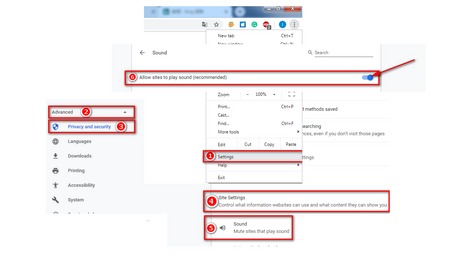
If you’re using a computer to access Facebook, you can also disable sounds by going to your browser settings (e.G., Google Chrome) and turning off audio for specific websites.
Conclusion
Removing sounds on Facebook is a straightforward process that can be accomplished across various devices. By following these simple steps, you’ll be able to enjoy a quieter online experience without disturbing others. Remember, it’s always essential to respect the people around you, especially in quiet or shared spaces!
Frequently Asked Questions (FAQs)
Q: How do I remove sounds on Facebook?
A: You can remove sounds on Facebook by following the steps outlined above for Android, iPhone, and computer devices.
Q: Why would I want to remove sounds on Facebook?
A: Perhaps you’re in a meeting or quiet space, or maybe you simply prefer to enjoy your online experience without the constant din.
Q: Can I disable video playback with audio on Facebook?
A: Yes! On both Android and iPhone devices, you can turn off video playback with audio by following the steps outlined above.
Q: How do I remove sounds for calls on Facebook?
A: Unfortunately, removing sounds for calls is a more complex process that may require additional assistance from Facebook’s support team.
Q: Can I disable sounds for messages only?
A: Yes! On computer devices, you can turn off sounds for new messages by following the steps outlined above.
Q: How do I remove sounds on Facebook without affecting my notifications?
A: You can remove sounds on Facebook while still receiving notifications by turning off the “Push” option in your Facebook settings.


