
The Ultimate Guide to Creating Copies of Backup: A Comprehensive Tutorial
Are you tired of worrying about losing your important data? Do you want to ensure that your files, photos, and settings are safe in case something goes wrong with your device? Look no further! In this article, we will guide you through the process of creating copies of backup for all your devices, including Windows, Mac, Android, and iOS.
Why Create Copies of Backup?
Creating a copy of backup is essential to prevent data loss due to hardware failure, software corruption, or human error. With a backup in place, you can restore your files, settings, and operating system with ease, minimizing the risk of losing important information.
How to Create Copies of Backup: Windows
If you’re using a Windows device, creating copies of backup is relatively straightforward. You can use Microsoft OneDrive to store your files online, which will allow you to access them from any device connected to the same account. Here’s how:
- Sign up for a free Microsoft account, which includes 5 GB of storage space.
- Download and install the OneDrive app on your Windows device.
- Configure OneDrive to sync with your Microsoft account by going to Settings > Account > Backup.
- Choose which folders you want to include in your backup and select the option to initiate the backup process.
How to Create Copies of Backup: Mac
If you’re using a Mac, creating copies of backup is just as easy. You can use iCloud Drive to store your files online, which will allow you to access them from any device connected to the same account. Here’s how:
- Sign up for a free Apple ID and enable iCloud Drive on your Mac.
- Go to System Preferences > iCloud > Options and select the folders you want to include in your backup.
- Choose the option to initiate the backup process.
How to Create Copies of Backup: Android
If you’re using an Android device, creating copies of backup is also straightforward. You can use Google Drive to store your files online, which will allow you to access them from any device connected to the same account. Here’s how:
- Sign up for a free Google account and enable Google Drive on your Android device.
- Go to Settings > Account > Backup and ensure that all settings are active.
- Choose the option to initiate the backup process.
How to Create Copies of Backup: Ios
If you’re using an iOS device, creating copies of backup is also easy. You can use iCloud Drive to store your files online, which will allow you to access them from any device connected to the same account. Here’s how:
- Sign up for a free Apple ID and enable iCloud Drive on your iOS device.
- Go to Settings > [Your Name] > iCloud > Options and select the folders you want to include in your backup.
- Choose the option to initiate the backup process.
How to Create Copies of Backup: A Folder
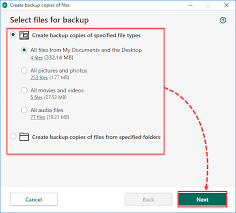
If you want to create a copy of backup for a specific folder, there are several ways to do so. You can use an external drive or cloud storage service like OneDrive or iCloud Drive to store your files online.
Here’s how:
- Connect the external drive to your device.
- Go to File Explorer (Windows) or Finder (Mac) and select the folder you want to backup.
- Right-click on the folder and choose “Copy” or use the shortcut Ctrl+C (Windows) or Command+C (Mac).
- Paste the copied folder into the external drive or cloud storage service.
How to Create Copies of Backup: The System
If you want to create a copy of backup for your entire system, there are several options available. You can use the built-in Windows Backup and Recovery feature or the Carbon Copy Cloner software on Mac.
Here’s how:
- Go to Control Panel > System and Safety > Backup and Recovery (Windows).
- Choose the option to create an image of your system.
- Select the partition where you want to store the backup and click “Next.”
- Confirm that you want to initiate the backup process.
Conclusion
Creating copies of backup is essential to ensure that your important data, files, and settings are safe in case something goes wrong with your device. By following the steps outlined in this article, you can create a copy of backup for all your devices, including Windows, Mac, Android, and iOS. Remember to regularly check and update your backups to ensure that they remain valid.
Frequently Asked Questions
- What is The Purpose of Creating a Copy of Backup?
Creating a copy of backup ensures that your important data, files, and settings are safe in case something goes wrong with your device. - How Often Should I Create a Copy of Backup?
It’s recommended to create a copy of backup regularly, such as weekly or monthly, depending on how frequently you use your device. - Can I Create a Copy of Backup For Multiple Devices at Once?
Yes, you can create a copy of backup for multiple devices using cloud storage services like OneDrive or iCloud Drive. - How do I Restore my Data From a Backup?
To restore your data from a backup, simply follow the steps outlined in the backup software or service you’re using. - Can I Use an External Drive to Create a Copy of Backup?
Yes, you can use an external drive to create a copy of backup for your files and settings. - How do I Know if my Backup is Valid?
You can check the validity of your backup by attempting to restore your data from it. If it’s not possible to restore your data, it may be a sign that your backup is invalid or incomplete. - Can I Use a Third-party Software to Create a Copy of Backup?
Yes, you can use third-party software like Carbon Copy Cloner on Mac or Backup and Recovery on Windows to create a copy of backup for your system.
I hope this article has provided you with the information you need to create copies of backup for all your devices. Remember to always back up your important data regularly to ensure that it remains safe in case something goes wrong with your device.


