
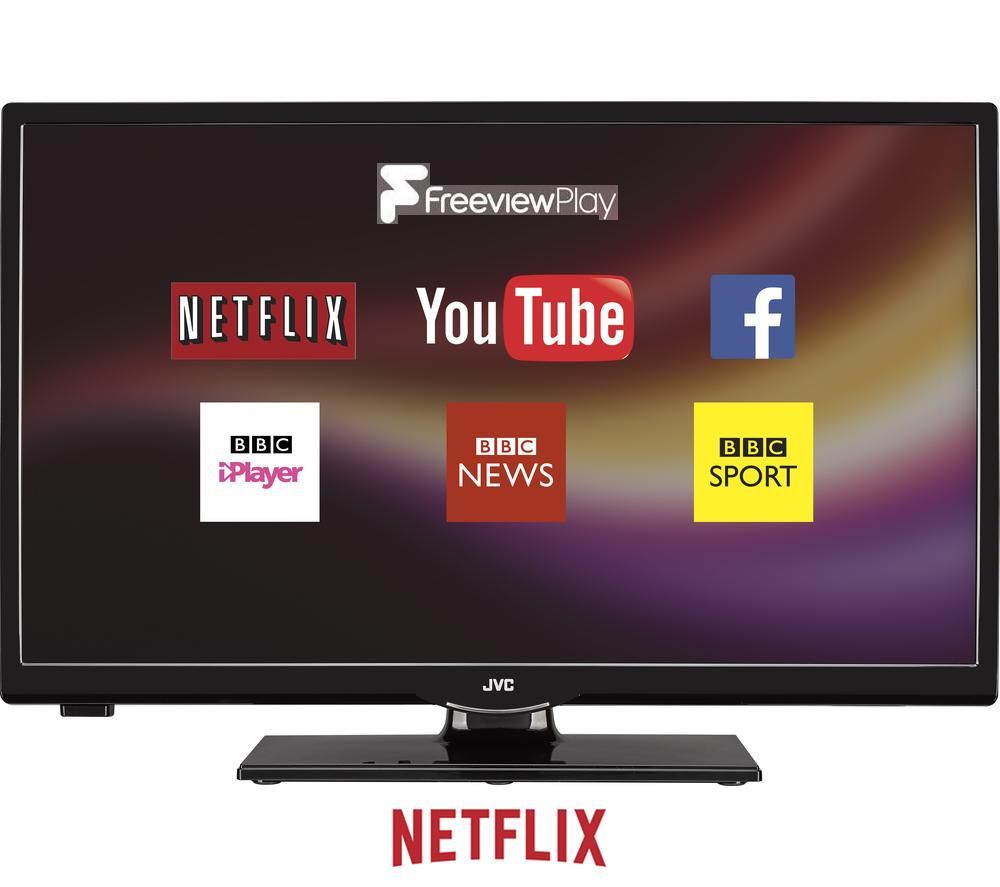
How to Reset Netflix on Your Smart Tv: A Step-by-step Guide
Are you experiencing problems with Netflix on your smart TV? Do you want to reset the application to its default settings? Look no further! In this article, we will guide you through a step-by-step process on how to reset Netflix on your smart TV, covering various TV brands and models.
Why Reset Netflix on Your Smart Tv?
Before we dive into the instructions, let’s briefly discuss why resetting Netflix might be necessary. Sometimes, the application can become glitchy or unresponsive due to temporary issues with its processes. By resetting it, you can resolve these problems and get back to enjoying your favorite shows and movies.
Standard Procedure For Resetting Netflix on Any Smart TV
- Turn Off Your Smart TV: Switch off your TV completely.
- Unplug The Power Cord: Disconnect the power cord from the electrical outlet for 3 minutes. This will allow all processes, including temporary ones, to shut down.
- Plug it Back in And Turn it on: Reconnect the power cord and switch on your smart TV.
- Restart Netflix: Go to the home screen, navigate to the Netflix icon, and select it.
How to Reset Netflix on Samsung Smart Tvs
If you’re using a Samsung smart TV and experiencing issues with Netflix, follow these steps:
- Turn Off Your TV: Switch off your Samsung TV completely.
- Unplug The Power Cord: Disconnect the power cord from the electrical outlet for 3 minutes.
- Plug it Back in And Turn it on: Reconnect the power cord and switch on your Samsung TV.
- Check if Netflix is Updated: Ensure that the Netflix application is updated to the latest version.
If not, follow these additional steps:
- Access The Settings Menu: Use the directional arrows to navigate to the Settings icon on your remote control and select it.
- Select Application Management: Choose this option from the Settings menu.
- Find Netflix And Update it: Select the Netflix app and choose the Update option.
How to Reset Netflix on LG Smart Tvs
If you’re using an LG smart TV, follow these steps:
- Turn Off Your TV: Switch off your LG TV completely.
- Unplug The Power Cord: Disconnect the power cord from the electrical outlet for 3 minutes.
- Plug it Back in And Turn it on: Reconnect the power cord and switch on your LG TV.
If not, follow these additional steps:
- Access The Settings Menu: Use the directional arrows to navigate to the Settings icon on your remote control and select it.
- Select General: Choose this option from the Settings menu.
- Select Memory Optimizer: This will help clear up any cache issues that might be affecting Netflix.
Additional Solutions For Resetting Netflix
If you’ve tried all of these steps and still can’t reset Netflix, there are a few more things you can try:
- Restart Your TV: Sometimes, simply restarting your TV can resolve the issue.
- Force The Interruption: On some smart TVs, you may be able to force close other apps to get back to the home screen and then restart Netflix.
- Clear Cache: Check if there’s a specific option for clearing the cache of individual apps or all applications on your TV.
Why Is My Smart TV Having Problems With Netflix?
There could be various reasons why your smart TV is having problems with Netflix, including:
- Outdated Software: If your TV’s operating system is outdated, it might not support the latest version of Netflix.
- Corrupted Cache: Sometimes, temporary data stored in the app can become corrupted and cause issues.
- Network Connectivity: Poor network connectivity or a weak internet connection can also lead to problems.
By following these steps and troubleshooting potential causes, you should be able to get back to watching your favorite shows on Netflix.


